Summary: This page outlines how to add a single resource into eReserve Plus as Faculty.
Note : This documentation shows how to add resources with the Enhanced Discovery feature enabled. Click here to access the legacy search documentation.
Introduction
eReserve Plus provides a comprehensive interface for adding resources to lists, allowing you to search across connected repositories, upload resources in bulk using RIS files, and request the creation of new resources for your lists.
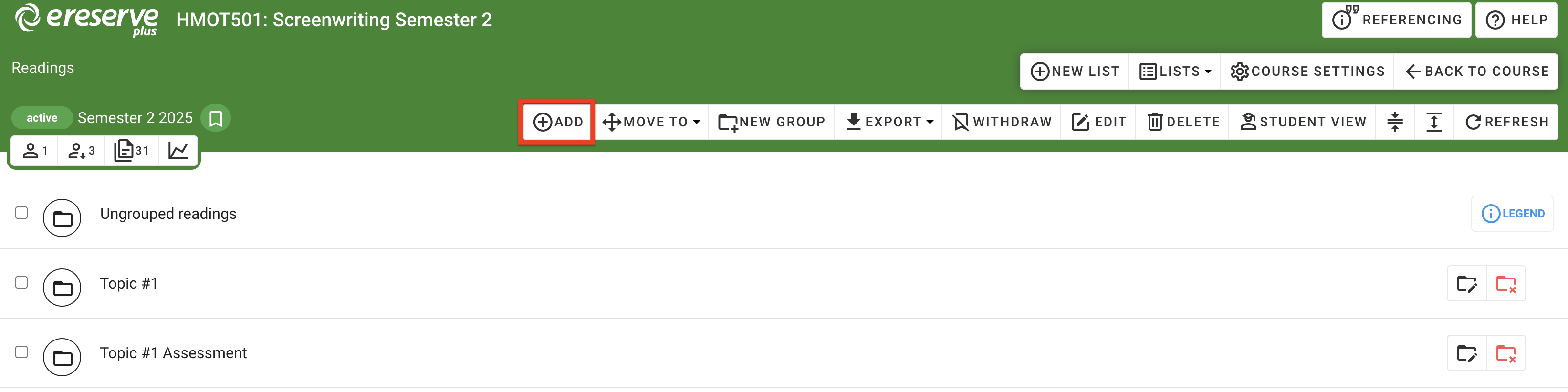
To access all of these options, navigate to your list and click the Add button on the resource list toolbar to open the resource discovery interface.
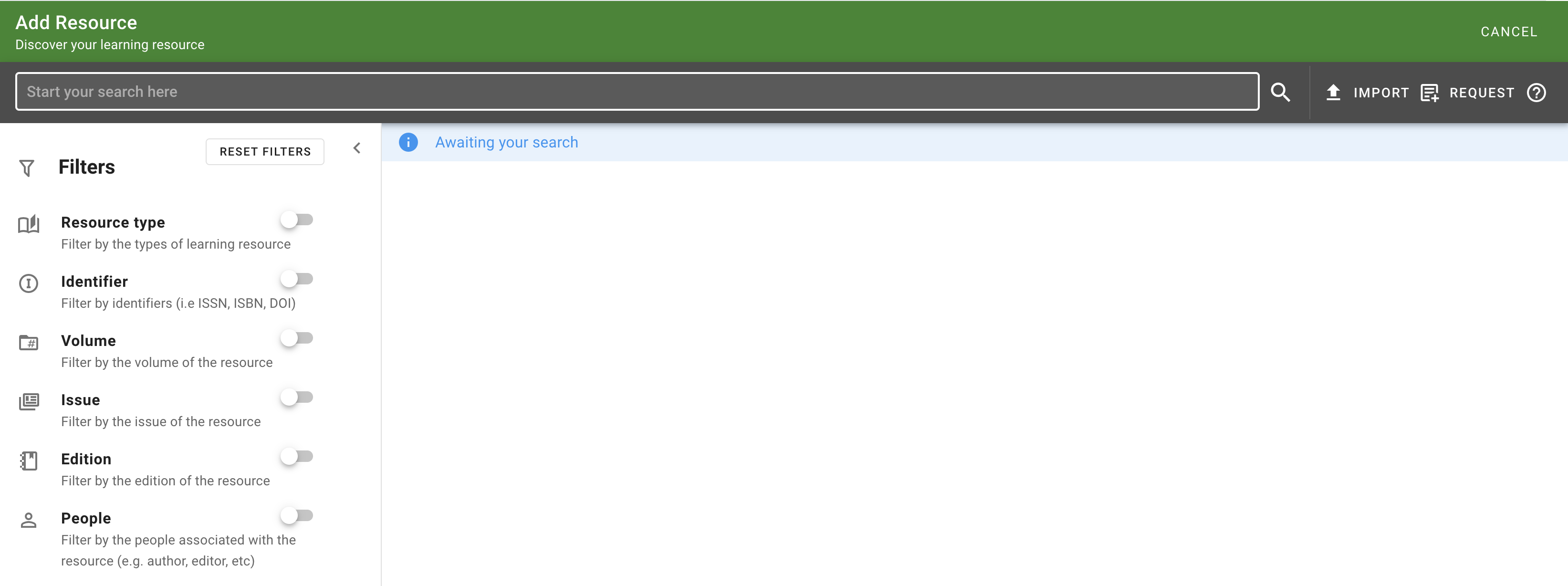
Clicking on the Add button will automatically open the enhanced discovery page, where you can begin searching for resources. From here, you can easily search for existing resources in the eReserve Plus Repository or search the library discovery for materials that the library owns or are subscribed to, which can include sources such as EBSCO EDS, Primo, Summon and OCLC Worldcat.
Figure 2 : The enhanced discovery page
To begin a search, enter your search terms into the field, then click the search icon or press the Enter key to start searching the repositories for resources that match the search terms.
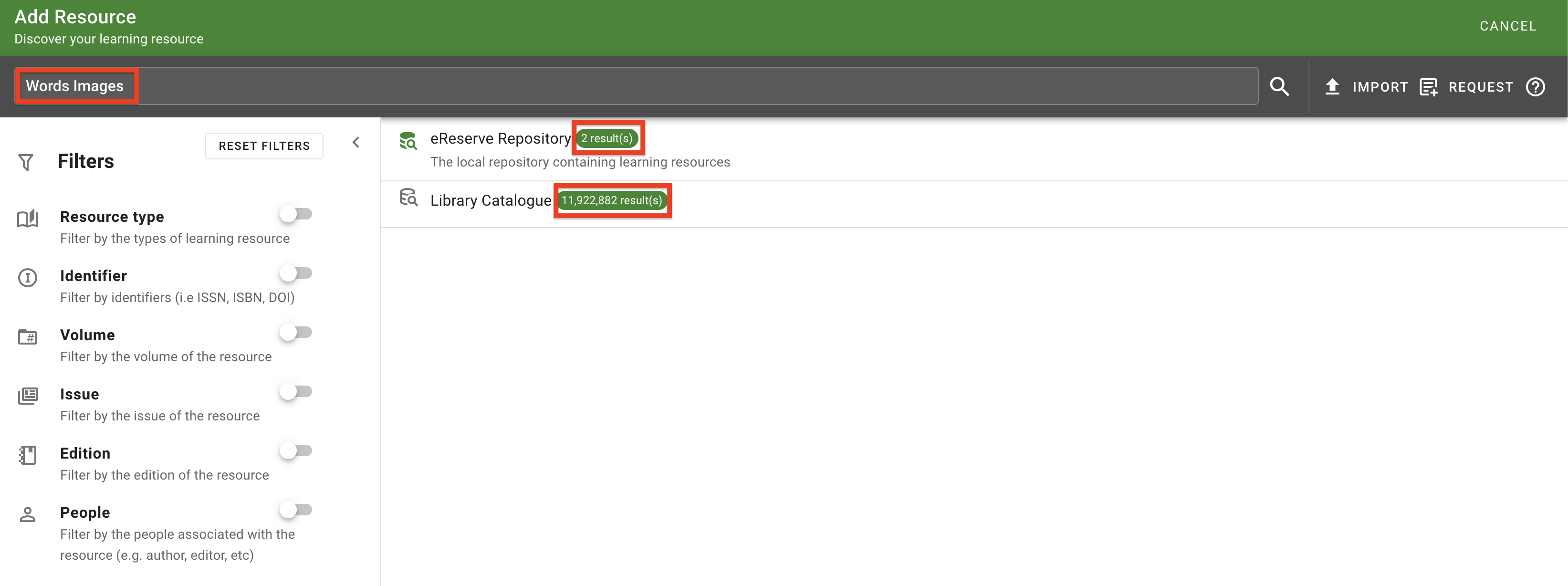
The number of matched results will be displayed beside each repository and discovery. Click on a repository to view the selection of the search results returned.
Figure 3 : Each repository displays the number of results returned
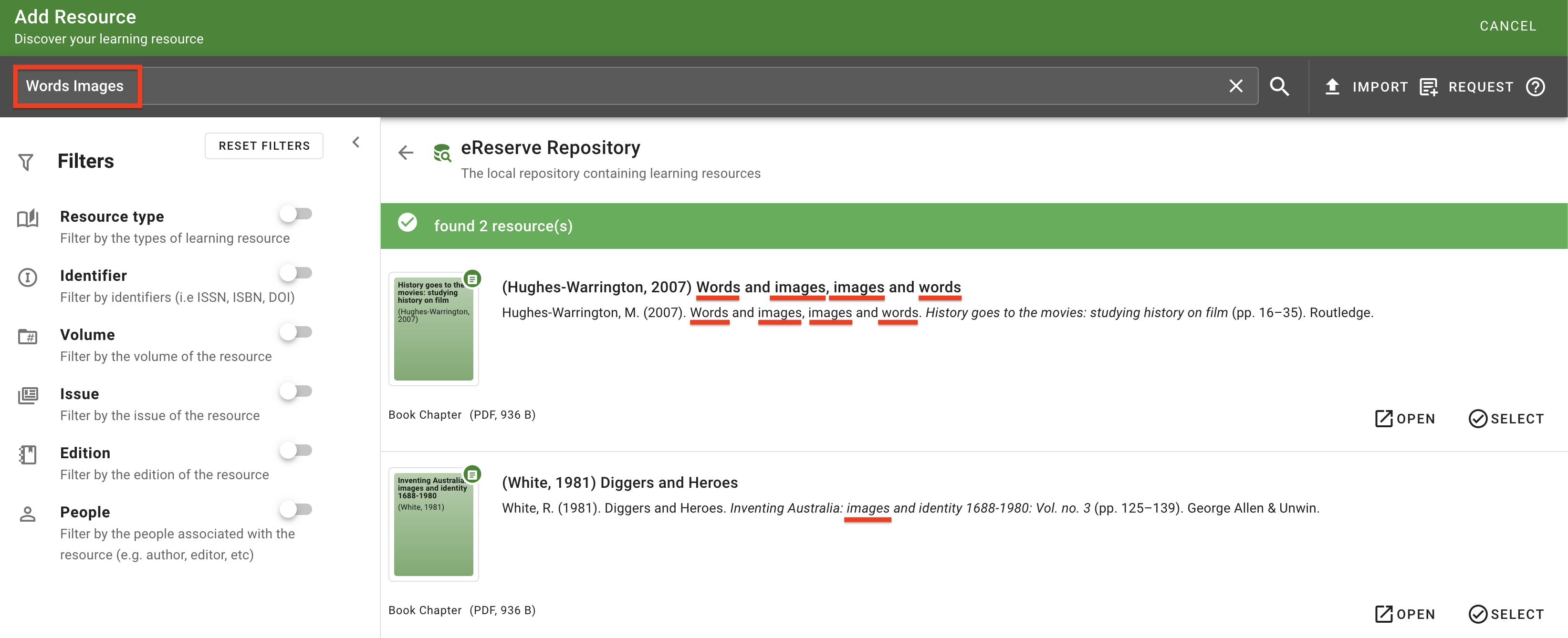
The search will display the first 20 results from the selected repository. Each resource displays the citation details, identifier and type information, as well as options to open the resource for review and to select the resource for use.
When searching for resources using more than one key terms, the results will list resources that contain all key terms, followed by resources that contain any of the key terms.
Figure 4 : The matched results in the eReserve Repository
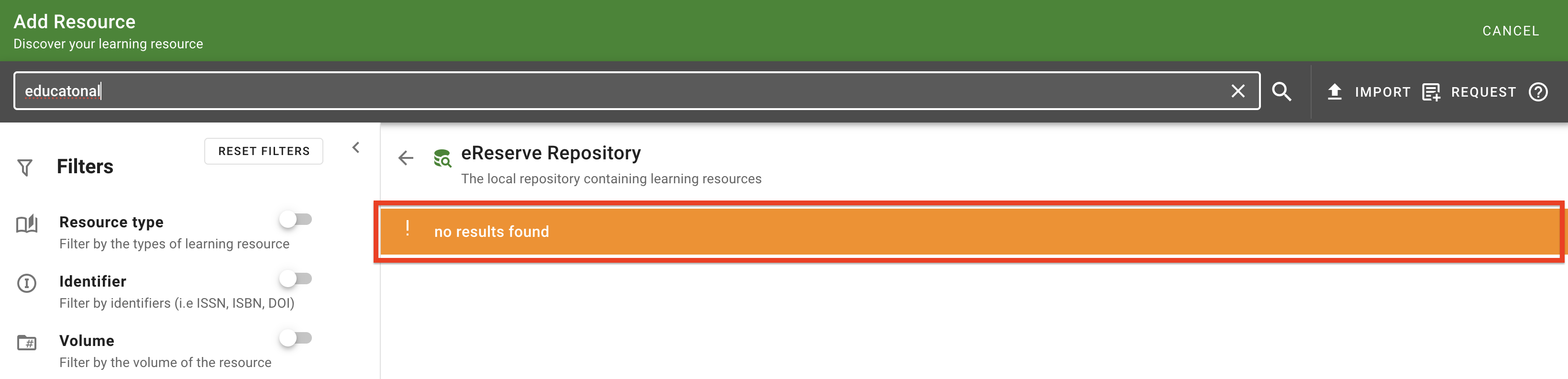
If there are no results being displayed, please either try a different key word or confirm that the spelling is correct.
Figure 5 : The 'No Results Found' message
Advance Search
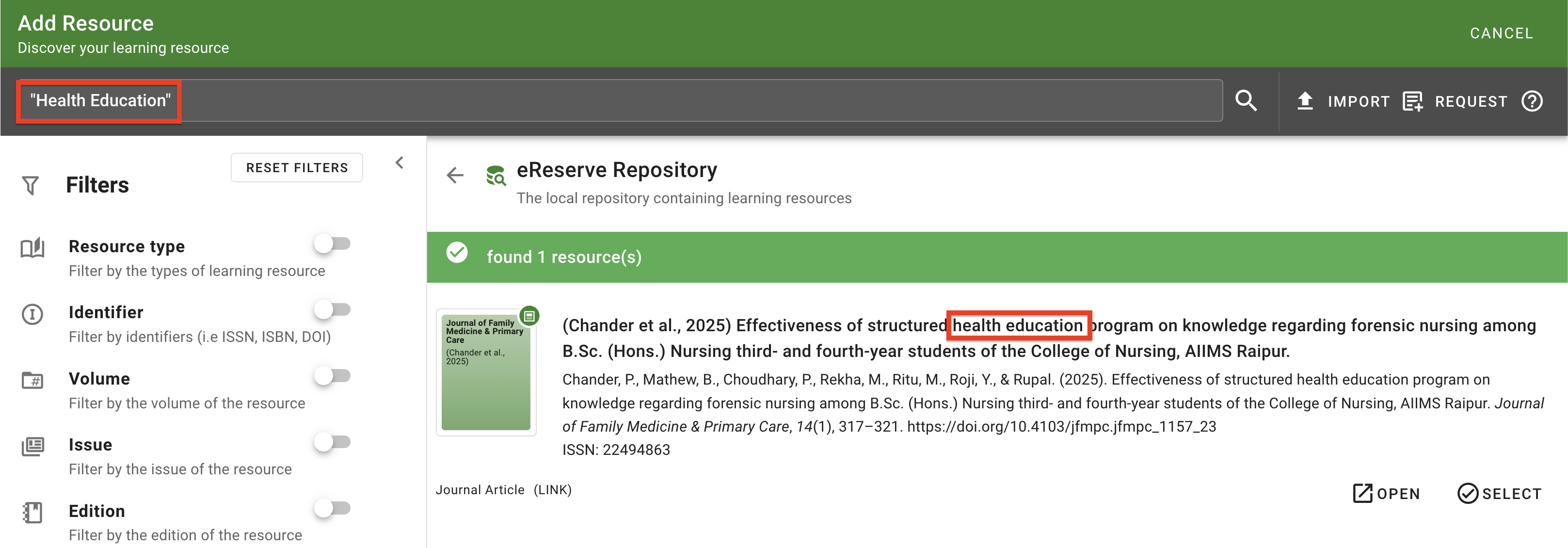
Adding quotation marks at the start and end of the search key terms (e.g. "Health Education") will limit the results down to return only resources that contain the EXACT keywords.
Figure 6 : The result for an exact search in the eReserve repository
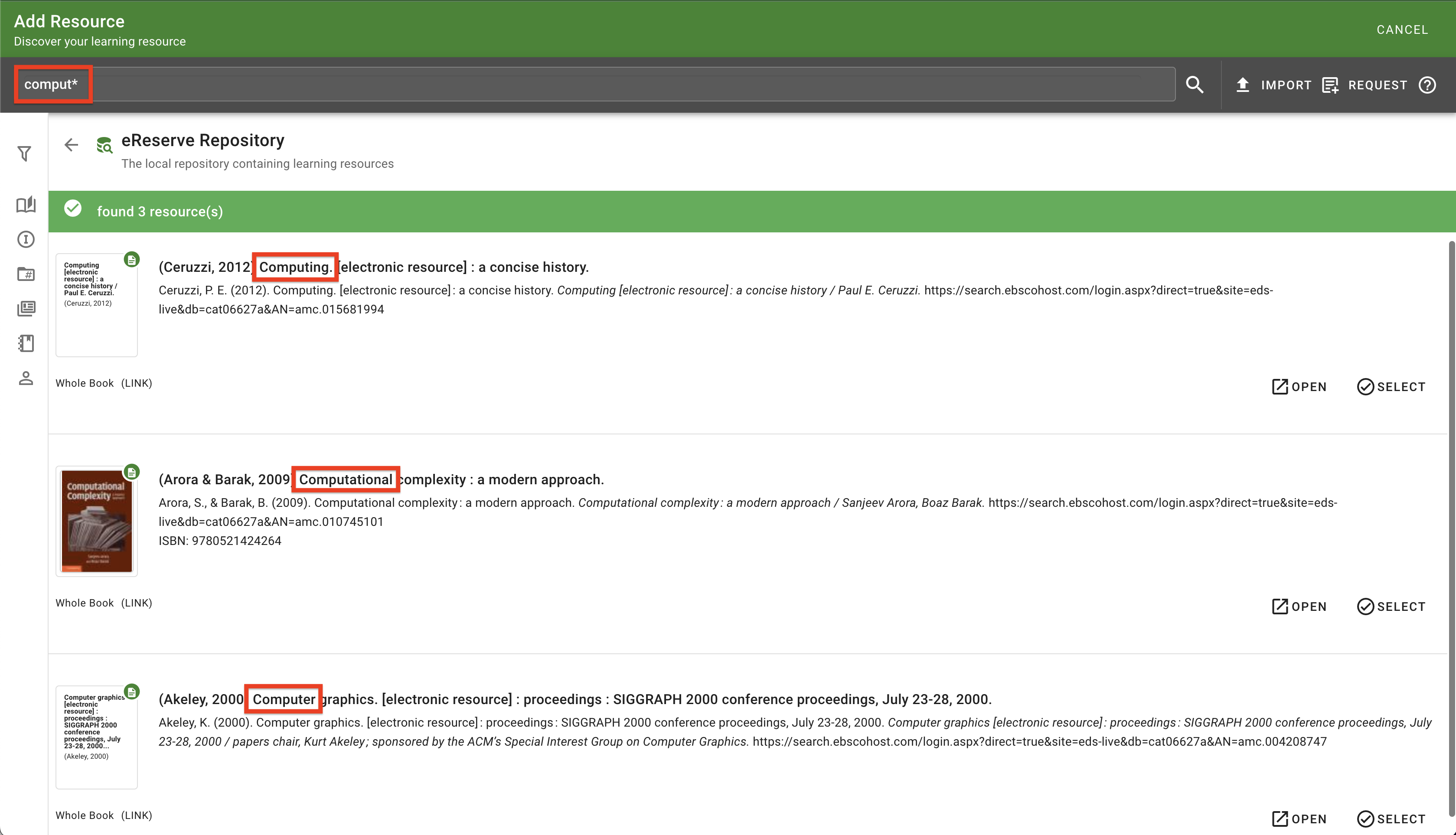
An asterisk can be used at the end of a word, which allows searching on a partial term. For example, searching educat* could return results such as educate, education, educator, etc.
Figure 7 : The results for a partial search in the eReserve repository
Filtering Search Results
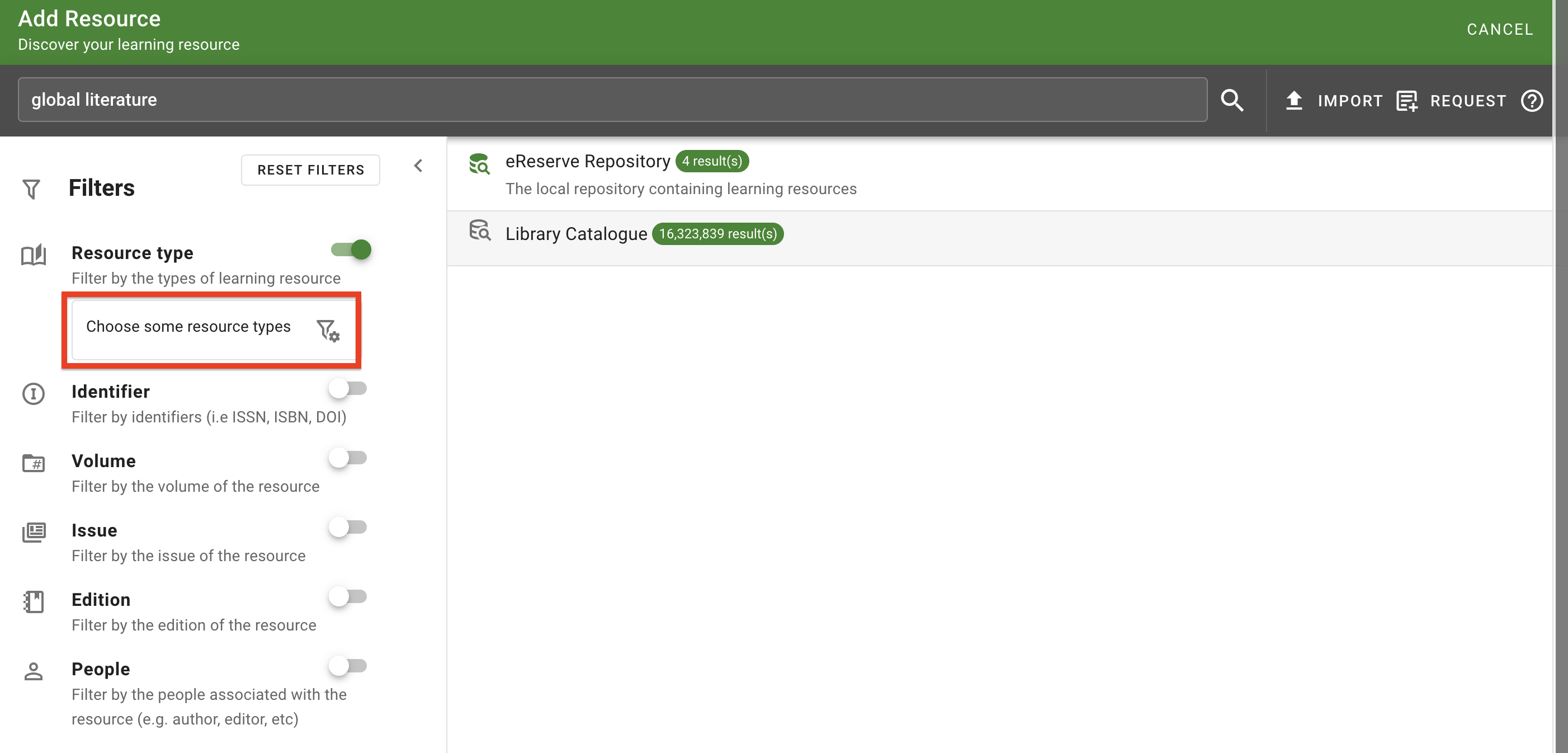
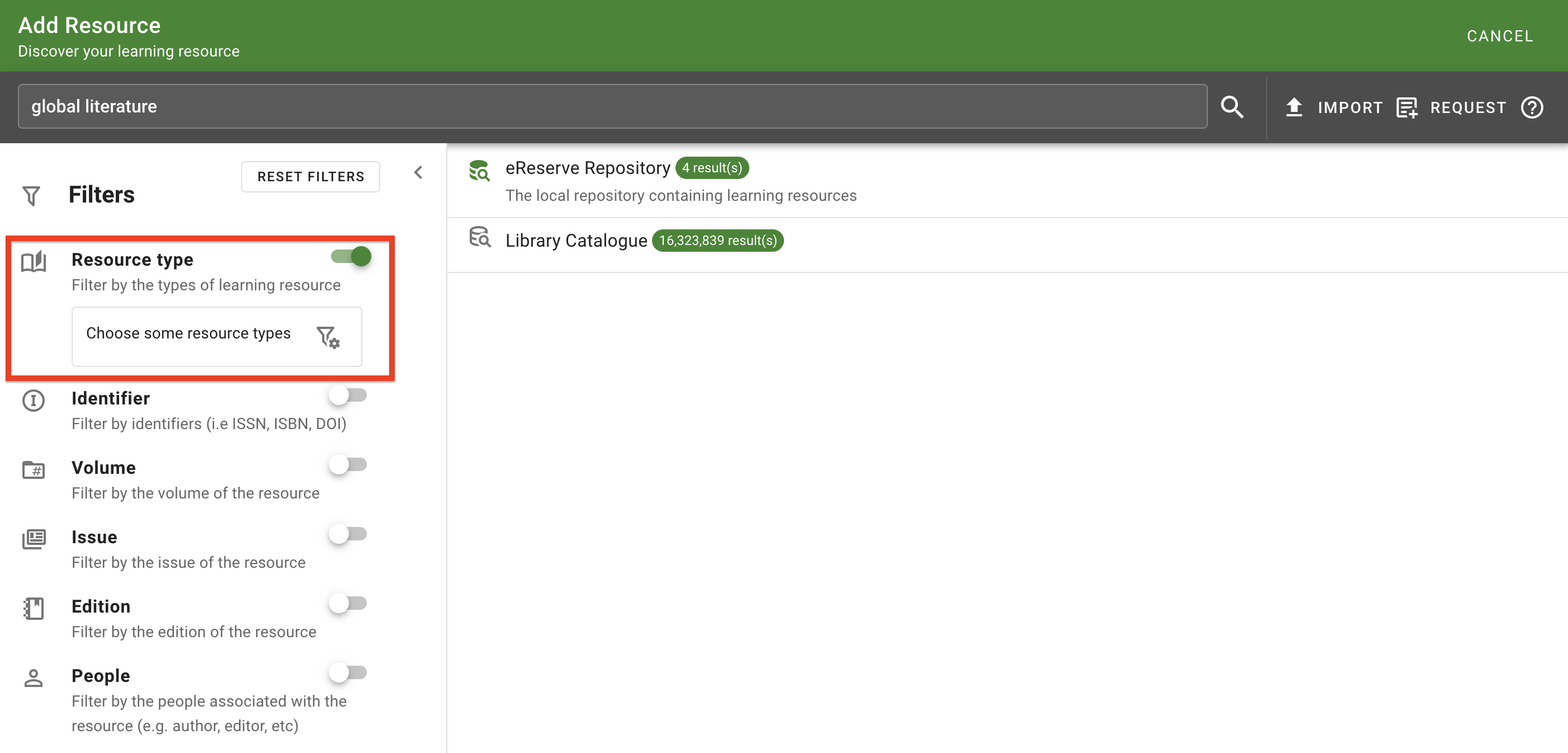
Filters can be used to narrow down the search results further. Each filter can be enabled by clicking the toggle on the right-hand side of the corresponding filter option (such as Resource Type). Once a filter is enabled, click anywhere on the filter selection box to open the selection list to configure the filter.
Filter 8 : The Resource Type Filter is enabled, with the selection panel displayed underneath
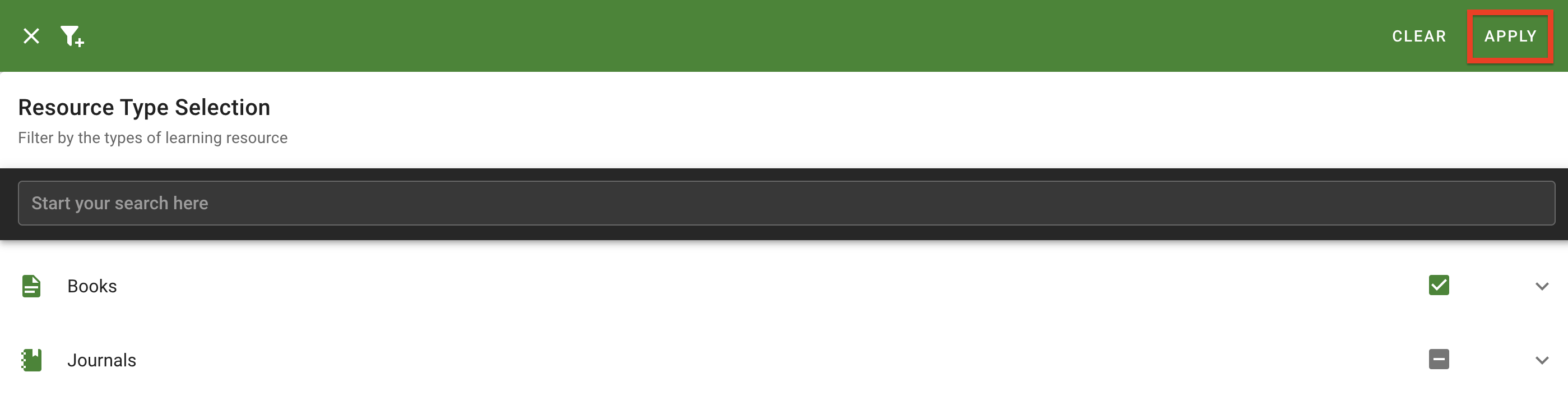
Once the filters have been selected, click Apply to apply the selected filters to the search results.
Figure 9 : The 'Apply' button
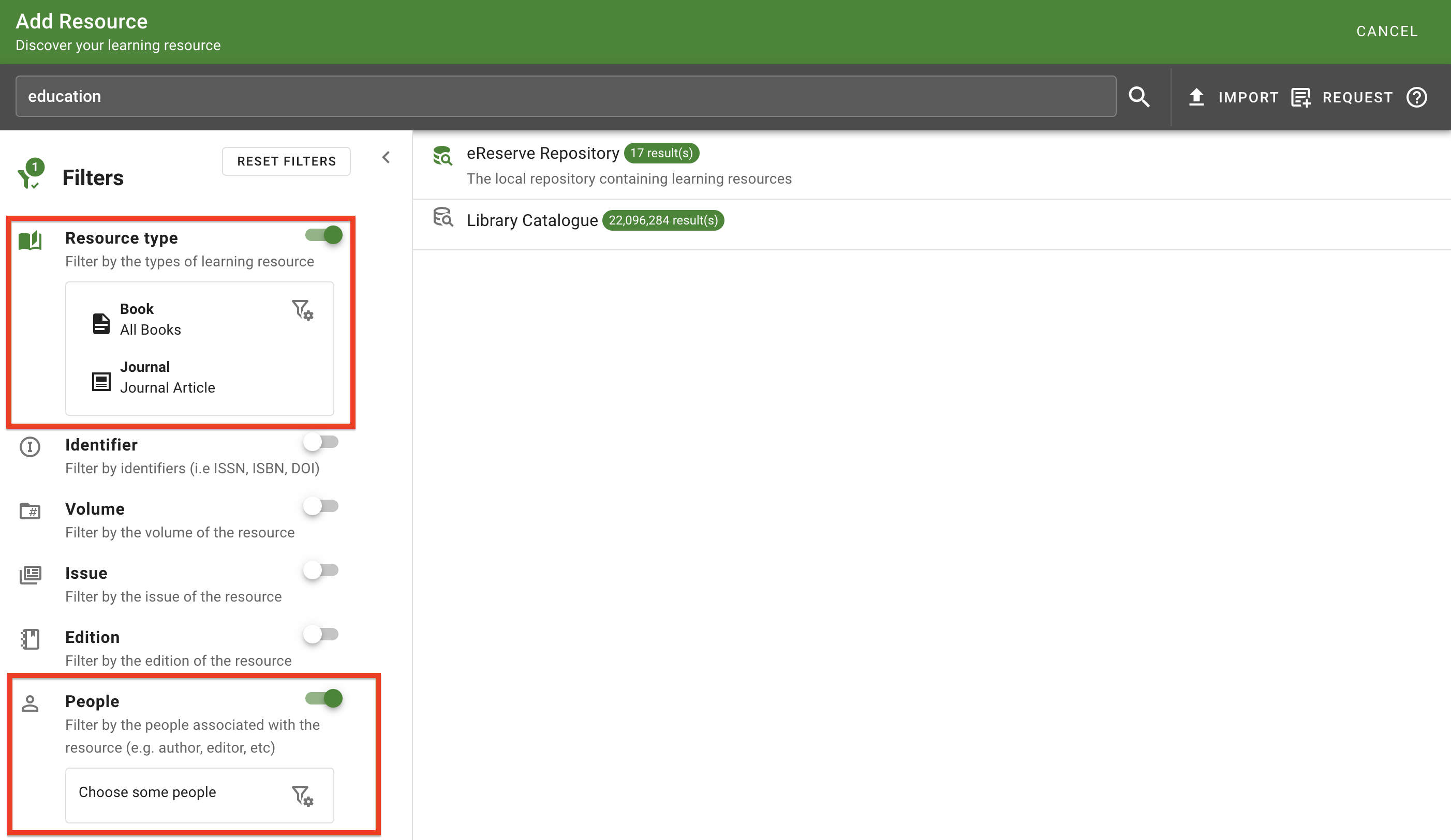
As filters are applied, the selection panel for the filter will be populated with the selection details. If no selection has been made, it will advise to choose a selection.
Filter 10 : The selection panels for two enabled filters
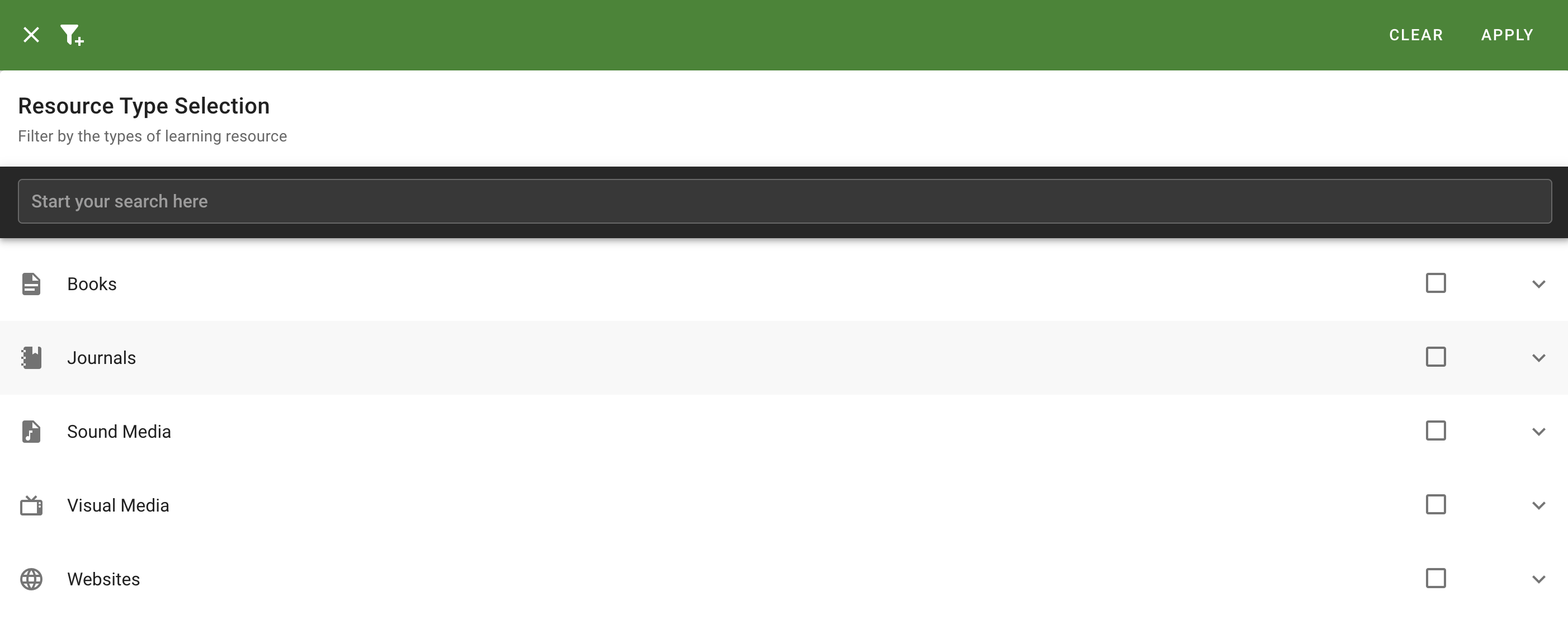
There are a number of filters available for selection. The top filter, Resource type, limits results by the resource genre, which is categorised as follows:
Books
Journals
Sound Media
Visual Media
Websites
Figure 11 : The 'Resource Type' filter
Figure 12 : The 'Resource Type' selection page
Each resource type contains all related genres for that type. For example, Books includes genres such as Whole Books, Book Chapters, etc and Journals contains genres such as Whole Journal, Journal Article, Legal Case and so on.
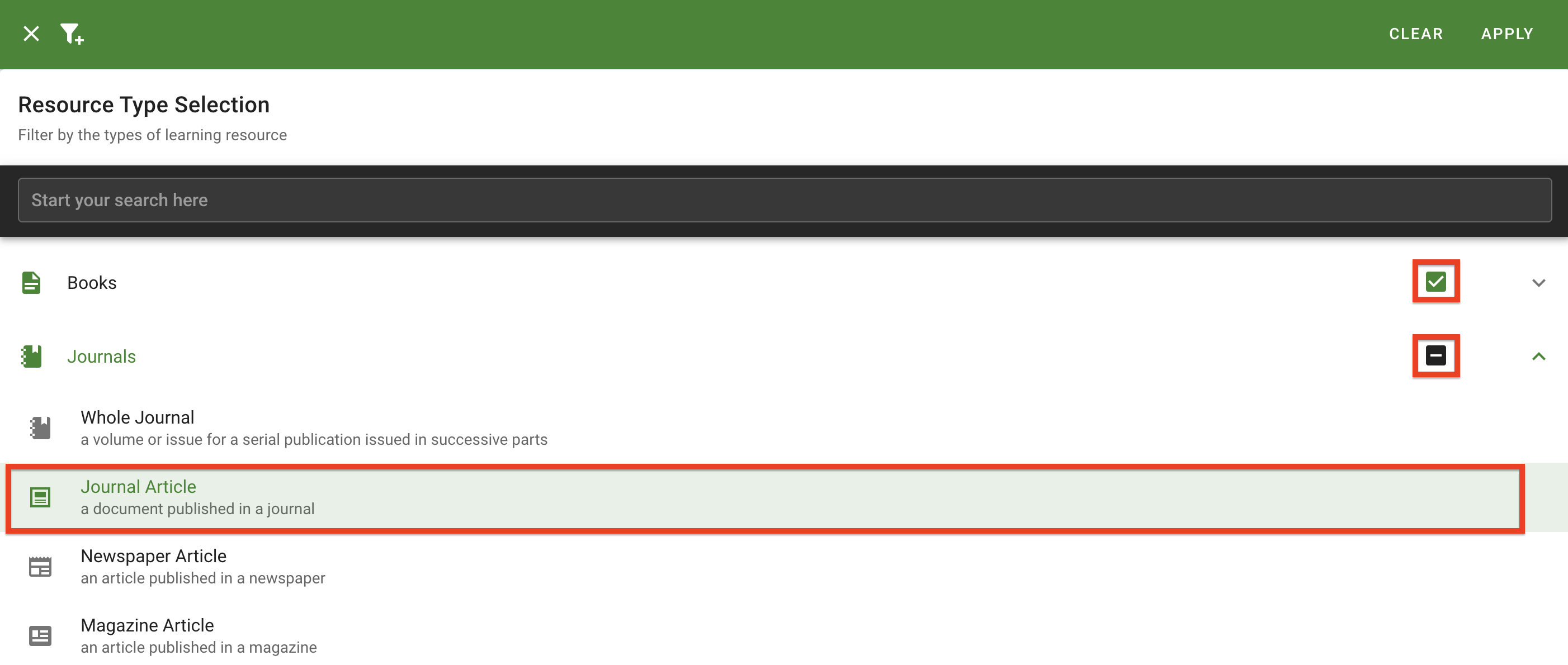
Click anywhere on the resource type category to list all related genres, which can be individually selected. Selected resource types will be highlighted. You can also select or deselect ALL genres of a resource type at once by clicking the checkbox to the right of the type category. You can have any combination of resource type and genre selected. Checkboxes with a checkmark indicates all resource types have been selected while checkboxes with a minus indicates a partial selection.
Figure 13 : All books and one journal resource type has been selected
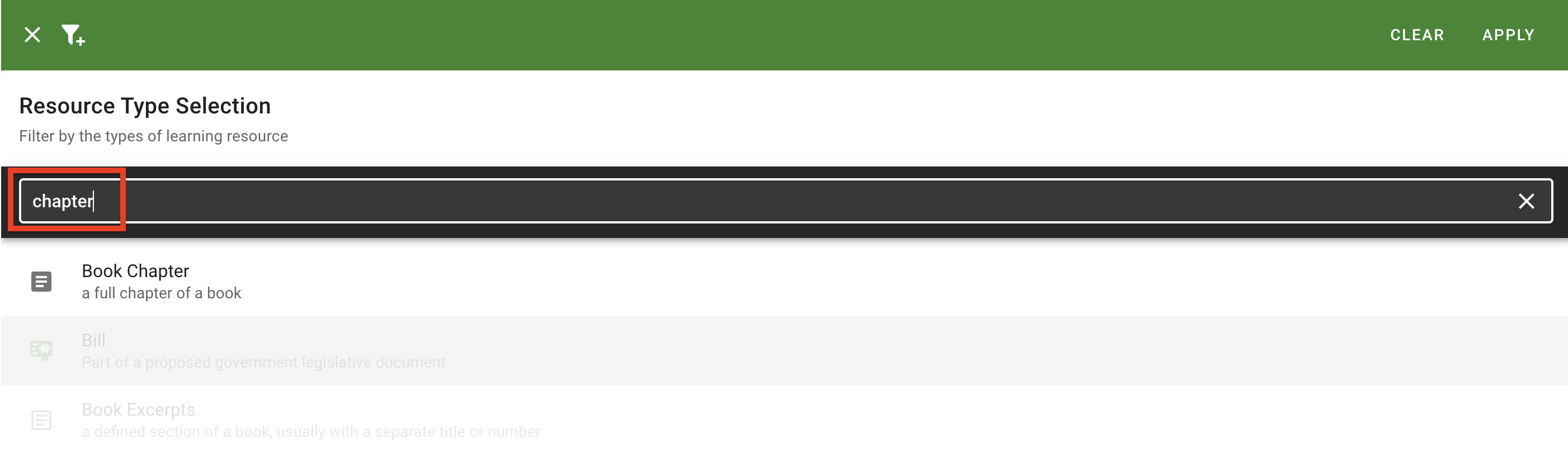
You can also type into the resource type search field to bring up the exact genre you're after. For example, typing 'Chapter' will bring up the Book Chapter genre option at the top for selection, with all non-related genres faded to indicate they do not match. Clicking the X on the right of the search bar will clear the search and revert to the default view, but will retain any selections made when searching.
Figure 14 : The Resource Type search
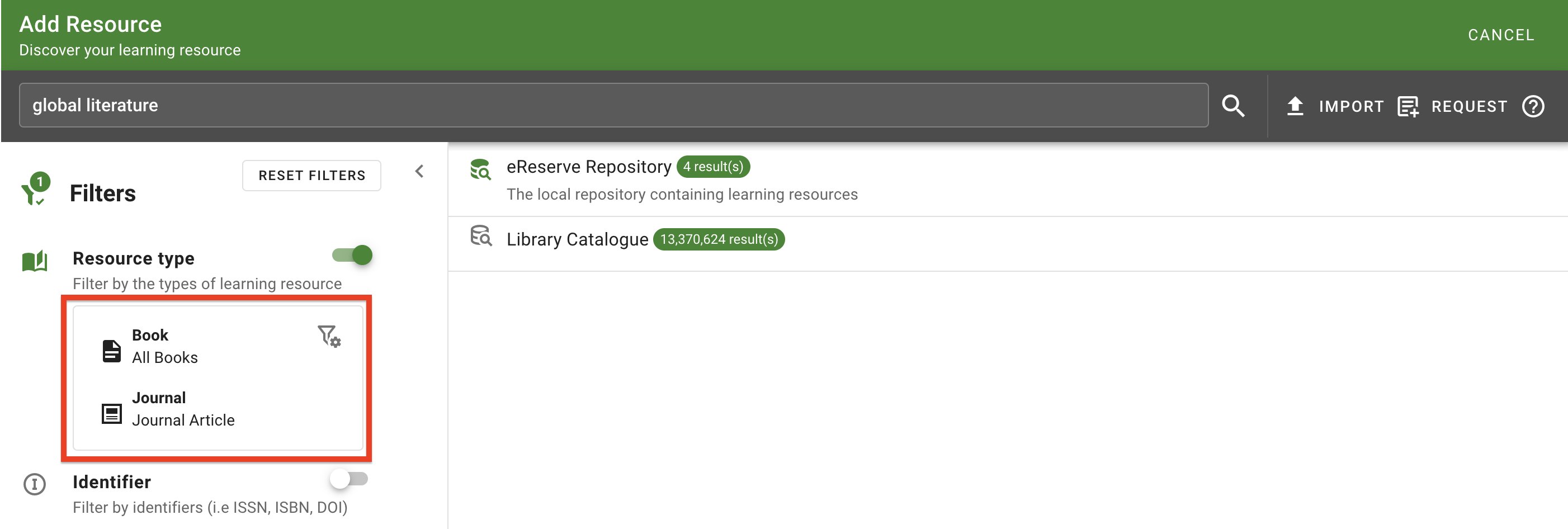
Once the resource types and filters selection is complete, click Apply to apply the selected filters to the search results. The Resource Types will be automatically populated within the selection panel for visibility.
Figure 15 : The 'Resource Types' selection panel displays what is being applied
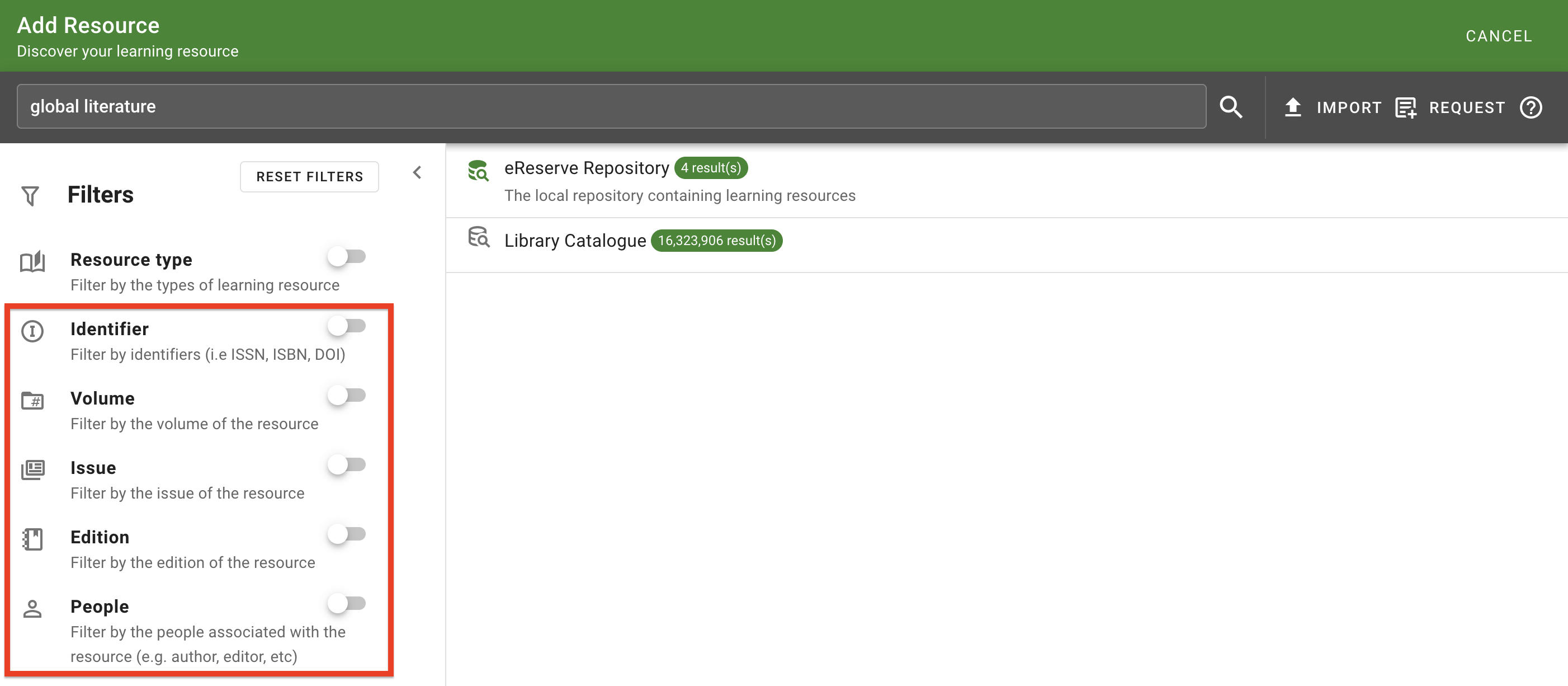
The remaining filters limits down results to list resources that contain specific resource metadata details. These filters are:
Identifier - Filter by the identifiers of a resource (i.e. ISSN, ISBN, DOI).
Volume - Filter resources by volume.
Issue - Filter resources by issue.
Edition - Filter resources by edition.
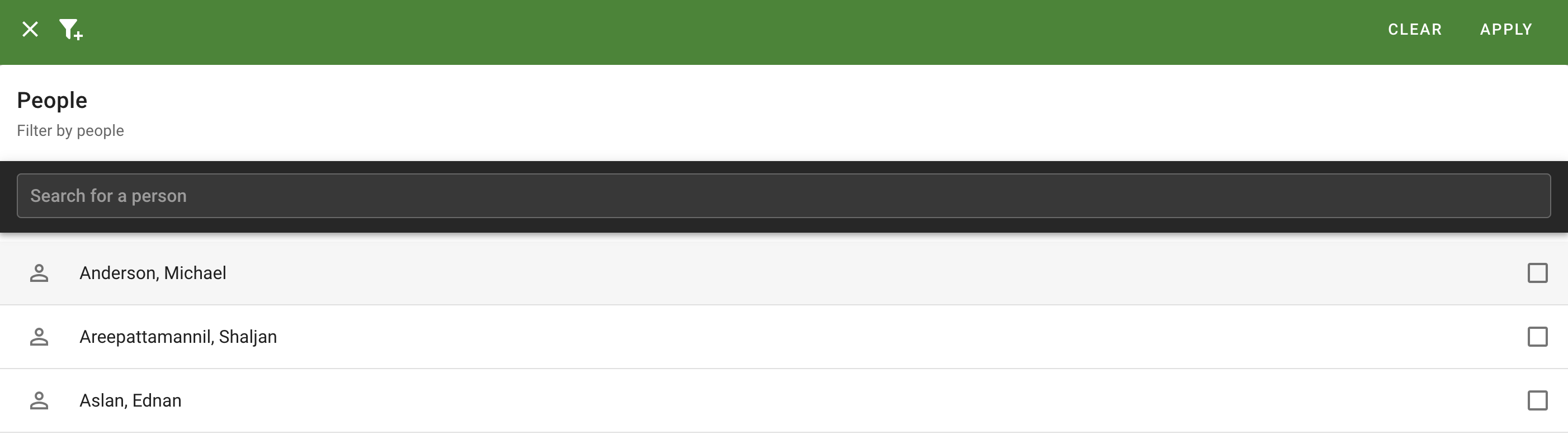
People - Filter resource by people on the resource, such as authors, editors, translators, etc.
Figure 16 : The filters for resource metadata details
It is recommended to enable these filters after conducting a search as these filters will be pre-populated with the metadata from the search results for easy selection.
Figure 17 : The People selection page is displaying pre-populated results
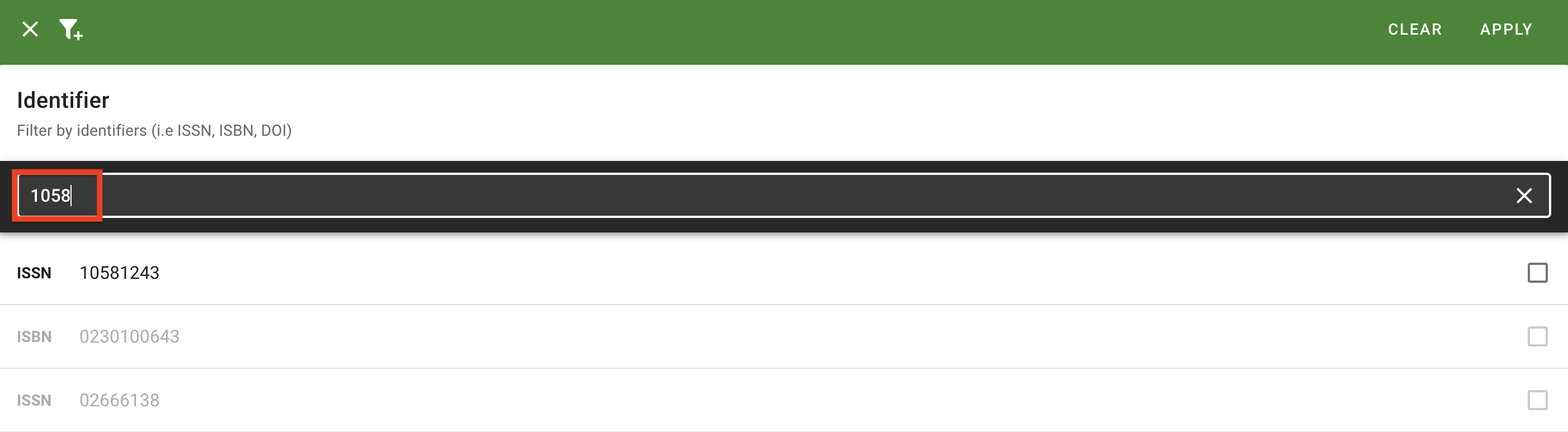
You are also able to search the data in each filter by typing into the filter search bar, which will display any matches at the top of the results.
Figure 18 : The search for a filter
Anytime the filter selections requires updating, click on the filter panel to re-open the selection list.
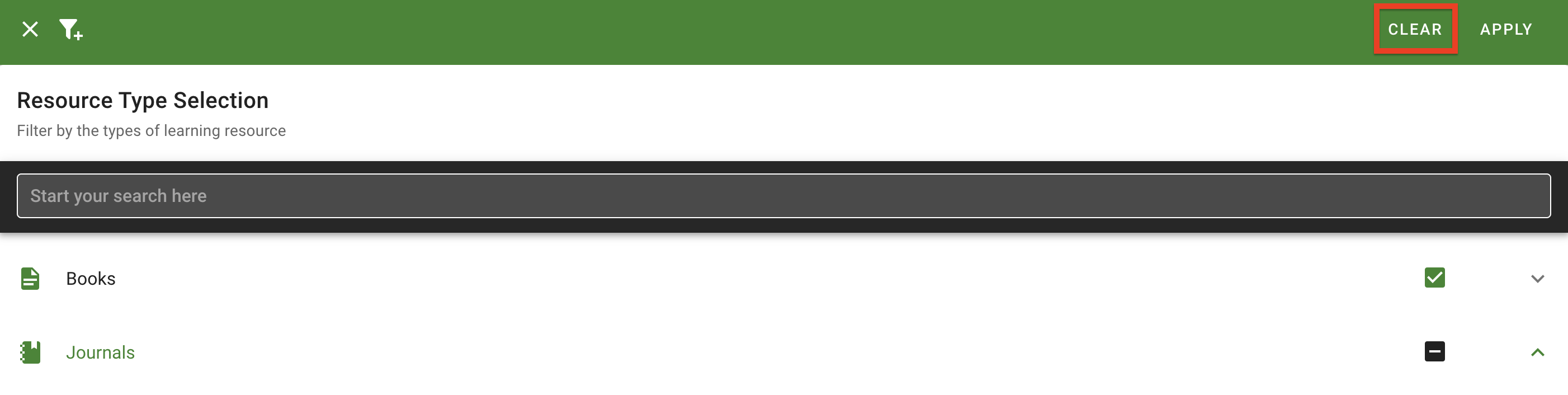
To quickly clear any selections made, click the Clear button on the top-right corner of the filter selection page.
Figure 19 : The 'Clear' button
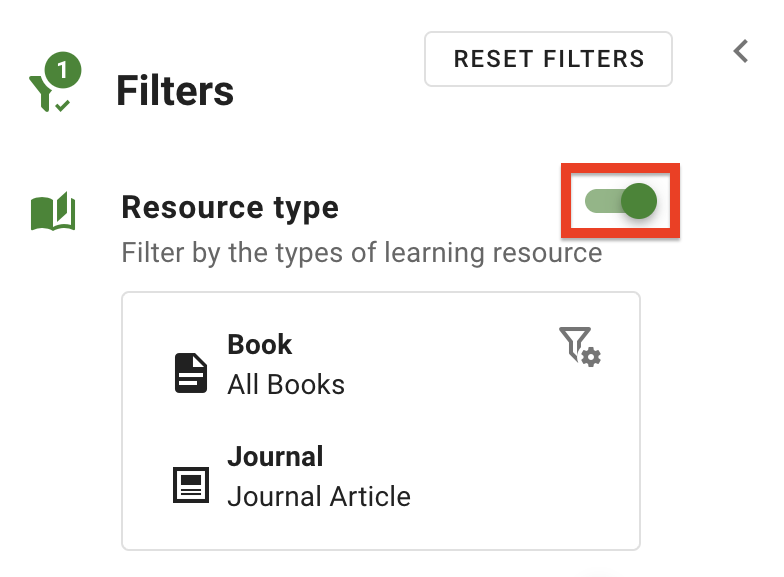
The filters can be removed anytime by clicking the toggle to disable the filter. This stops the filter from being applied to search results, however, the filter will retain all selections made for the current session.
Figure 20 : The Filter toggle
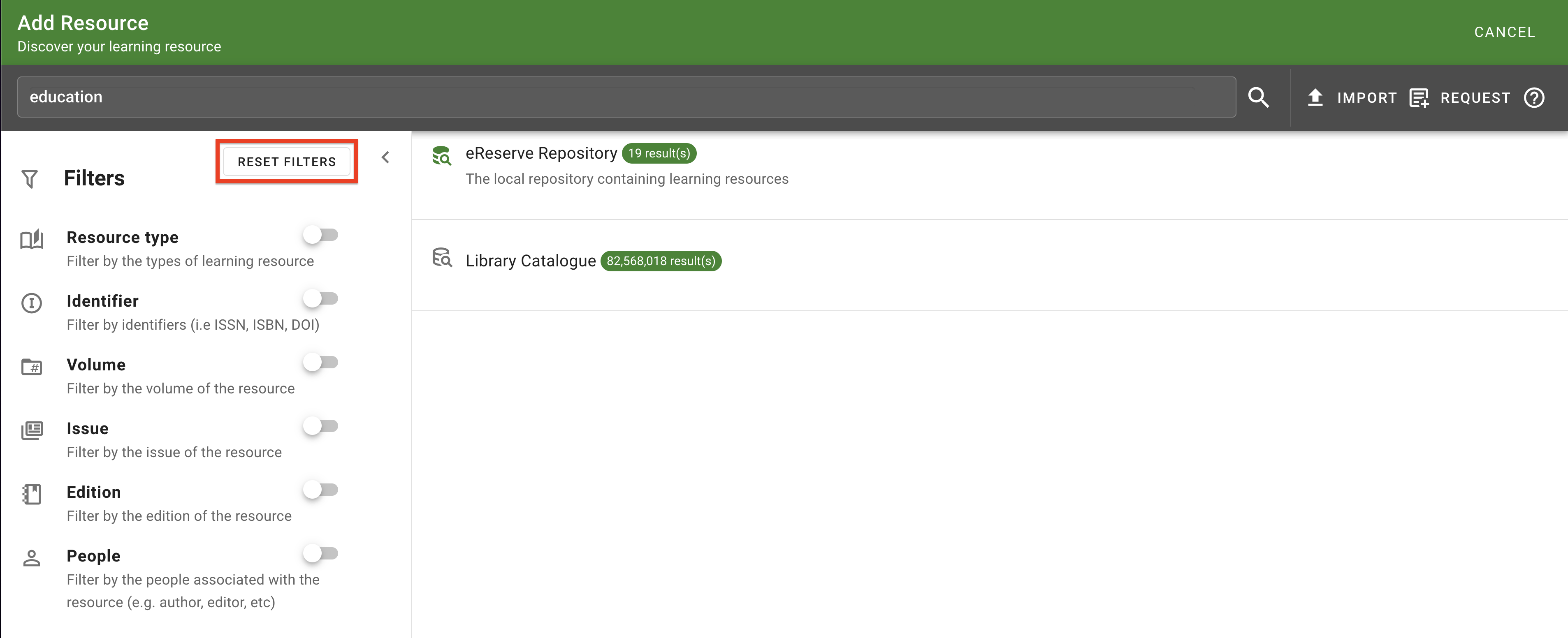
Click the Reset Filters button to disable all filters and reset any selections made.
Figure 21 : The 'Reset Filters' button
Resource Selection
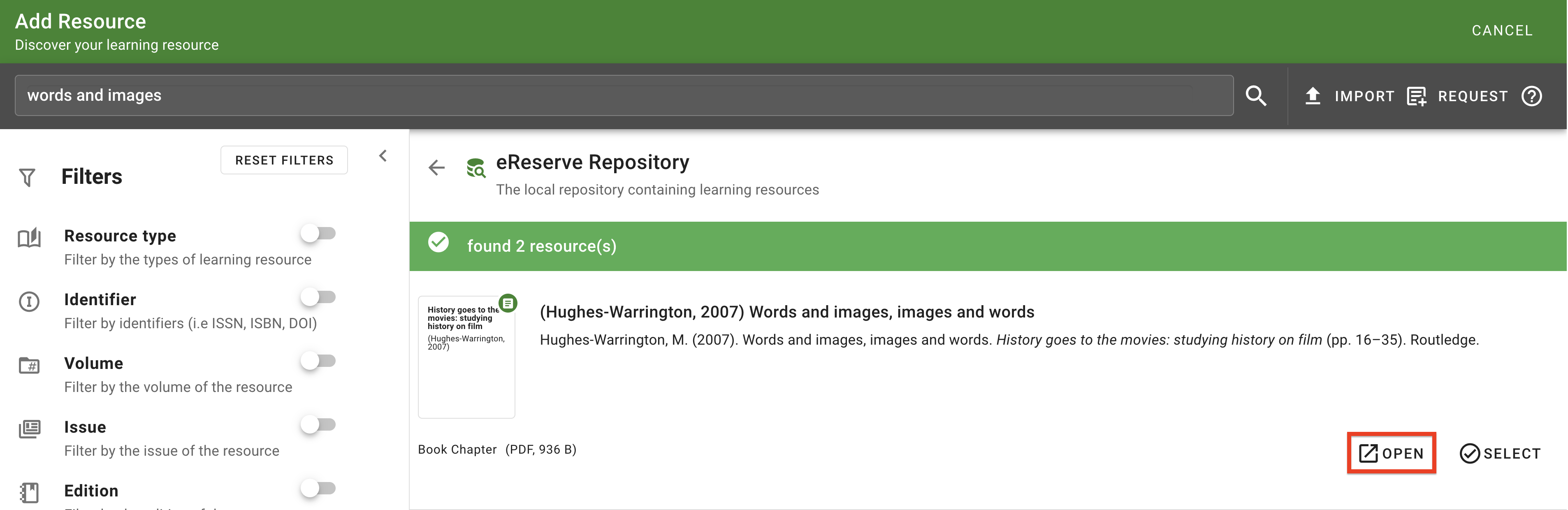
As you search and filter resources, you can review the resource anytime by clicking the Open button. Link-based resources will open in your browser while File-based resources will immediately begin download to your device.
Figure 22 : The 'Open' button to review the resource in the search results list
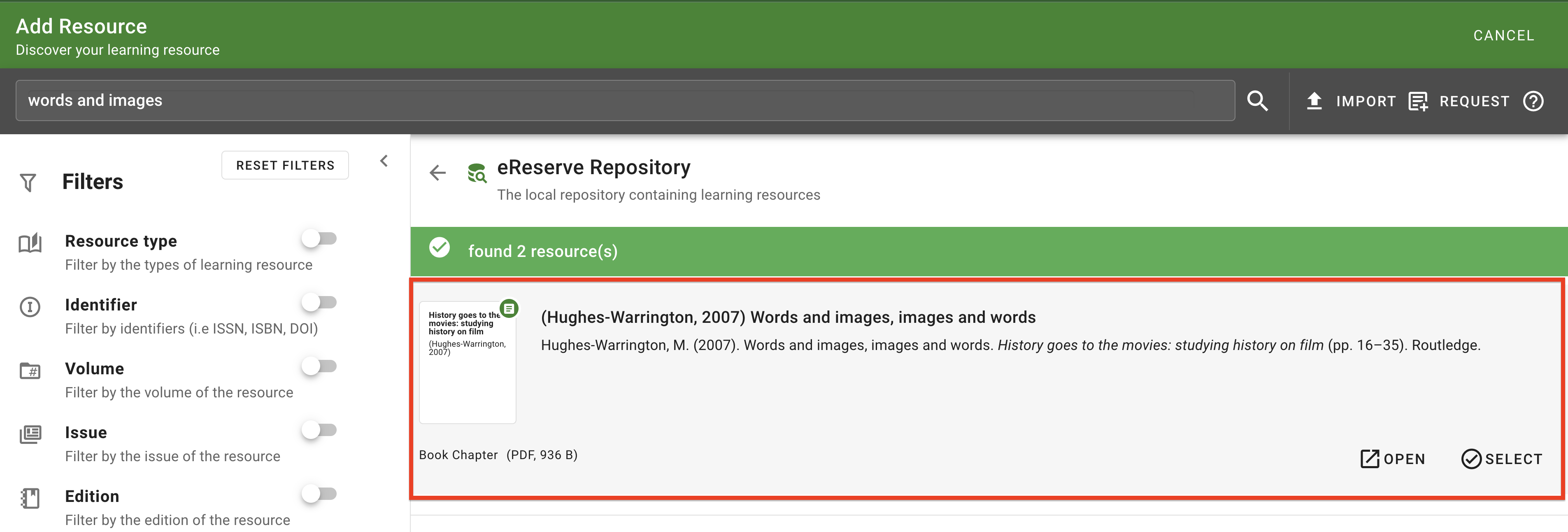
Once you have located a resource to use on your list, click anywhere on the resource or click the Select button to finalise your selection and close the search page.
Figure 23 : The 'Select' button
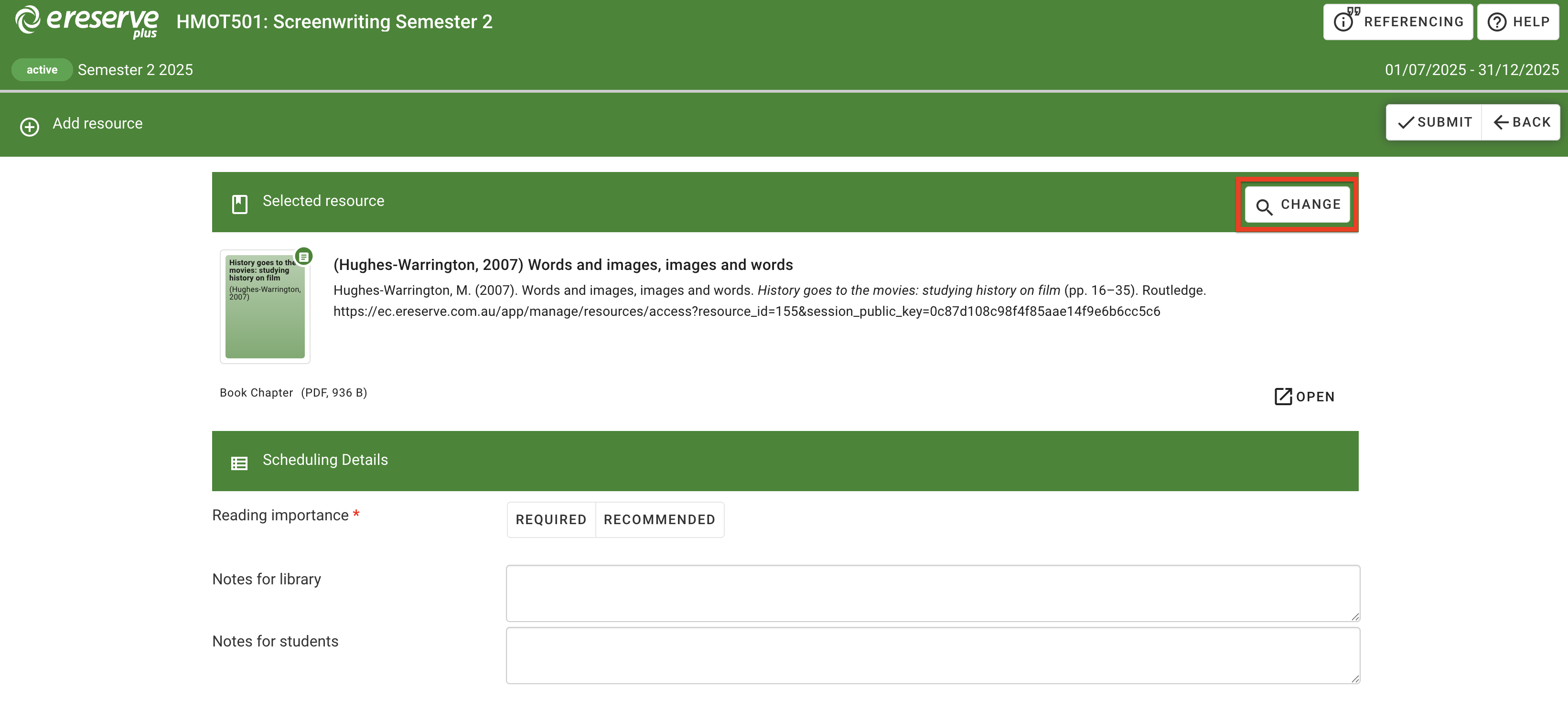
If the resource needs to be changed, click the Change button on the right hand-side to re-open the discovery search where you left off.
Figure 21 : The 'Change' button to reopen the discovery search
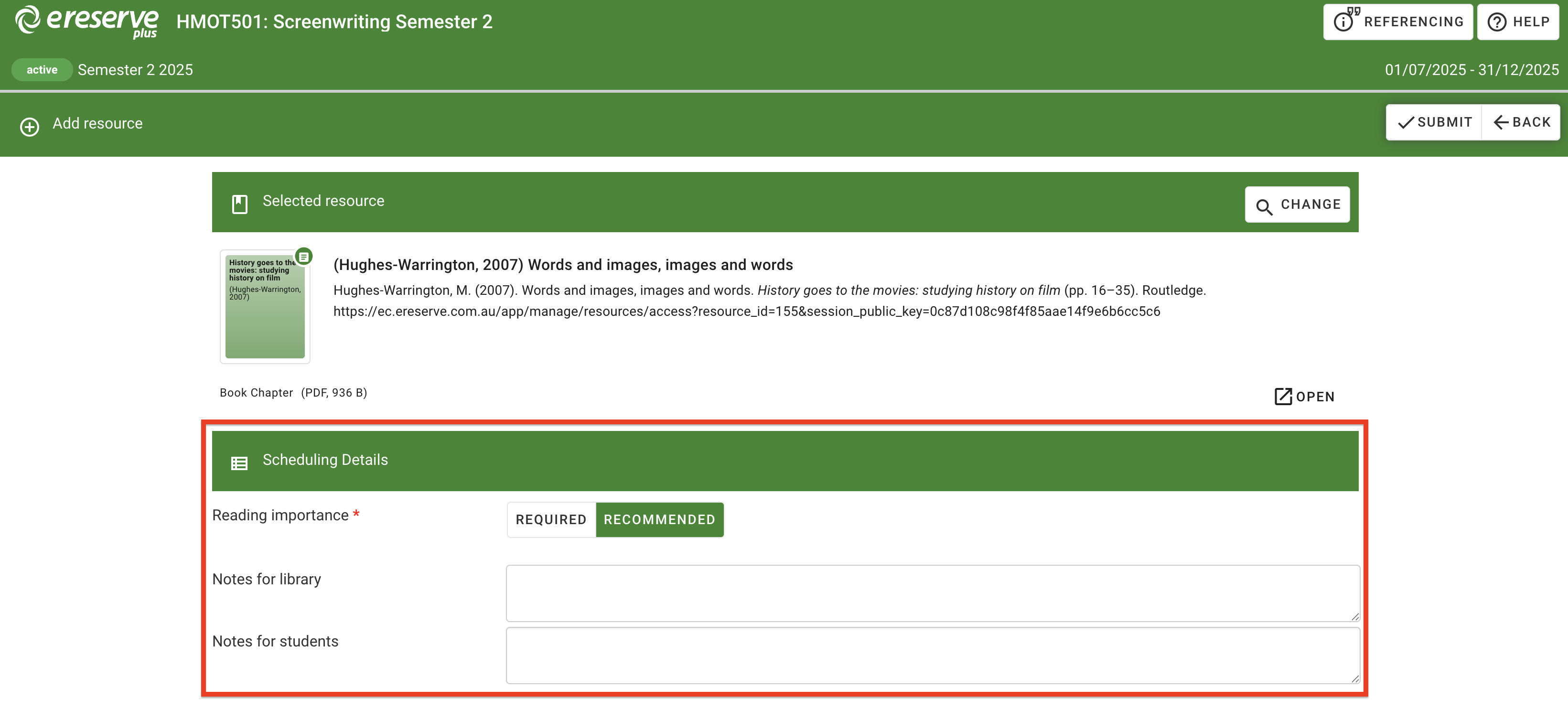
Finally, complete the Scheduling Details to finalise the process. The reading importance field is required, which indicates if the reading is Required or Recommended. You may optionally include processing notes for library staff and notes for students.
Notes for Library staff cannot be edited after submitting the resource request.
Notes for Students are shown directly on the resource in their lists and can be edited anytime with the Edit Readings option.
Figure 22 : The 'scheduling details' fields
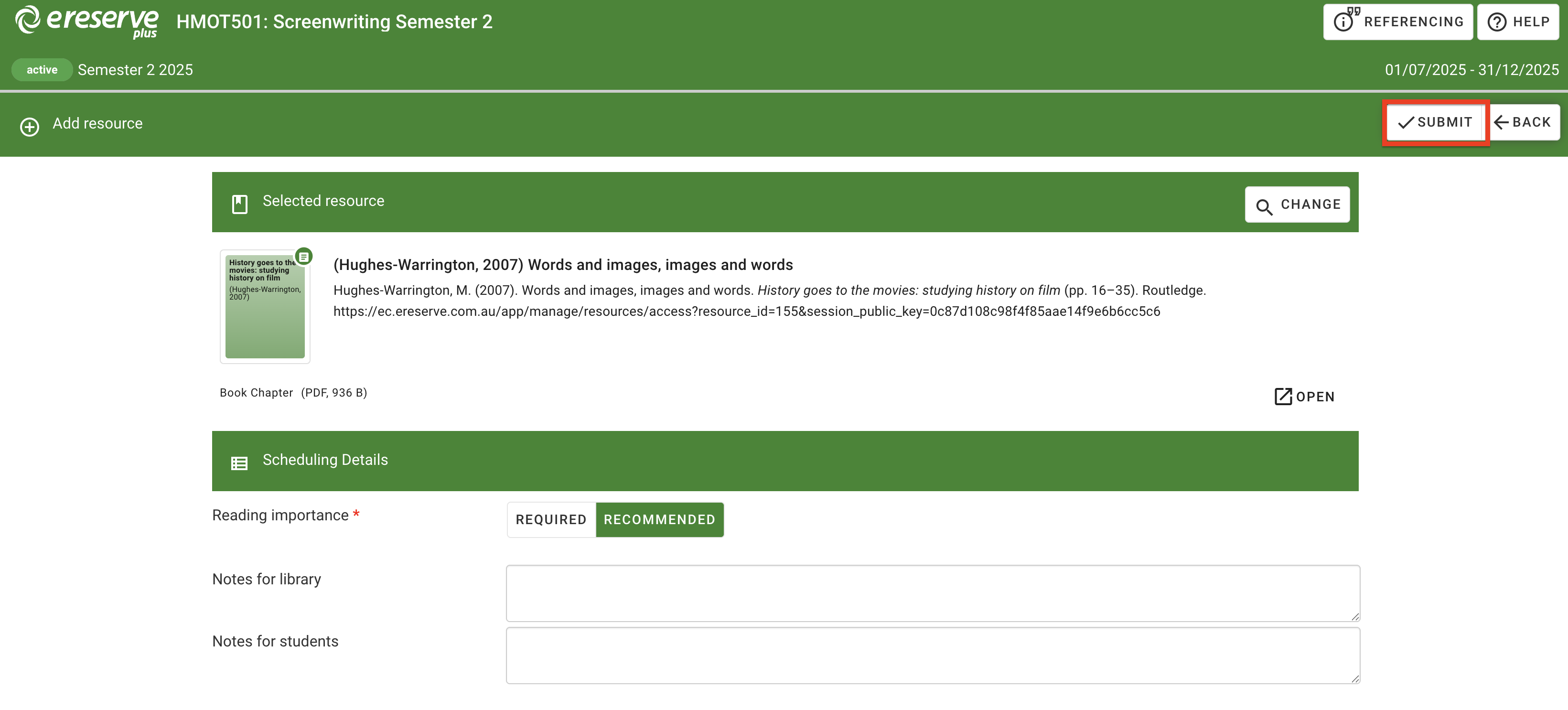
Click the Submit button at the top right to add the resource to your list.
Figure 23 : The 'Submit' button
Requesting New Resources
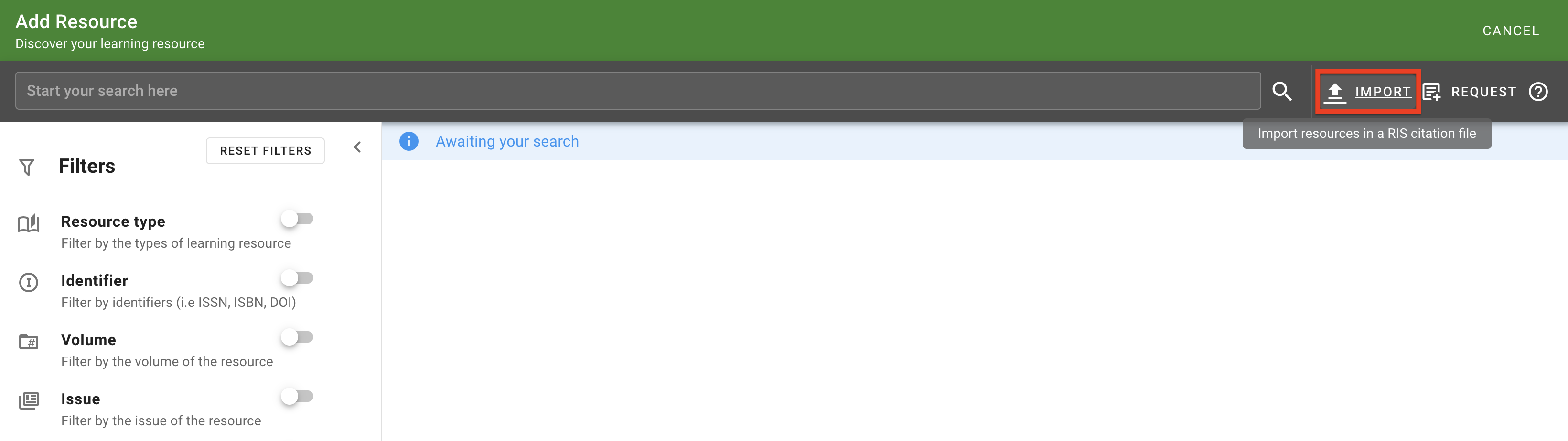
If you cannot locate a suitable resource in the repositories, you can also request the creation of a new resource OR import resources from a RIS file. Navigate to your list and click on the Add button to automatically open the enhanced discovery page. To the right-side of the search bar are two additional options for reading creation: Import and Request.
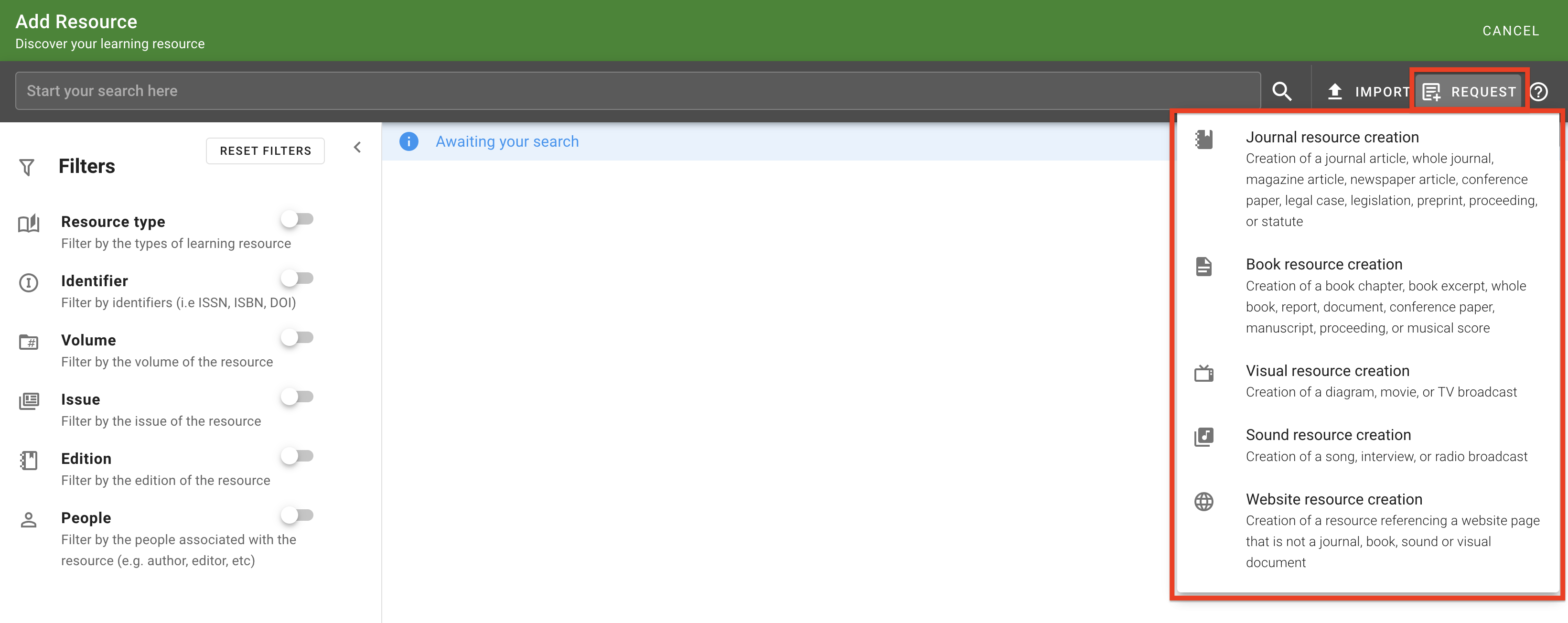
The Request option will provide a list of options for the type of resource being requested: Journal, Book, Sound, Visual and Website. Each resource type in eReserve Plus has different required fields, so they are presented separately in the menu to direct your selection.
Figure 24 : Request Creation options
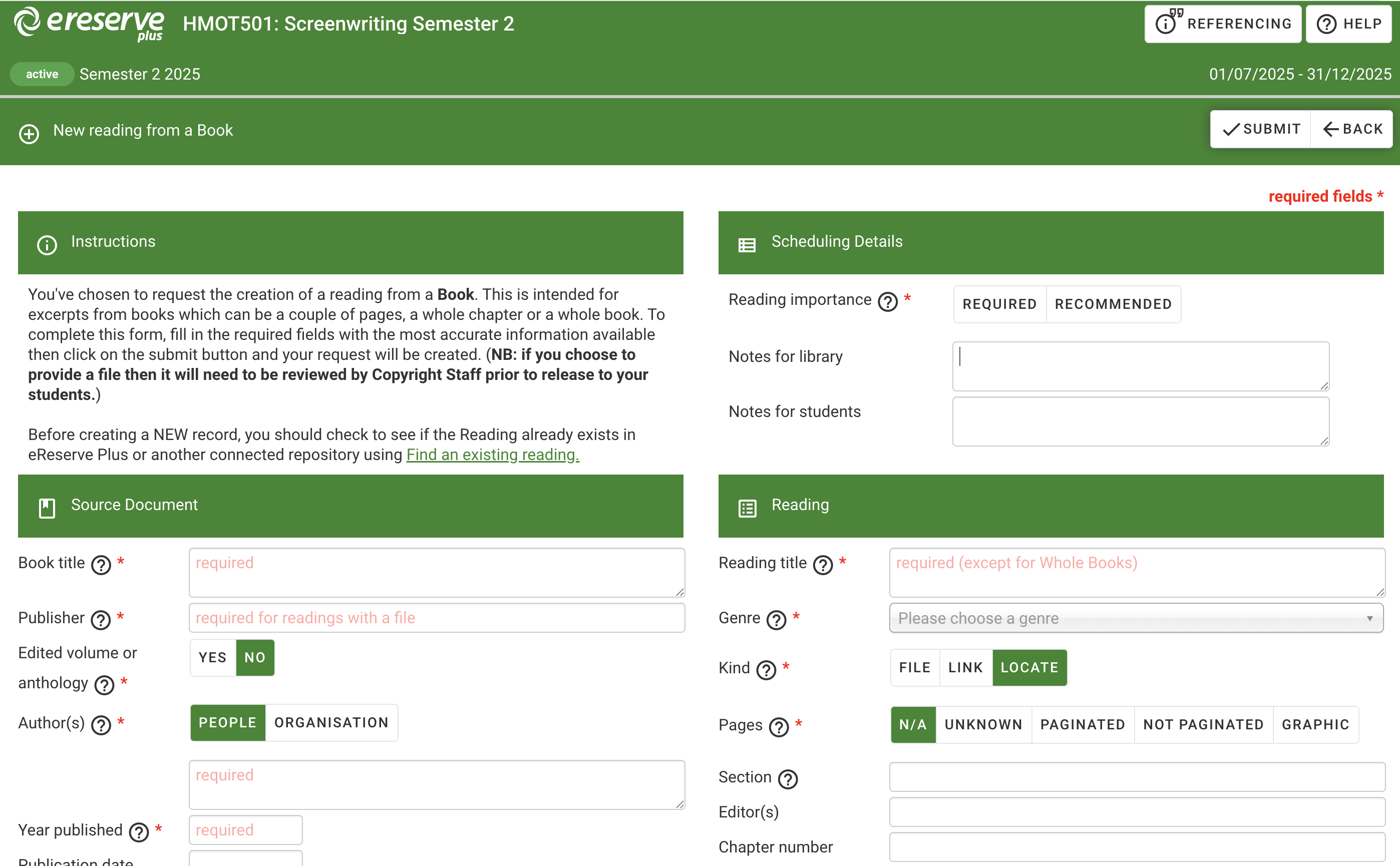
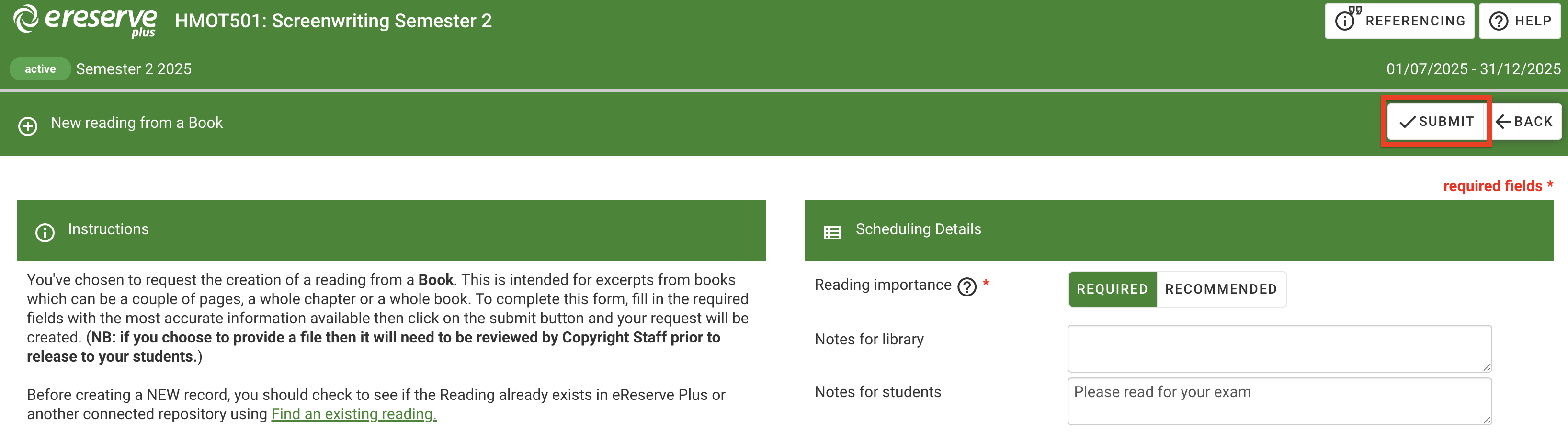
Select any of the creation options to navigate to the reading creation form. At the top of the page, all manual creation forms will contain the following sections:
Instructions relevant to the resource type selected.
Scheduling Details, where faculty can select reading importance and add notes for library and students.
Source Document details
Reading details.
Figure 25 : The Request creation page for a Book resource
It's important to note that all required fields will be marked with an asterisk and may also have red text within the fields. Hovering your cursor over the help icons will display bubble help text that provides more details for the data required in that relevant field. Some fields may also provide bubble help to clarify expectations.
Please refer to the Metadata Guildlines to assist with filling out the creation form for each resource type in eReserve Plus.
Once the required fields have been populated, complete the Scheduling Details to finalise the process. The reading importance field is required, which indicates if the reading is Required or Recommended. You may optionally include processing notes for library staff and notes for students.
Notes for Library staff cannot be edited after submitting the resource request.
Notes for Students are shown directly on the resource in their lists and can be edited anytime with the Edit Readings option.
Once all required fields have been filled out, click Submit to add the new resource to the list.
Figure 26 : The 'Submit' button
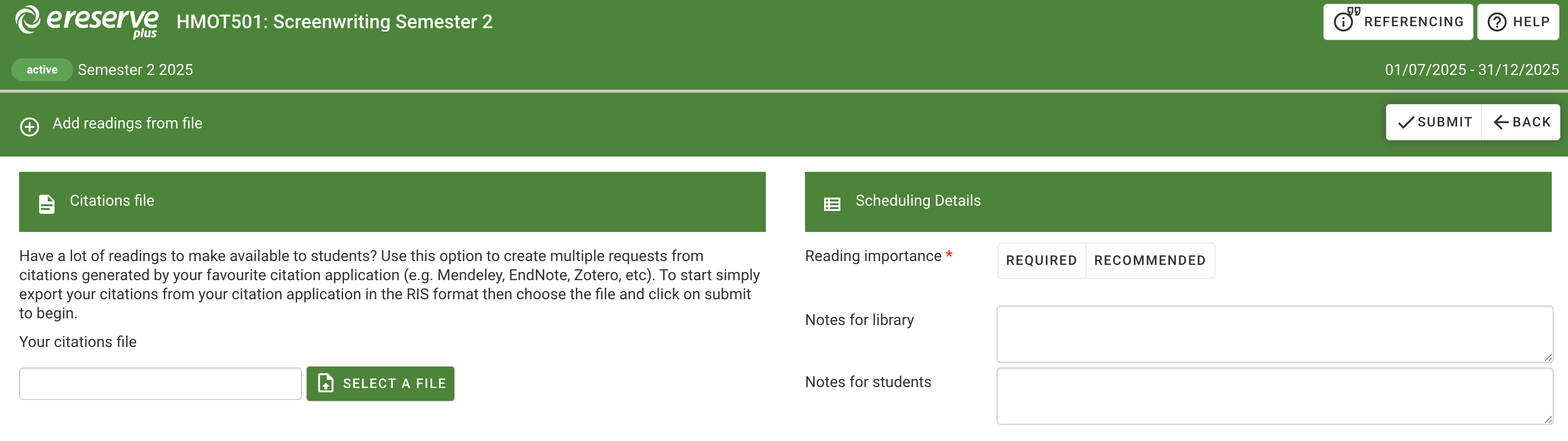
The Import option will progress to the RIS import page, where you can bulk create requests using a RIS file exported from a citation application manager, such as Zotero, Endnote, Mendeley, etc.
Figure 27 : The 'Import' button
Figure 28 : The 'Add readings from file' page
For more details on how to import resources via RIS import, please follow this link:
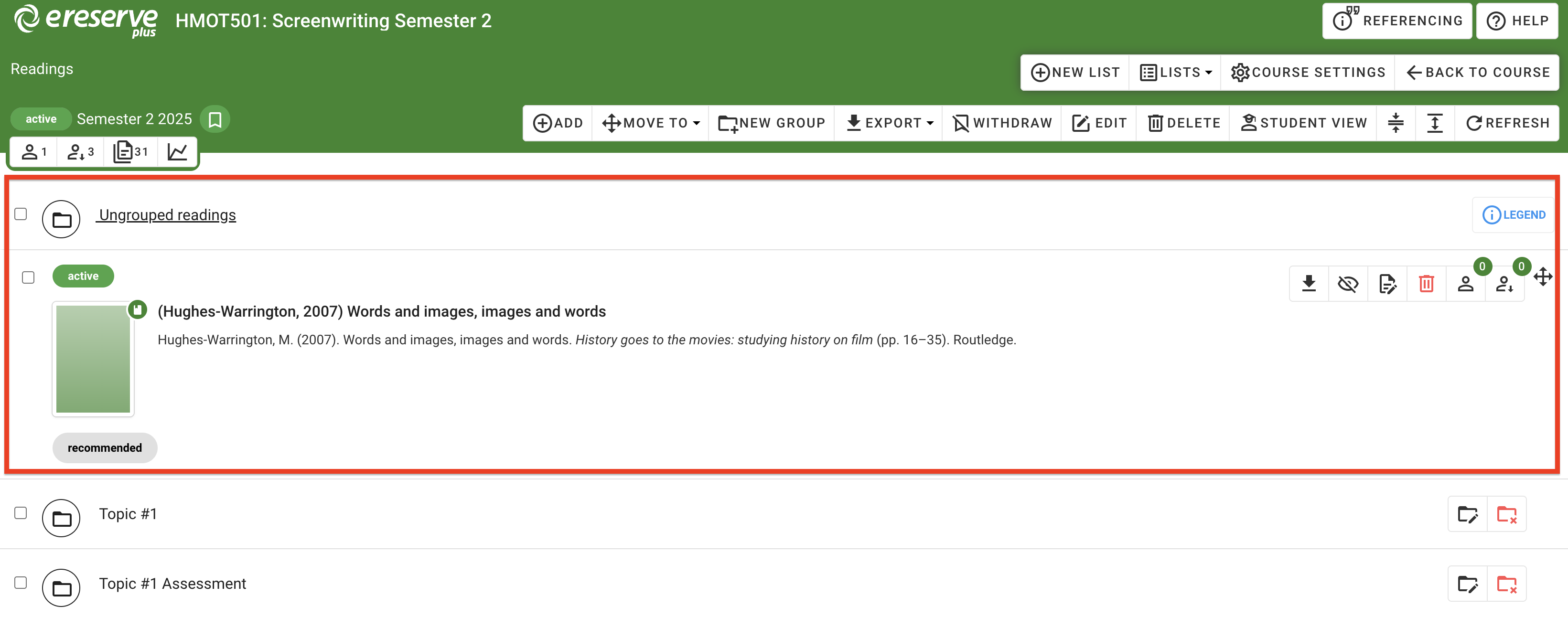
All newly added resources are located in the Ungrouped Readings folder, which sits at the top of the list above any created groups.
Figure 29 : The new resource in the Ungrouped Readings folder
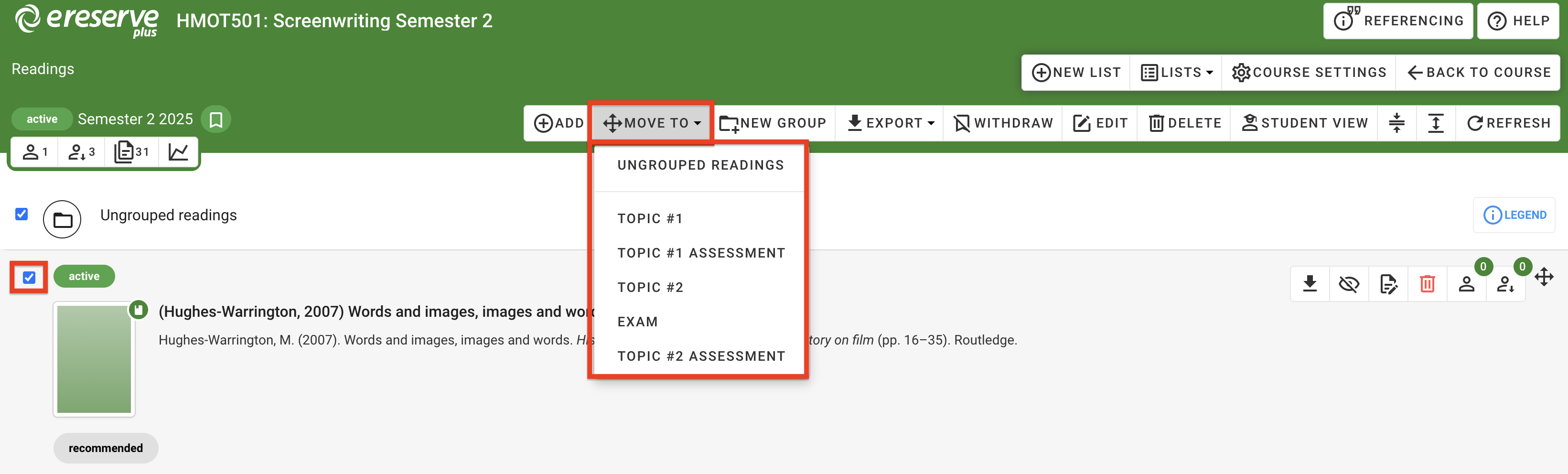
You can move a resource to a another group by using the drag & drop handle on the right, or by checking the box on the left and selecting a group folder from the Move To menu on the toolbar.
Figure 30 : The 'Move To' option
For a comprehensive overview of the list interface, please use the following link: