Summary: This document provides a guide for the Faculty list view and explains how to use each feature for efficient curation of lists and resources.
Introduction
This guide provides an overview of the eReserve Plus list interface and functionality for faculty within the LMS. Understanding each feature will assist with the curation of lists and resources in your course.
On the left-hand side of the header, you can see the list status and name. If the list is published, there will also be a publishing icon to the right of the list name.
Figure 1 : The list availability status, name and publishing icon
The dates for the list can be viewed by hovering the cursor over the status label, which can be any of the following:
Active - The list is currently available and active, falling between the list start and end dates.
Future - The list start date is in the future and is not available.
Past - The list end date has passed and resources are no longer available for use.
Figure 2 : The past, active and future status labels for three different lists within the same course
If a list is published, there will be a bookmark icon to the right of the list name. Note that students can only view and access a list if it is both Active AND Published.
Underneath the list name and status, there are a number of list analytics that provides insight into student and resource usage details. Please visit the Educator Insights help page for more details on each of the analytics provided.
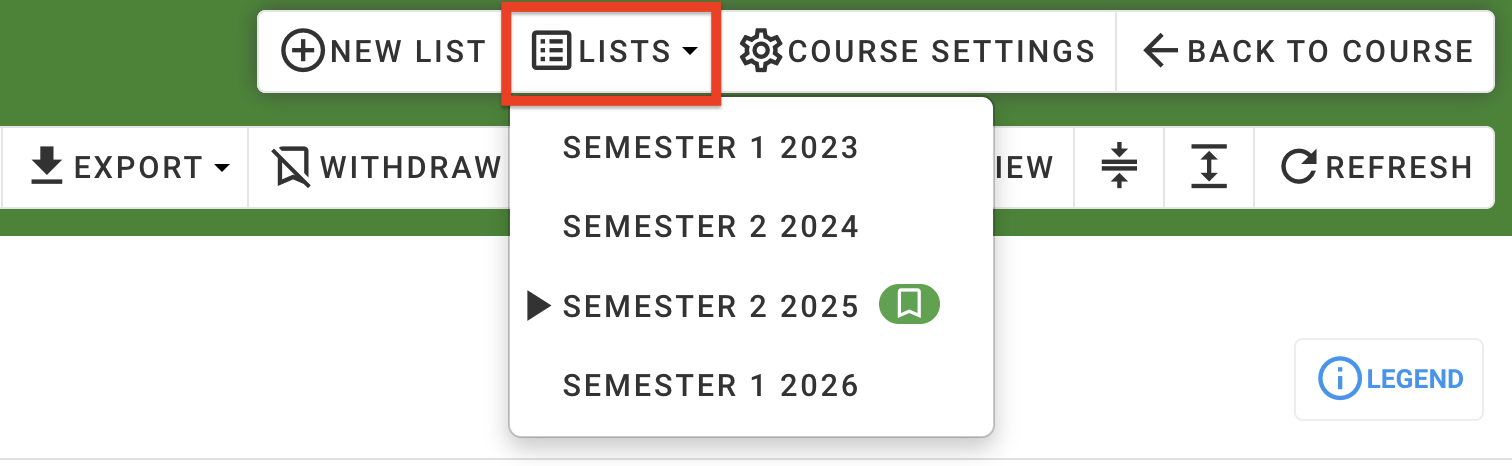
If there are other lists available for other teaching periods in the same course, click the Lists dropdown button to view all lists for selection. The list being currently viewed will be indicated by the play icon to the left of the list name while any published lists can be identified by the bookmark icon on the right.
Figure 3 : Other lists available in the list dropdown
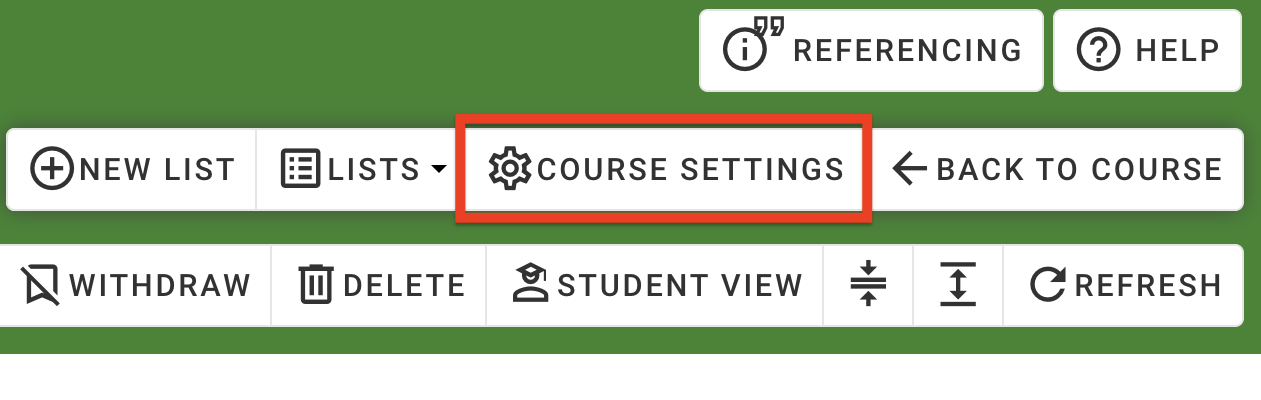
Next to the List dropdown is Course Settings, which allows faculty to update the associated School for the course or change the citation style currently applied to the list. These settings affects all lists in the course.
Figure 5 : The 'Course Settings' button
List management tools
The list toolbar offers various ways to curate and manage your list.
Add a resource
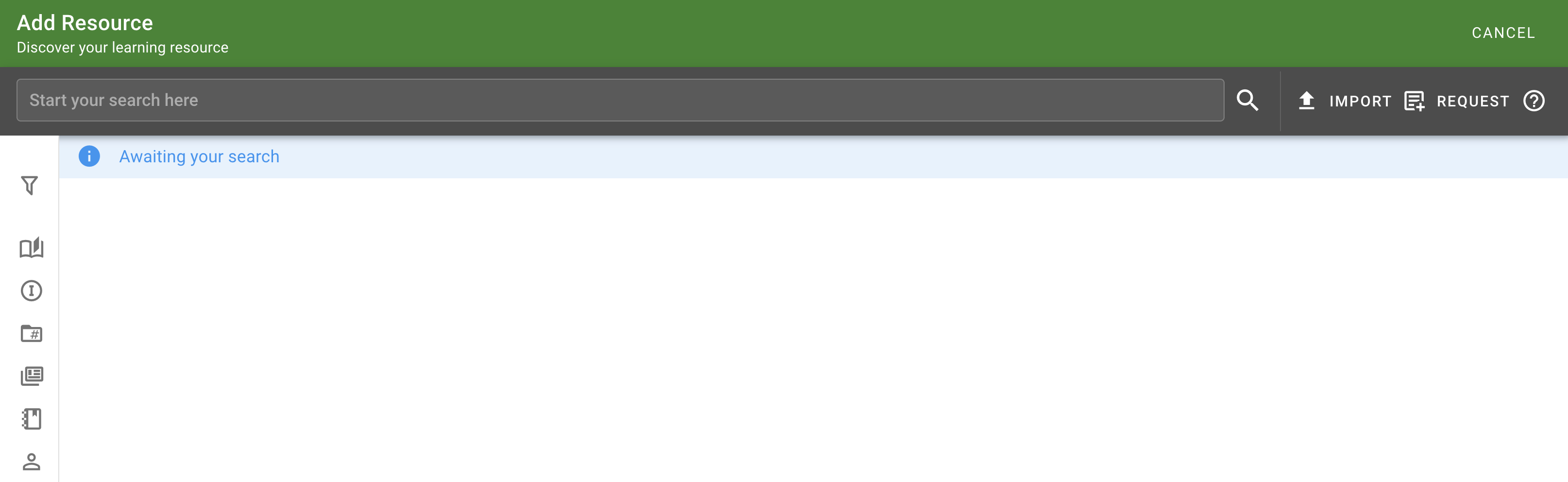
Click the Add button to begin adding resources to the list. Faculty are able to use this option to search for existing resources and materials the library owns or are subscribed to. Faculty can also create new resources manually. Faculty are also able to import multiple resources via RIS import, which matches on existing materials in the repositories or can create requests for new resources if no matches are found.
Figure 6 : The 'Add' button to add new resources to a list
Figure 7 : The enhanced discovery search page
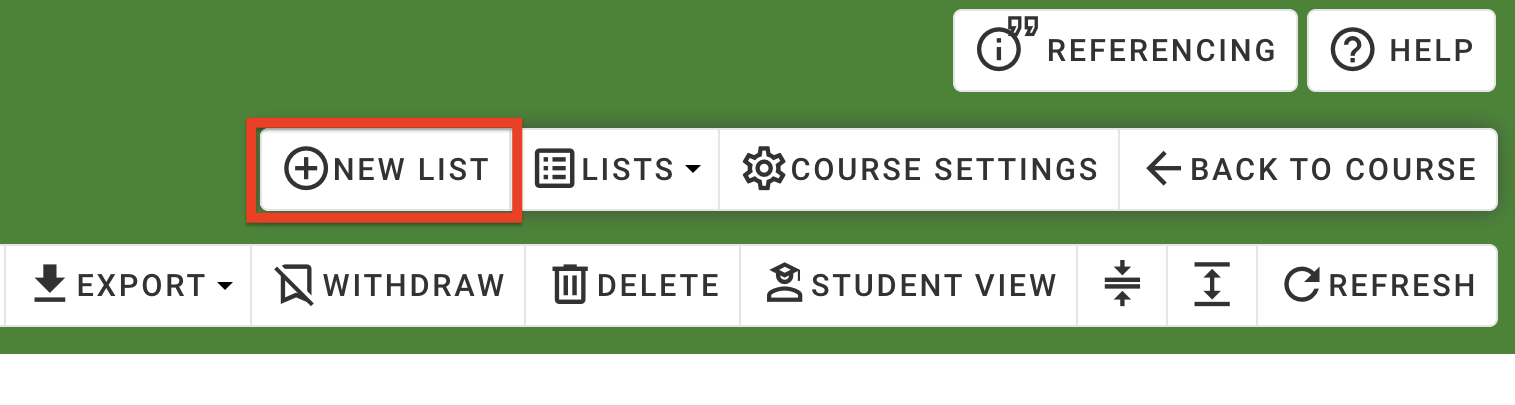
New Group
Groups, also known as folders, can be created for the list, allowing greater control over the presentation of the lists and can be used to organise resources by topic, week, etc. Click on New Group and type in a name for the group, then click Create to create a new group to move resources into.
Figure 8 : The 'New Group' button in the list toolbar
Figure 9 : The New Group creation window
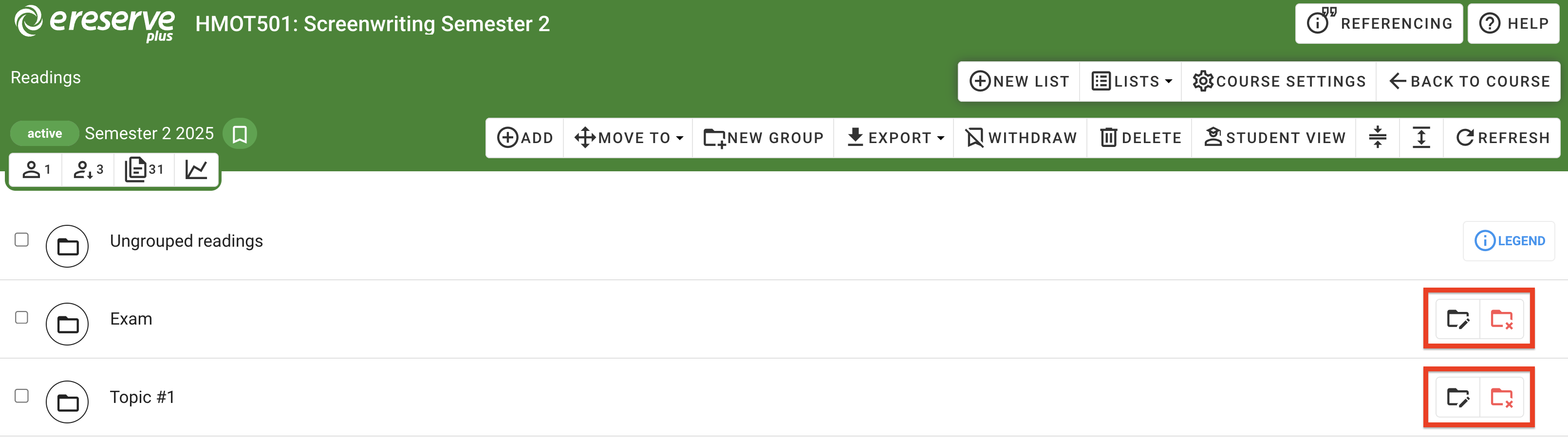
Groups can be rearranged via drag-and-drop and can be edited or deleted using the buttons on the right-hand side of the group. Please note that deleting a group that contains resources will move all resources to the Ungrouped Readings folder.
Figure 10 : The edit and deletion options on the right-hand side of each group
Moving Resources
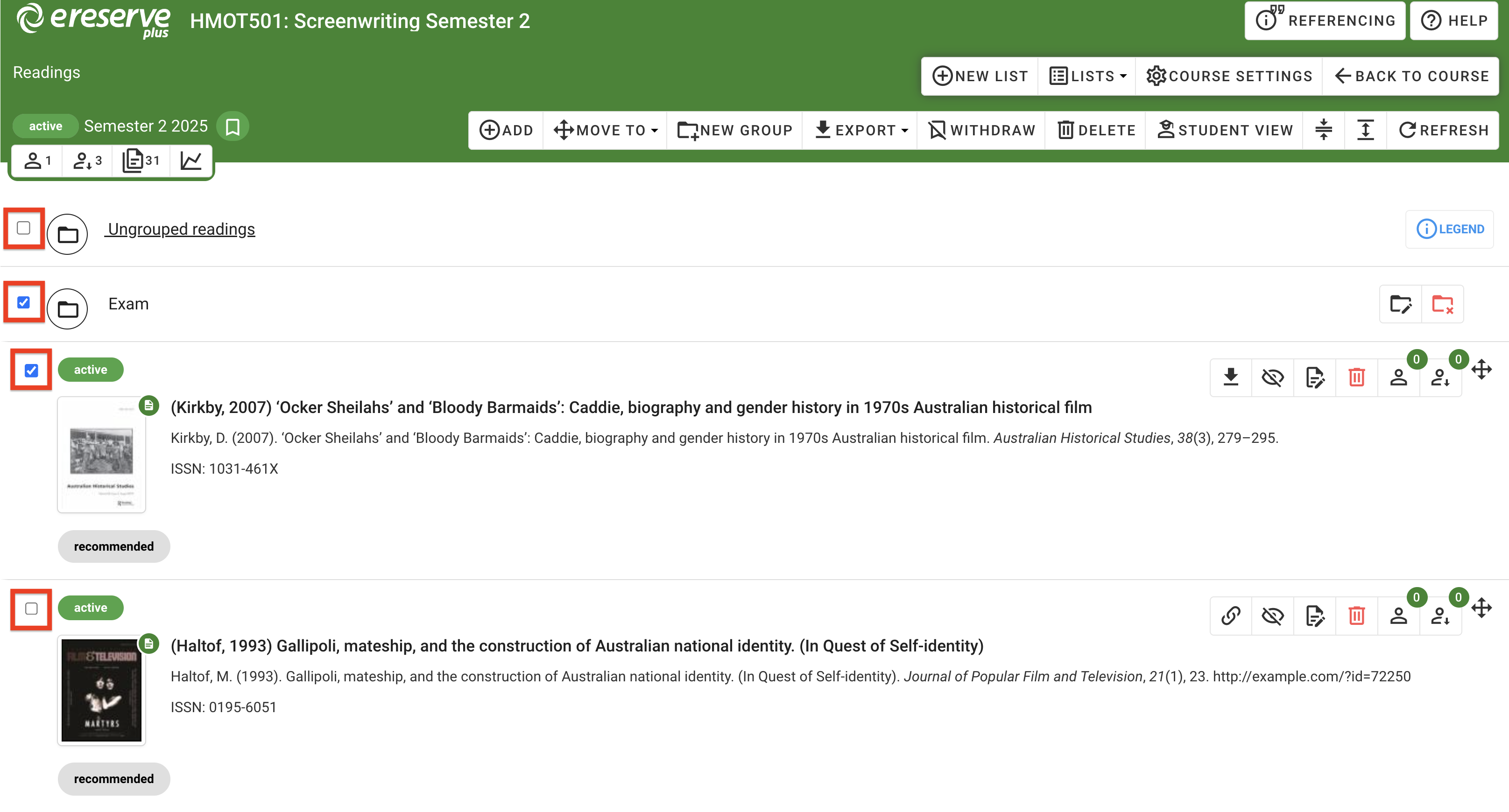
The 'Move-To' feature is used to move all selected resources to a specific group. Click the checkbox to the left of the resource or group that requires moving. Selecting the checkbox for a group will select or deselect all resources within the group. Resources can be selected from multiple different groups.
Figure 11 : Use the checkbox on the left-hand side to select resources and groups
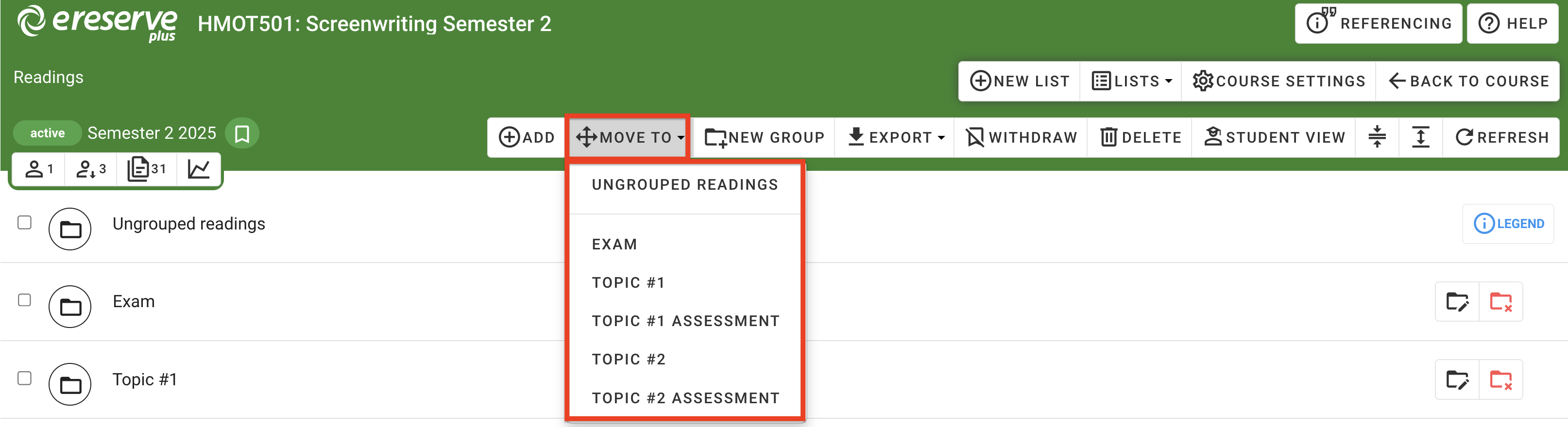
Click the Move To button, then select the group all selected resources are to be moved into.
Figure 12 : The 'Move To button in the list toolbar
Resources can also be moved and rearranged by using the Drag-and-Drop handle, located on the right of each resource.
Figure 13 : The drag and drop handle on the right-hand side of the resource
Export
The entire list can be exported into either an RIS file or plain text file. Clicking on either option will automatically begin a download of the respective file. This functionality is also available for students, though their export results will differ.
Figure 14 : The 'Export' button and dropdown in the list toolbar
Publish/Withdraw
This button will appear on the toolbar as either Publish or Withdraw depending on the list's publishing status.
If the list is not published, the Publish button is available. Clicking the Publish button will publish the list, which makes the list and resources accessible to students. Note that students can only access resources if the list is published AND active.
Figure 15: The 'Publish' button in the list toolbar
If the list is published, the Withdraw button is available. Clicking the Withdraw will unpublish the list and will make the list and resources inaccessible to students, even if the list is active.
Figure 16 : The 'Withdraw' button in the list toolbar
Student View
The Student View feature allows faculty to view and interact with the list and features exactly as a student does. Click the Student View button to preview the list as a student.
Figure 17: The 'Student View' button in the list toolbar
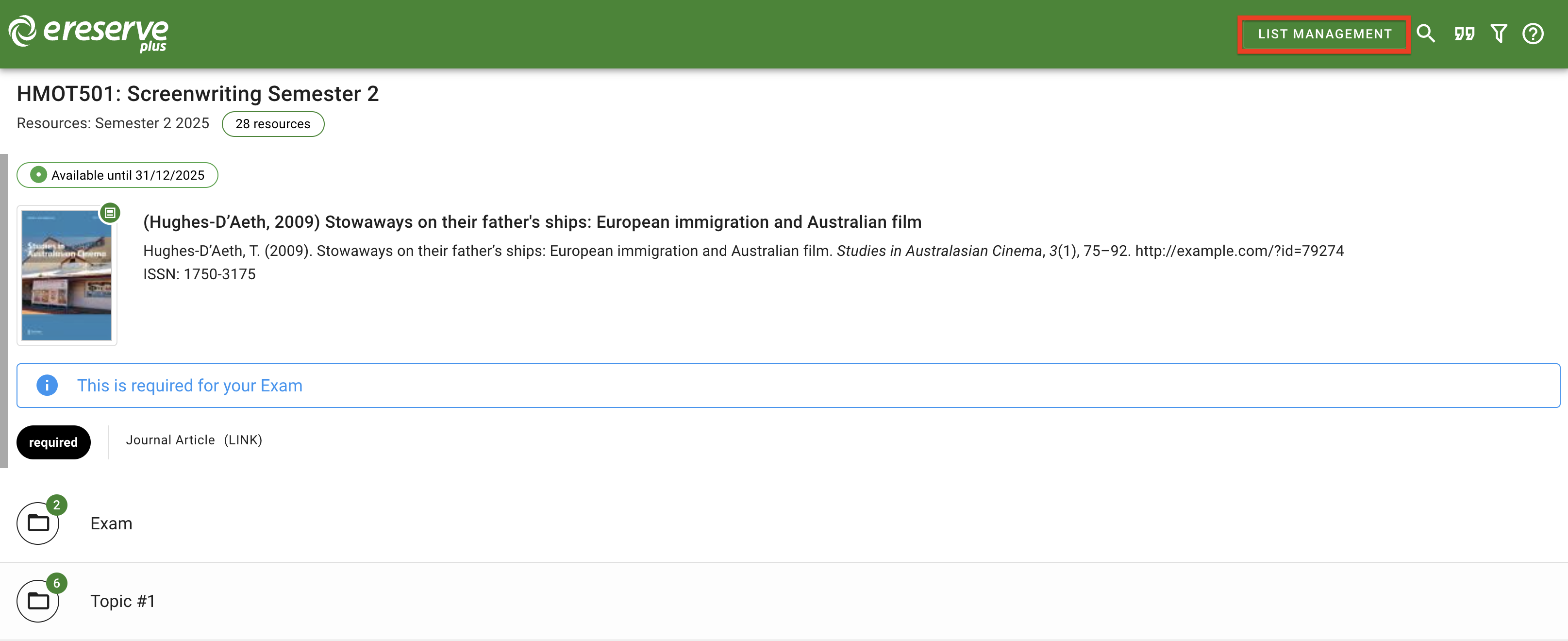
This also includes access to the student list search, filter and export features, as well as access to the student help guides. Click the 'Back to List management’ button to return to the faculty list view.
Figure 18 : While viewing the list as a student, click the 'List Management' button to return to the faculty view
Expand/Collapse
Clicking the Collapse buttons will collapse any open groups within the list. Click the Expand button will expand all groups within the list, making all resources viewable.
Figure 19 : The 'Expand' and 'Collapse' options in the list toolbar
Refresh
Click the Refresh button to refresh the list view anytime, which is useful in cases of file imports or updating list and resource analytics.
Figure 20 : The 'Refresh' button in the list toolbar
Resource Management
Resource status and details
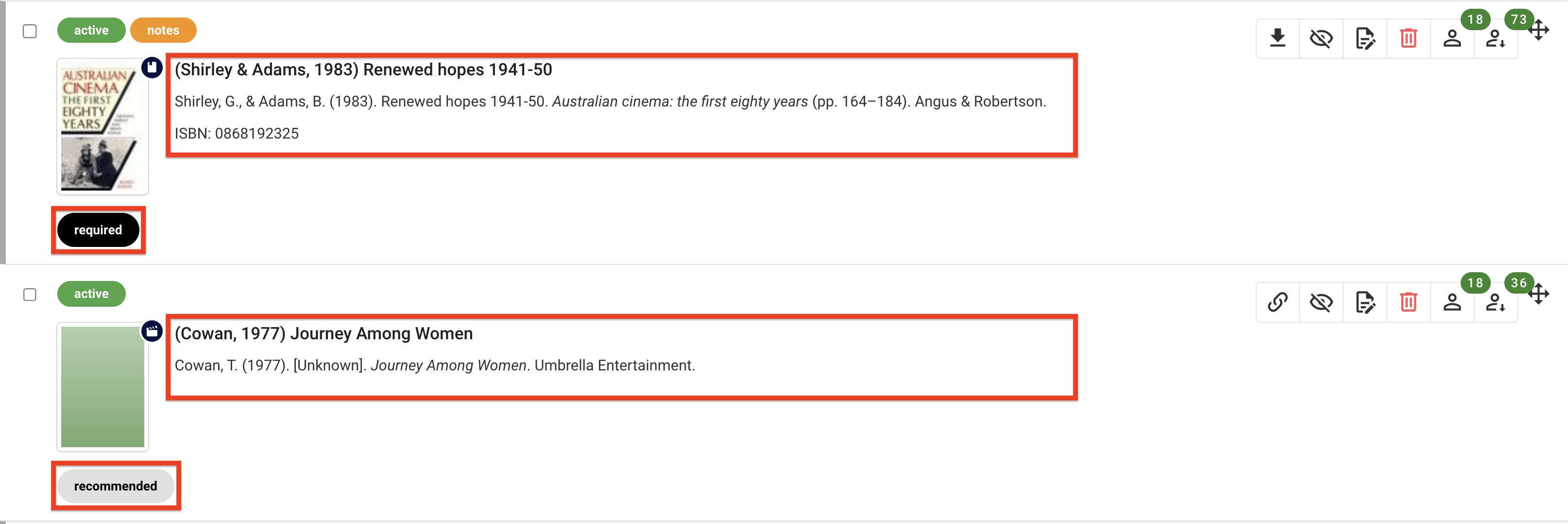
The resource reading title and full citation is clearly displayed in the list, using the citation style that has been set for the course. The reading importance is also clearly displayed for each resource (Required or Recommended).
Figure 21 : A required and recommended resources in a list, each with the citation details clearly displayed
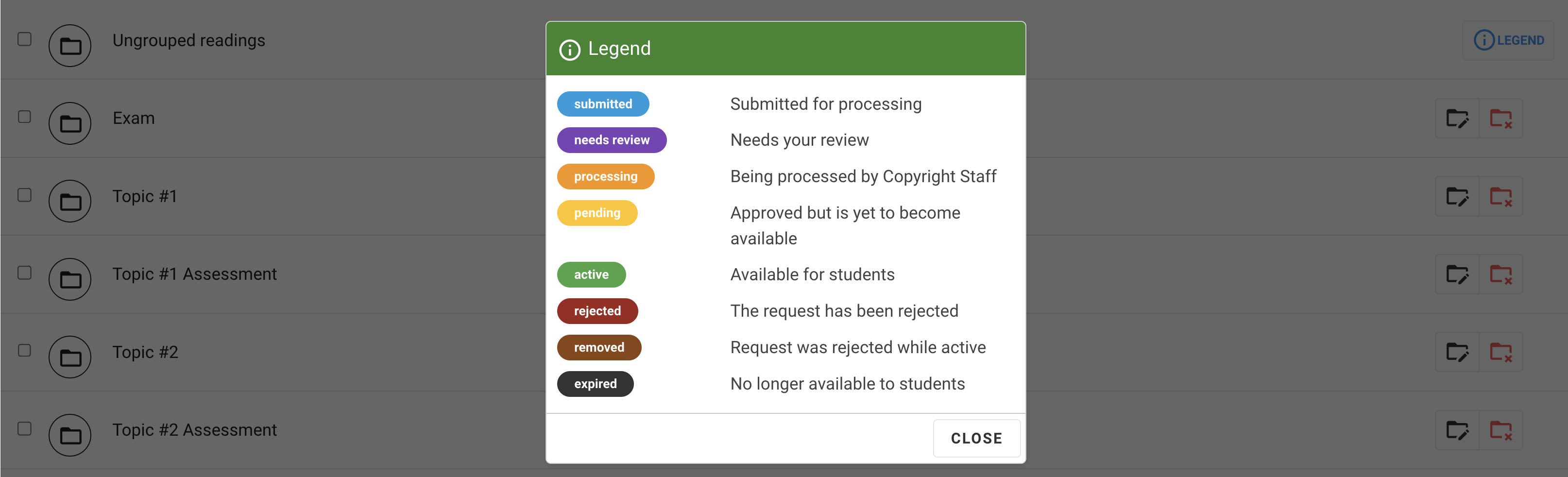
Each resource displays a status with a status label over the resource thumbnail, which is only visible to faculty and library staff. Hovering over the status will display some additional details, including start and end dates for the request.
There are a number of statuses for resources. Some status examples are:
Submitted - Submitted resources are awaiting review from Copyright staff.
Active - Active Resources have been approved and are available for students to view and access.
Rejected - Rejected resources are not available to students. Rejected resources has an additional label which provides the rejection reason
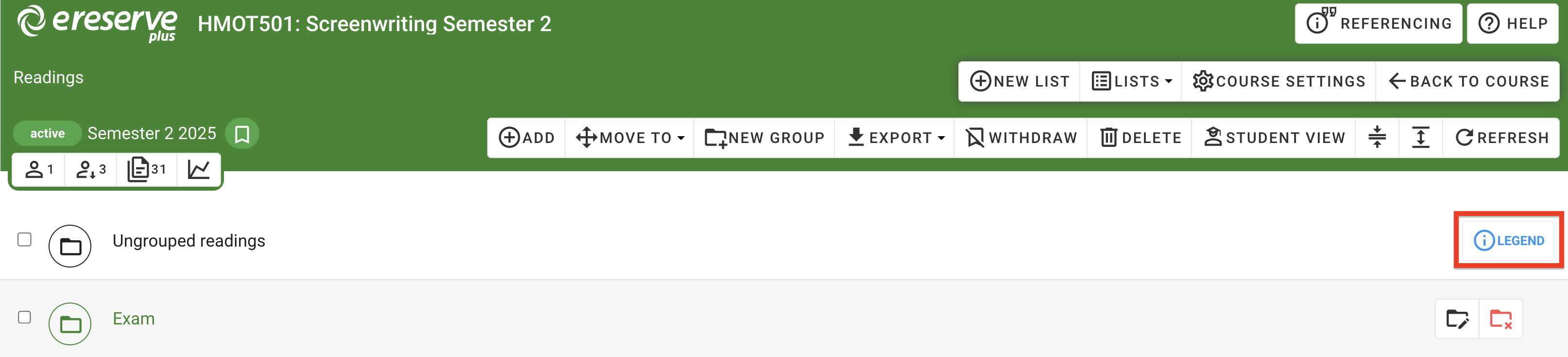
Resource statuses can be reviewed anytime by clicking the Legend button, located on the right-hand side of the 'ungrouped readings' group.
Figure 22 : The 'Legend' button on the right hand of the 'ungrouped readings' group
Figure 23: Viewing the Legend window in the list
A notes label will be present if a note has been left for students, which can be reviewed via pop-up text by clicking on the notes label.
Figure 24 : The 'Notes' label on a resource
Resource Tools
On the right of each resource is a variety of options to assist with updating and reviewing resources. The options available will depend on the resource status and will be presented in the following order from left to right:
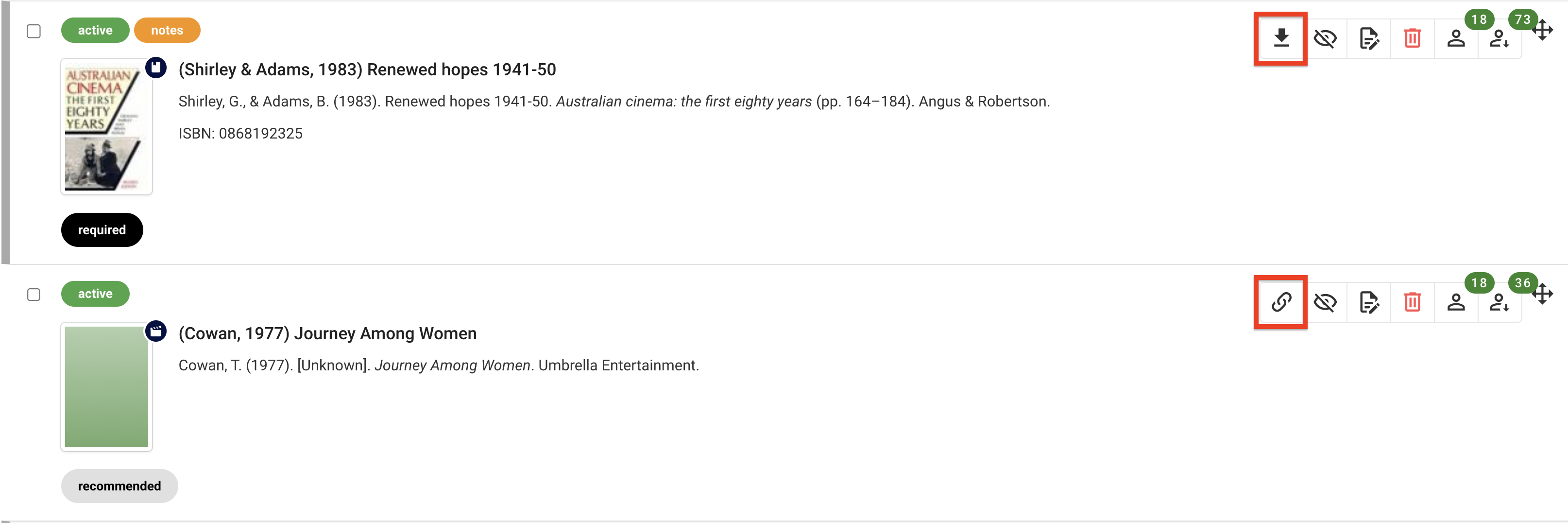
Access the resource. Click this button to immediately open a link-based resource or download the file-based resource for review.
Figure 25 : The 'Access' button, which opens link-based resources and download file-based resources
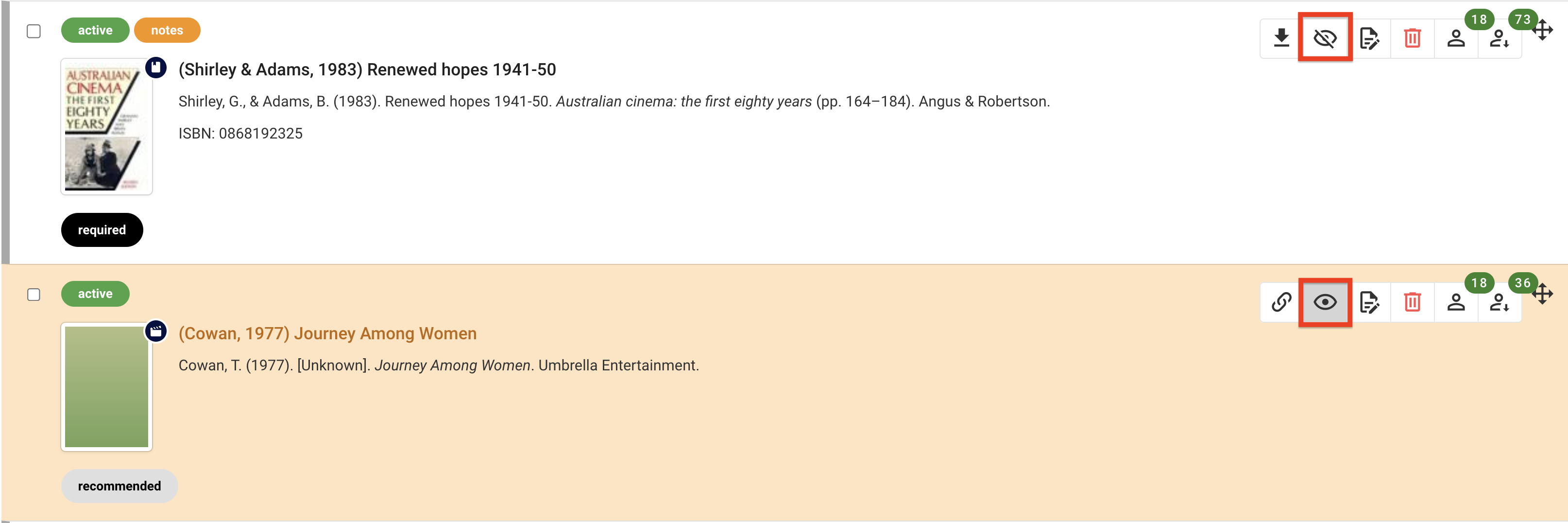
Hide or Reveal the resource from students. By default, resources are visible to students. Click the eye icon to toggle the resource visibility for students, which will be automatically applied to the resource in list. Resources hidden from students will be highlighted, as shown with the 2nd resource in the figure below.
Figure 26 : The 'Hide' toggle button for resources
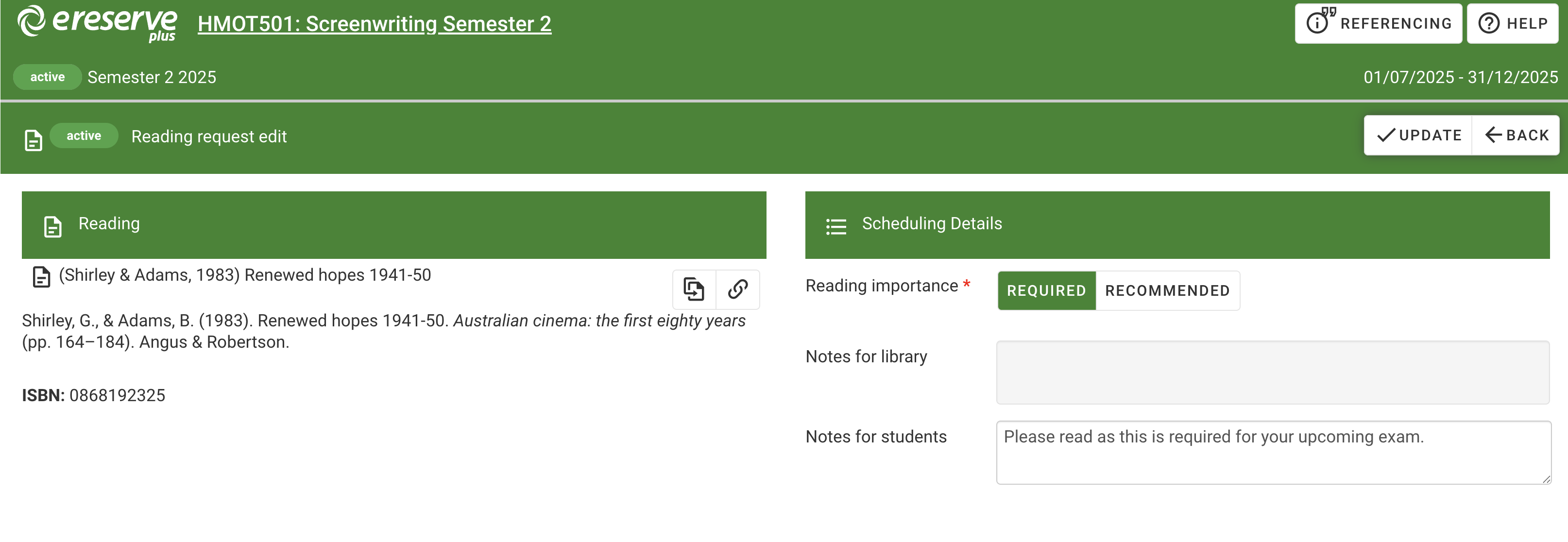
Edit the resource. This option can be used to make any of the following changes:
Delete the resource. Please note that for resources with utilisation it is recommended to hide the resource rather than deleting it.
Figure 29 : The delete button for a single resource
The following two buttons display the student analytics for the resource. The Unique Student Access displays the number of students accessing the resource and clicking into this will list each student and their individual access count. The total access count displays accesses across all students. Please visit the Understanding Student Utilisation page for more details.
Figure 30 : The Unique Student Access and the Total Access Count buttons
To finalise your list, it is recommended to continue checking back and ensure the requests for resources are being processed. Any resource that is Active on a published list is readily available to students as they have been through the necessary copyright checks.