
4. Moodle Integration
Throughout this section of the document are the details for getting your Moodle instance connected to eReserve Plus. It’s very important to read all of the details in section 2 of this document and complete all of the activities in this section to ensure a successful connection to eReserve Plus. Should you have any questions please contact the eReserve Support Team at support@ereserve.com.au
4.1 Requirements
The eReserve Plus LTI Tool is regularly tested with the releases supported by Moodle. It is recommended that you use a Moodle supported version of Moodle, however the eReserve Plus LTI Tool has been tested with earlier Moodle versions without incident. It is important to note that we will not be testing against older versions of Moodle where support has been withdrawn by Moodle.
Please ensure that an Integration Record has been created within your eReserve Plus environment, as the integration record will provide the Key and Secret required for your configuration. You can follow the steps to create an integration within the Integration Overview help page.
4.2 LTI Management
In order for course maintainers to link to a Reading List in eReserve Plus for their courses, you will need to create a configuration in the Moodle LTI Management interface. To begin, log into Moodle as an Administrator then navigate to the following location in Moodle:
Site administration > Plugins > Activity modules > Manage Tools
In the 'Add tool' panel, click on the configure a tool manually option.
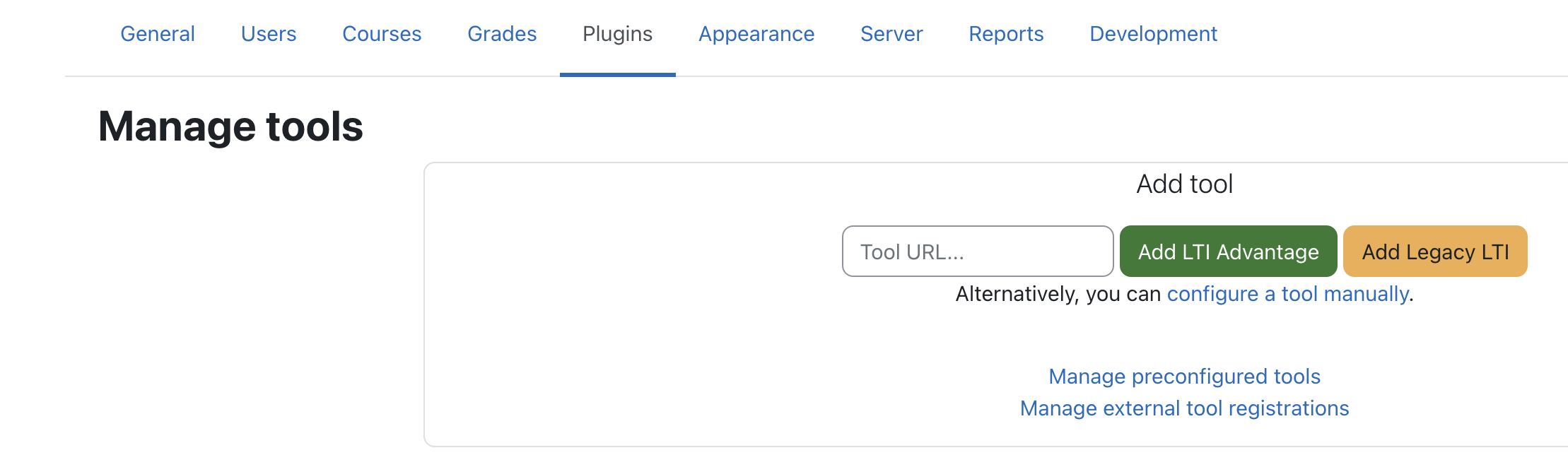
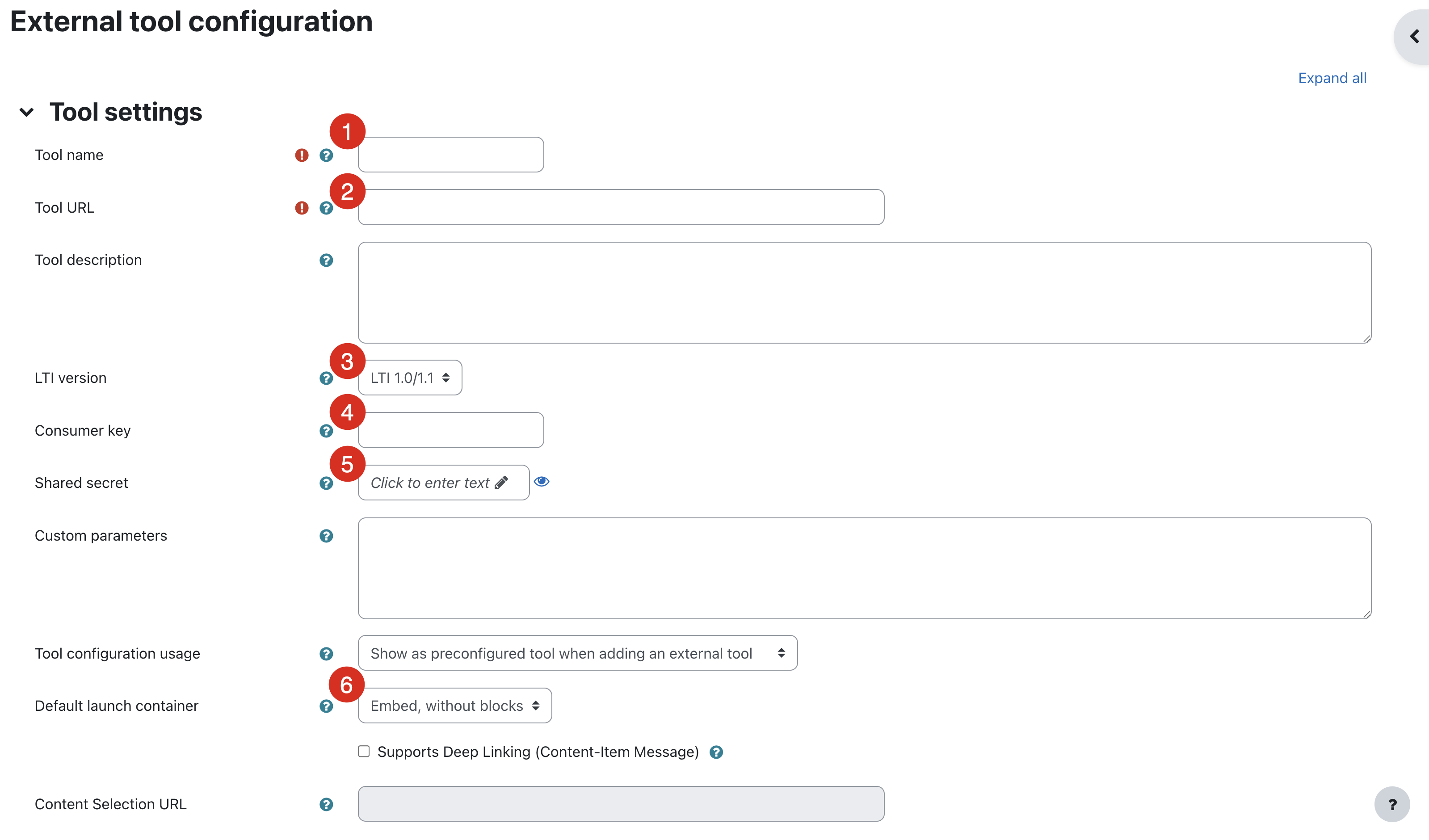
Next, fill out the form as follows:
Tool Settings
-
Tool Name - You can name this as you need but we recommend eReserve Plus.
-
Tool base URL - This URL consists of your institution’s eReserve domain combined with the following URL path: app/integration/lti_tool/launch Here are a few example links below:
- https://EXAMPLE.ereserve.com.au/app/integration/lti_tool/launch
- https://ereserve.EXAMPLE.edu/app/integration/lti_tool/launch
If you’re uncertain of your eReserve domain URL, please contact the support team.
-
LTI version - Please ensure this is set to “LTI 1.0/1.1”
-
Consumer Key - The key in the integration record that has been created within the Integrations Configuration in your eReserve Plus environment
-
Shared Secret - The secret in the integration record that has been created within the Integrations Configuration in your eReserve Plus environment
-
Default Launch Container - This is how the External Tool will be displayed. Below are the options:
- Embed - The External Tool will be embedded in the Moodle course page with blocks and navigation bar;
- Embed without Blocks - The External Tool will be embedded in the Moodle course page but without blocks;
- New Window - The External Tool will open in a new window (A new window or tab will open with the External Tool and the old browser window containing the course page will not change.)
Tip: It is our recommendation that you configure the Launch Container to be Embedded without Blocks as a default to ensure the Reading List size available to users is optimised.
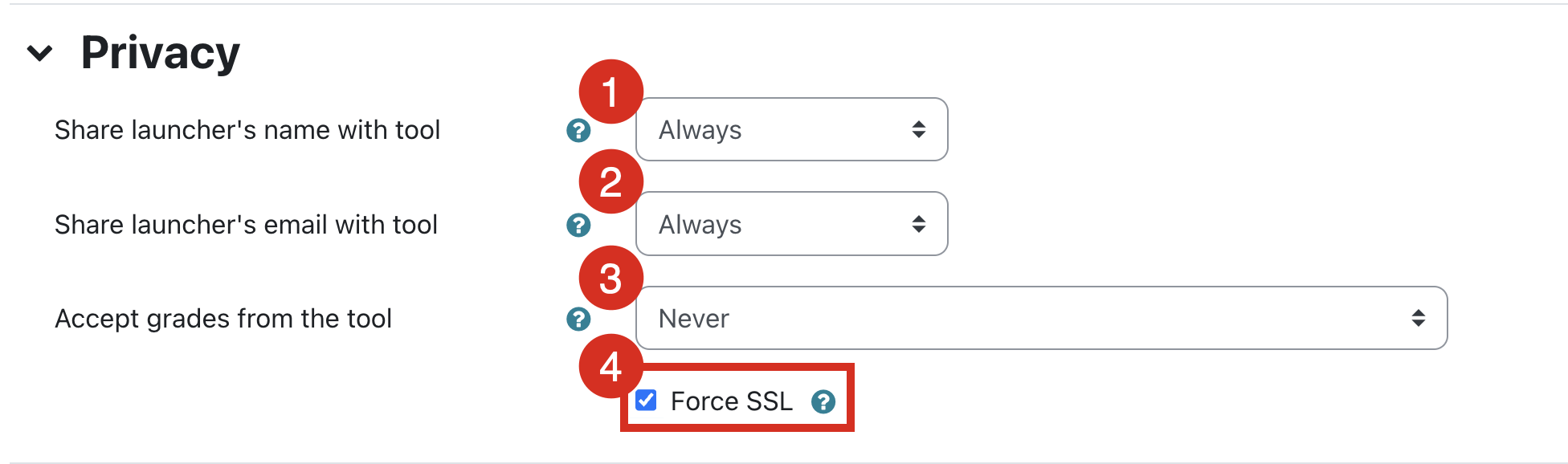
Privacy
-
Share launcher’s name with tool - This is set to Always for eReserve to pre-populate reading requests with a User's name.
-
Share launcher’s email with tool - This is set to Always for eReserve to pre-populate reading requests with a User's email address.
-
Force SSL - All communication with eReserve Plus is done over SSL so this needs to be ticked.
Once you have completed the form just click on the Save Changes button. You are now ready to create a link in a course.
4.3 Course Link to Moodle
The LTI Tool integration in Moodle is treated as an 'Activity'. So for those who maintain the course, it's just a matter of adding a new activity in an appropriate location in Moodle.
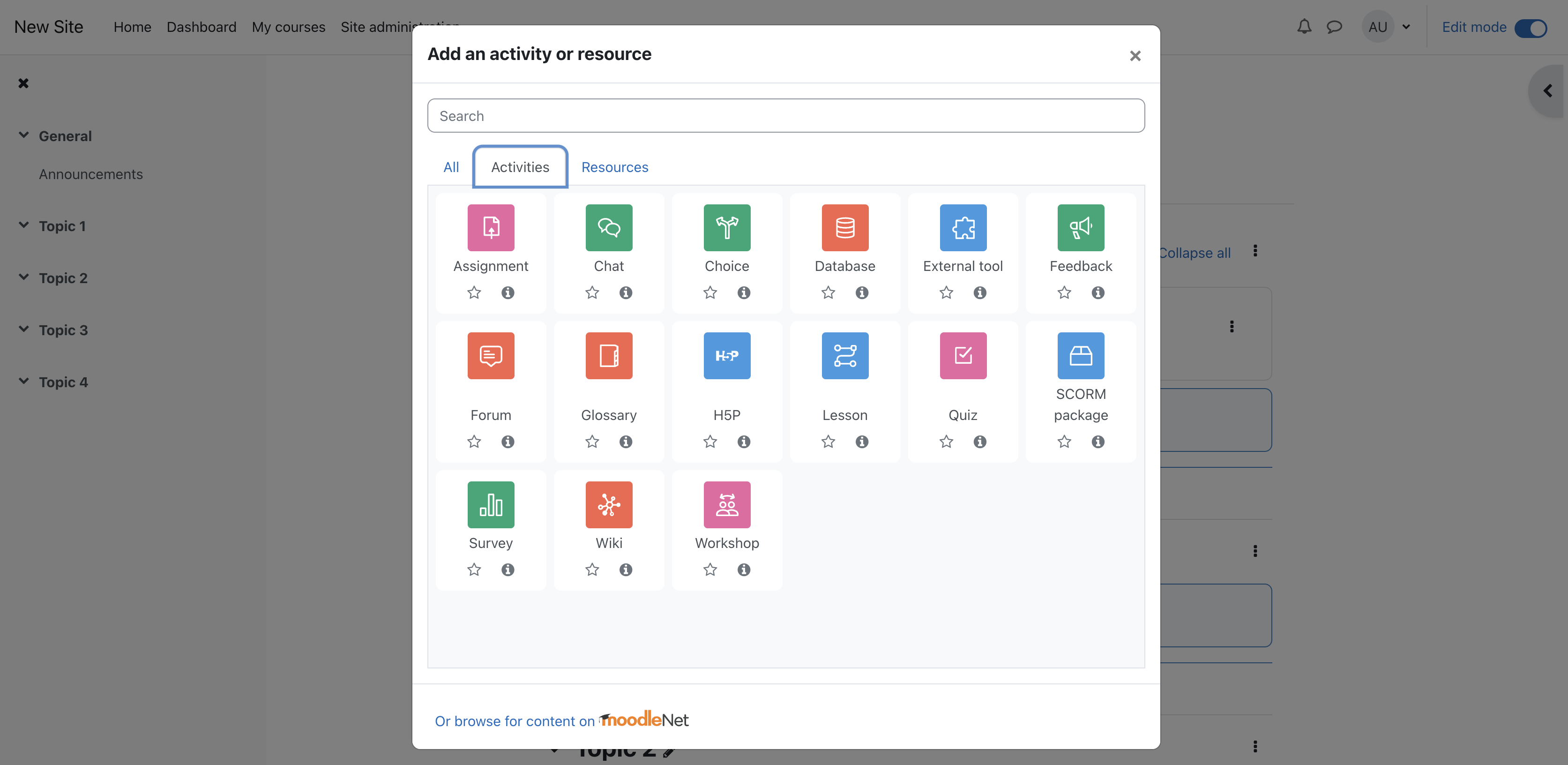
Navigate to the course, then click on the Edit Mode toggle to enable editing, then click on the Add activity or resource link.
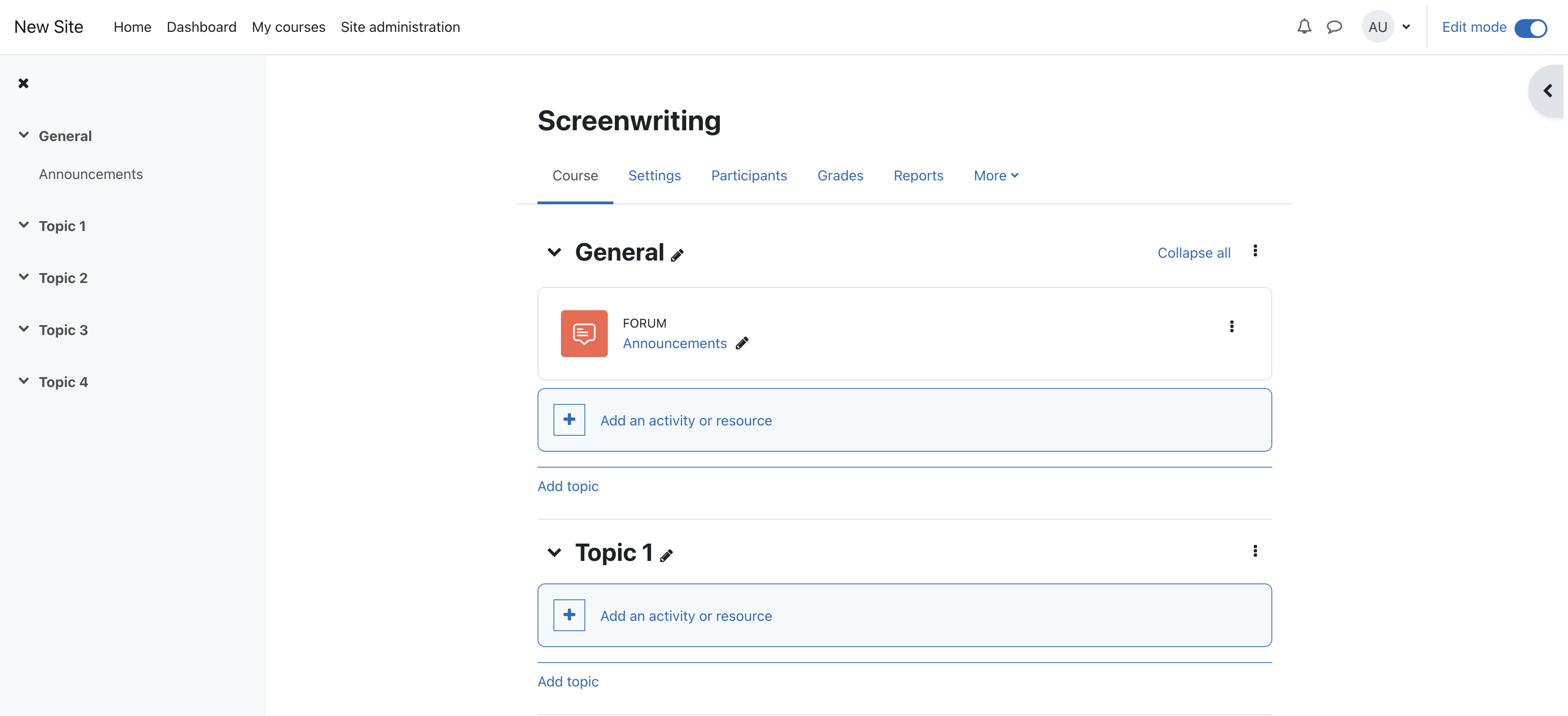
Once you’ve clicked on the link you’ll see the Add an activity or resource dialog window displayed (see below). Choose the External tool option.
The Adding a new External tool form (see below) will be displayed. Fill it in as follows:
- Activity Name - This name can be chosen by the course maintainer but we recommend eReserve Plus or Reading List
- Preconfigured tool - Select the name of the tool created in Step 1 of Tool Settings, e.g. eReserve Plus.
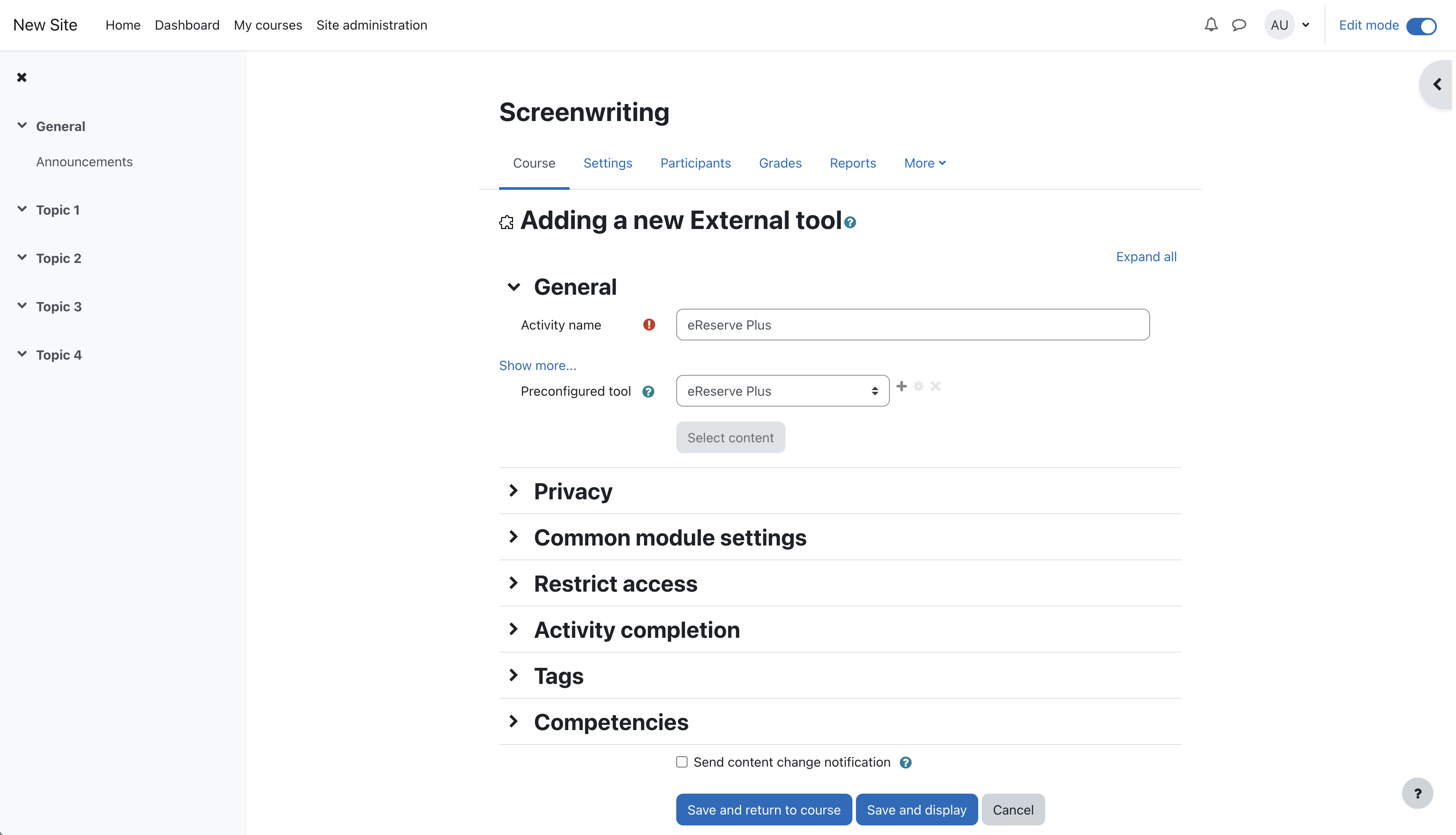
All other options can be left with their defaults. Click on Save and return to course and you are done. Now onto activation of your integration record.
4.4 Integration Record Activation
This is the final step and the most important one, as it binds your Moodle Instance to the integration record within eReserve Plus. To do this is very simple, it’s just a matter of clicking on the link you created in the course. If you’ve chosen the Embed option then you’ll see something like the page below for those who have access to manage the Reading List.
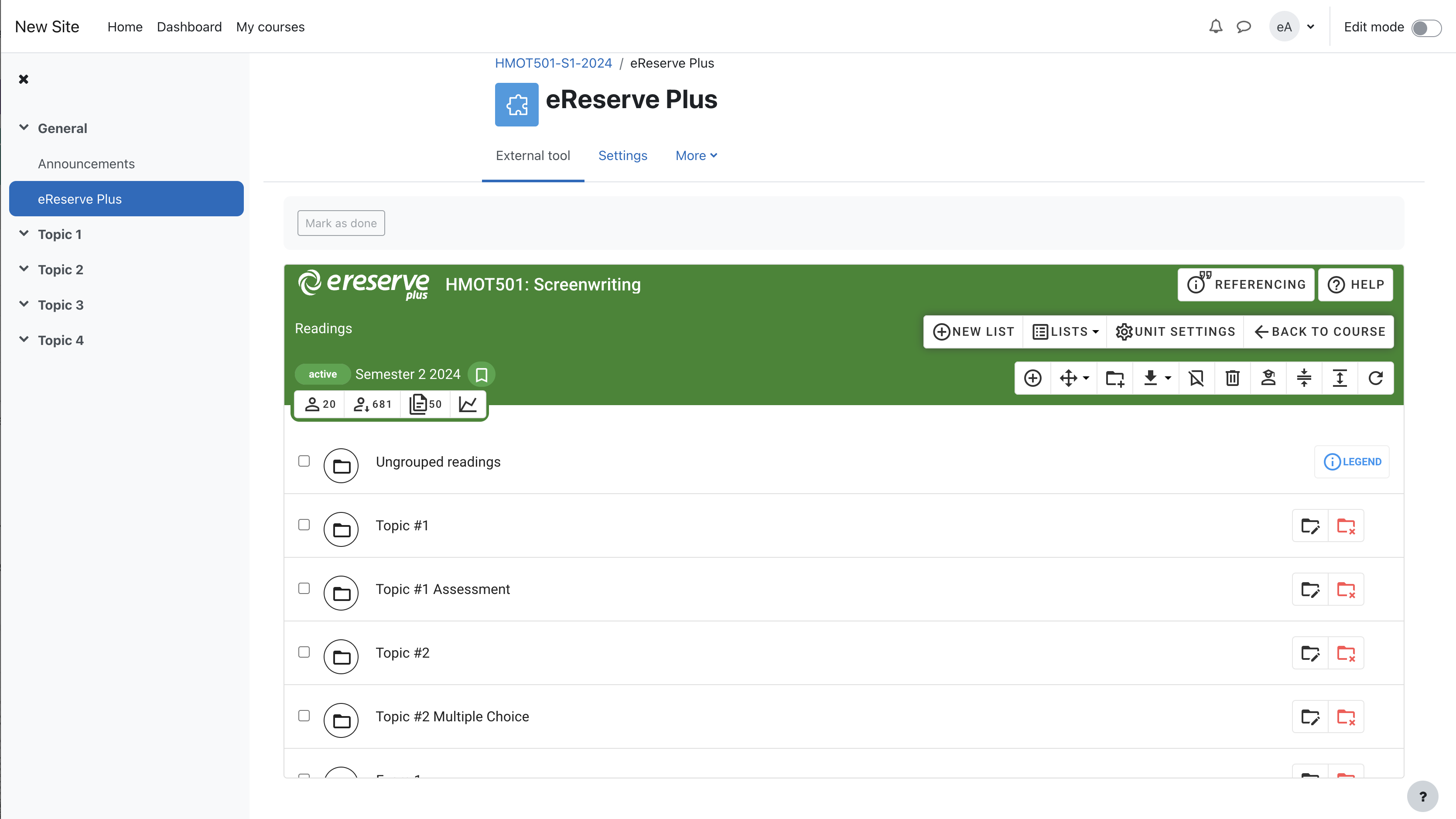
Once this has been done, if you return to eReserve Plus and navigate to Configure > Integrations, you will see the integration record has been activated with the details of your Moodle Instance.
Before activation:
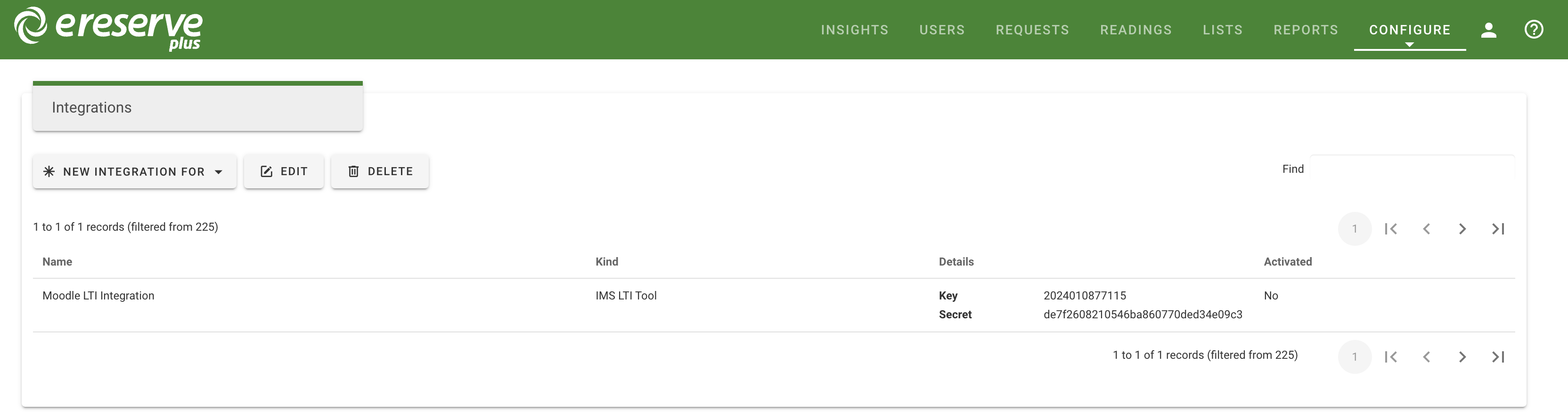
After activation:
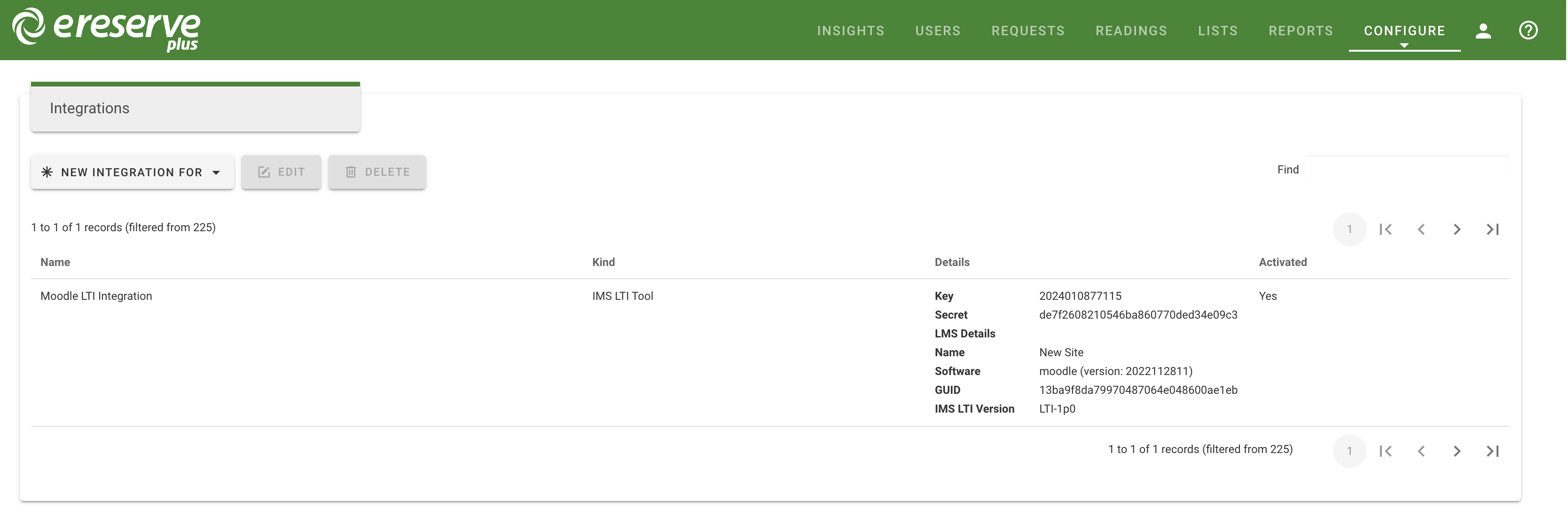
Now that your integration record has been activated, it’s important to configure it correctly. Please read the following sections in the Installation Overview guide to review and apply your desired configuration details:
- 1.3 Reading list access management for how to configure LTI roles to manage list access and;
- 1.4 Reading lists and course codes for more details about the Course code filtering.
4.5 Resource Linking with Moodle
Resource linking provides the option for course maintainers and teaching staff to embed resources directly within course content anywhere there is an HTML editor. The plugins can be installed before or after setting up the LTI integration.
The plugins below are required to make Resource Linking for Academics and Teachers possible from Moodle.
-
eReserve Plus Local Plugin This plugin contains all of the core functionality for the integration between the two platforms. For the end user, this is where all of the configuration is done.
-
eReserve Plus Filter Plugin This plugin will make sure that the correct details are used such as the Course ID and Reading ID when using Resource Linking.
The following plugins allows for integration with eReserve Plus and focuses on Resource Linking, using a specific editor.
-
TinyMCE Plugins To support the insertion of resource links (link to a list of one or more resources in eReserve Plus) this plugin automatically adds a button to the TinyMCE Editor.
-
eReserve Atto
To support the insertion of resource links (link to a list of one or more resources in eReserve Plus) this plugin provides a button that can be added to the Atto editor.
Prerequisites
To use these plugins you will need an eReserve Plus instance and Moodle 3.3.4 or later.
Plugins Download
Please download the installation files that correspond with your Moodle Version below. You may also download plugins individually, in cases where a legacy editor is required for your institution.
Installation Packs
| Moodle Version | Included Plugins | Download Link |
|---|---|---|
| 4.5+ | Local, Filter, Tiny, Atto | 4.5+ ereserve plus plugins |
| Pre-4.5 | Local, Filter, TinyMCE, Atto | legacy ereserve plus plugins |
Individual plugins download
| Plugin | Notes | Version and Download Link |
|---|---|---|
| Local | Required | 1.0.6 (Build 20250226) |
| Filter | Required | 1.0.1 (Build 2021053102) |
| Tiny | Only required for New TinyMCE editor (Available from Moodle 4.5+) | 1.0.8 (Build 2025112401) |
| Tiny MCE | Only required for Legacy TinyMCE editor | 1.0.1 (Build 2021053102) |
| Atto | Only required for Legacy Atto editor | 1.0.6 (Build 20250226) |
You can review the update history for all plugins in our Change log via this link.
Installing the plugins
As a Site administrator, you can use the following steps to install the plugins into your Moodle environment:
- Login as an administrator
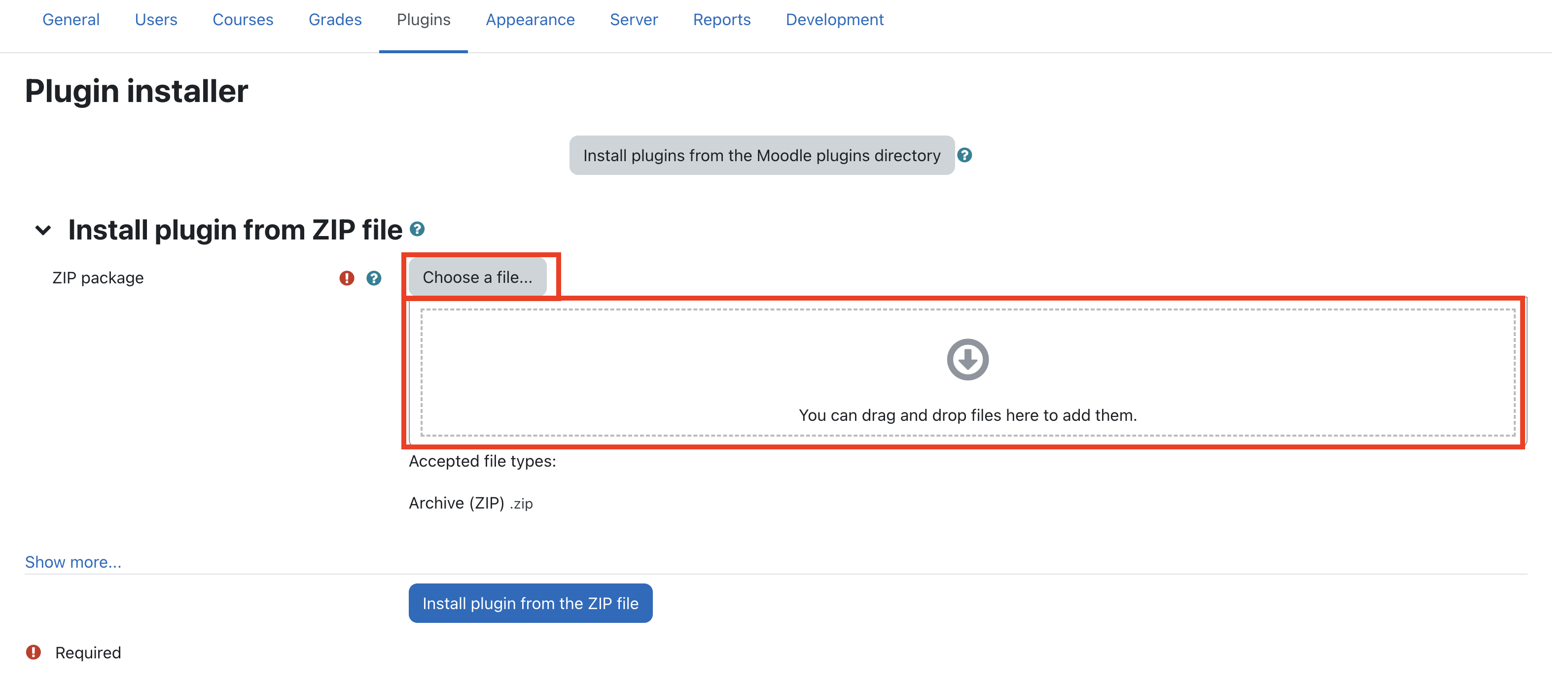
- Navigate to Site administration > Plugins > Install Plugins
- Click ‘Choose a file’ to locate and select the plugins zip files in your file explorer OR drag the zip files into the file field.
- Click Install plugin from the ZIP file.
eReserve Plus Plugin configuration settings
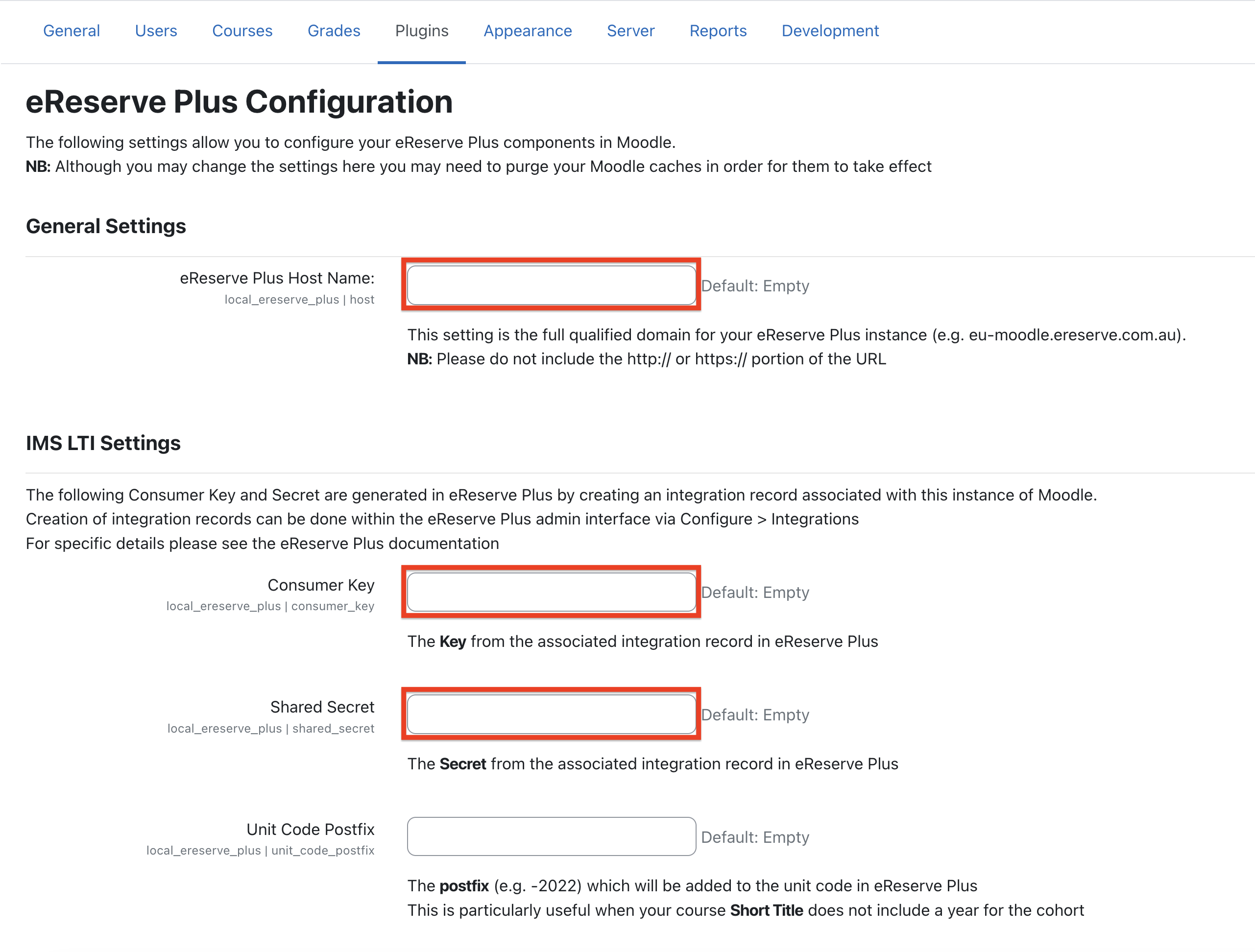
You can configure the eReserve Plus plugin by logging in as an administrator in your Moodle environment and navigating to the configuration settings via the following path: Site Administration > Plugins > Local Plugins > eReserve Plus Configuration
General Settings
- eReserve Plus Host Name -
This field should contain the fully qualified domain for your eReserve Plus instance. Examples below:
- EXAMPLE.ereserve.com.au
- ereserve.EXAMPLE.edu
Please DO NOT include the http:// or https:// portion of the URL.
IMS LTI Settings
Both the Consumer Key and Secret are generated in eReserve Plus by creating an integration record associated with this instance of Moodle. Creation of integration records can be done within the eReserve Plus admin interface via Configure > Integrations. For more details, please refer to the Installation Overview.
-
Consumer Key
The Key from the associated integration record in eReserve Plus -
Shared Secret
The Secret from the associated integration record in eReserve Plus
Enable the Filter Plugin
Once the filter plugin has been installed, use the following steps to enable the filter plugin in the Moodle Site Administration:
- Login as an administrator.
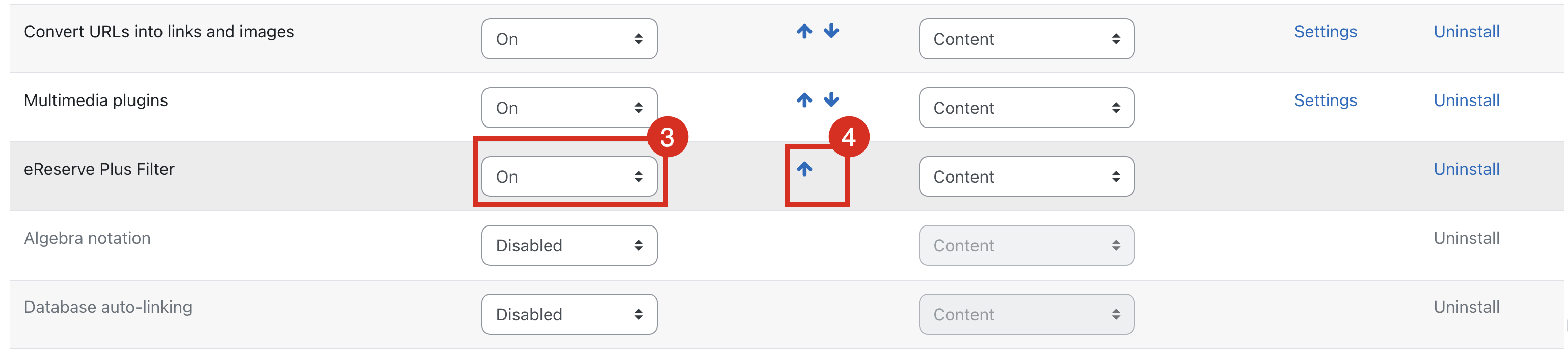
- Navigate to Site administration > Plugins > Filters > Manage filters
- Locate the eReserve Plus Filter then change Active? dropdown to On
- Move the eReserve Plus Filter to the bottom of the active filters list, using the Order arrows.
Atto Editor Post Installation Set-up
You will need to manually add the eReserve Plus Resource Link button in the Atto Editor via the Moodle administration, using the steps below:
- Login as an administrator.
- Navigate to Administration > Plugins > Text editors > Atto HTML editor > Atto toolbar settings.
- Once on the page, scroll down to the "Toolbar config" section, then place
ereservein where you want the button to appear.
Following is an example configuration (note ereserve on the files line of the config):
collapse = collapse
style1 = title, bold, italic
list = unorderedlist, orderedlist
links = link
files = image, media, managefiles, ereserve
style2 = underline, strike, subscript, superscript
align = align
indent = indent
insert = equation, charmap, table, clear
undo = undo
accessibility = accessibilitychecker, accessibilityhelper
other = html