Summary: Resource Linking enables Faculty to provide an inline link to one or more resources from any list in eReserve Plus inside the course content they create in Brightspace.
Resource List creation
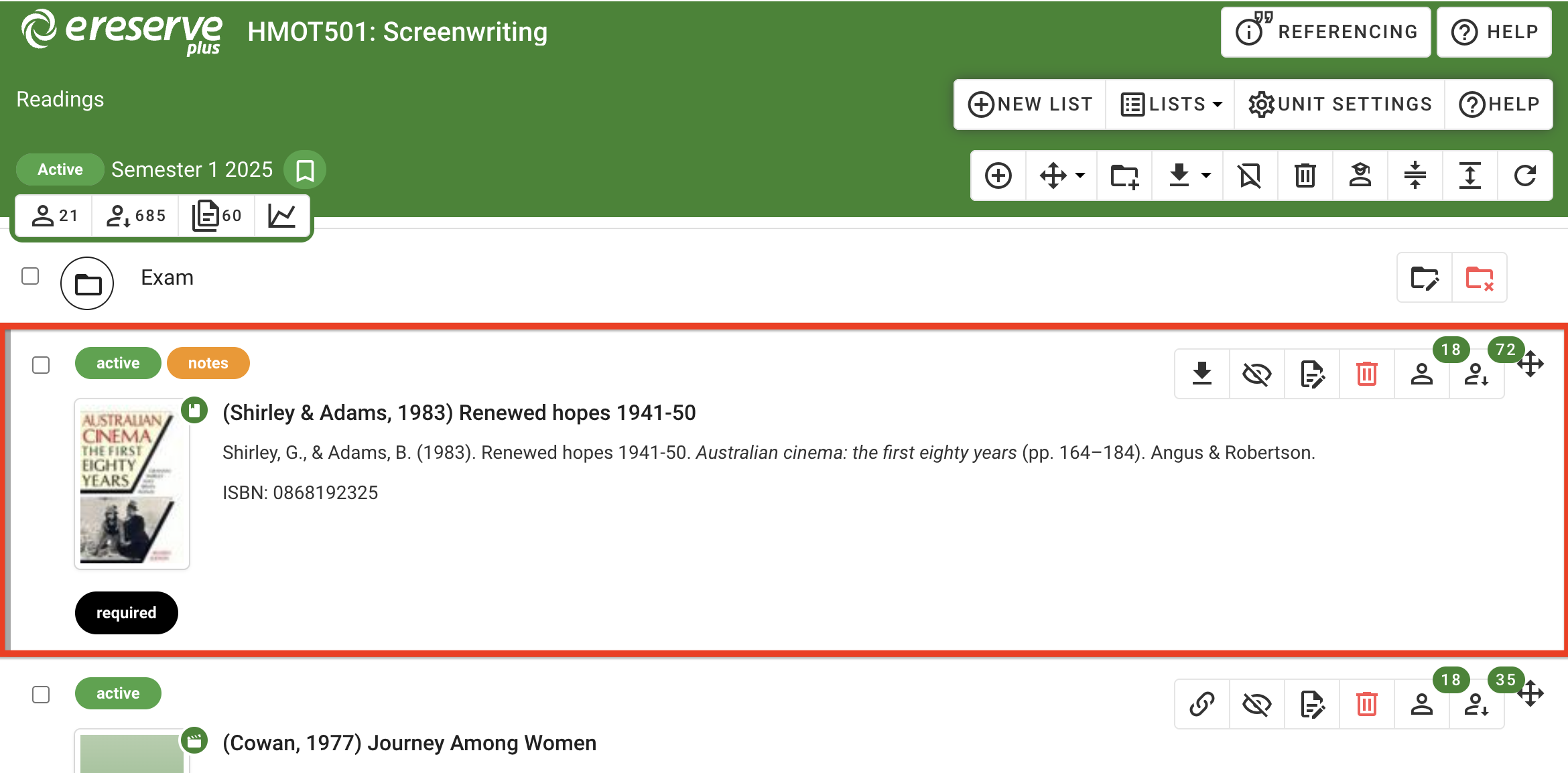
An important step in the process is to ensure that at least one list, and associated resources, are available in eReserve Plus for the Course that the Faculty staff plans to link to.
Figure 1 : A Reading List with active resources
Faculty view
Faculty can add a resource link anywhere there is a HTML editor.
Access the course in Brightspace as usual, then navigate to an editable section, such as Pages, Quizzes, Syllabus, etc.
To access the content editor, either click into an existing page, then click the Edit HTML button OR create a new page with a HTML editor.
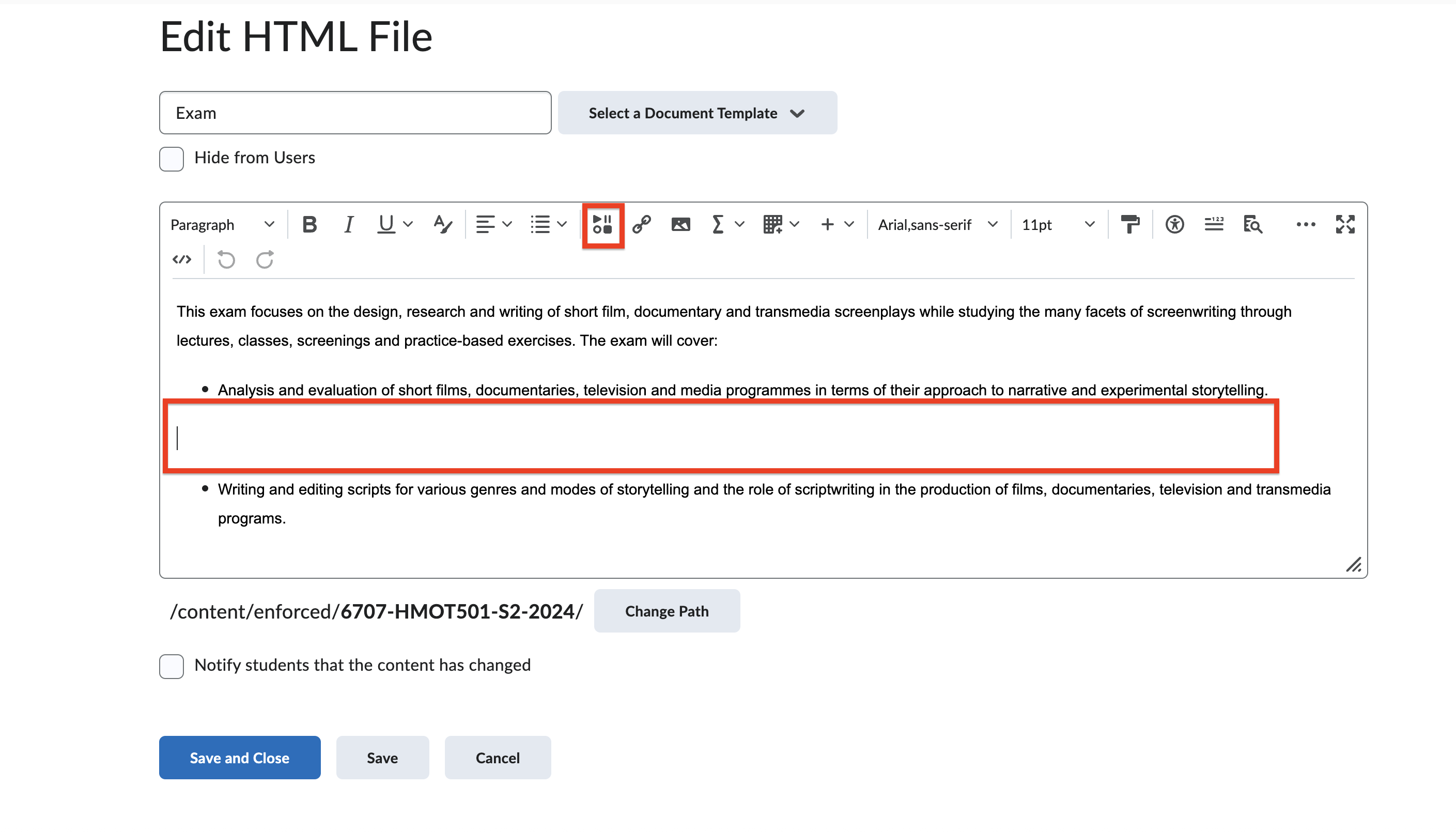
Within the editor, place the cursor where the Resource Link(s) are to be inserted;
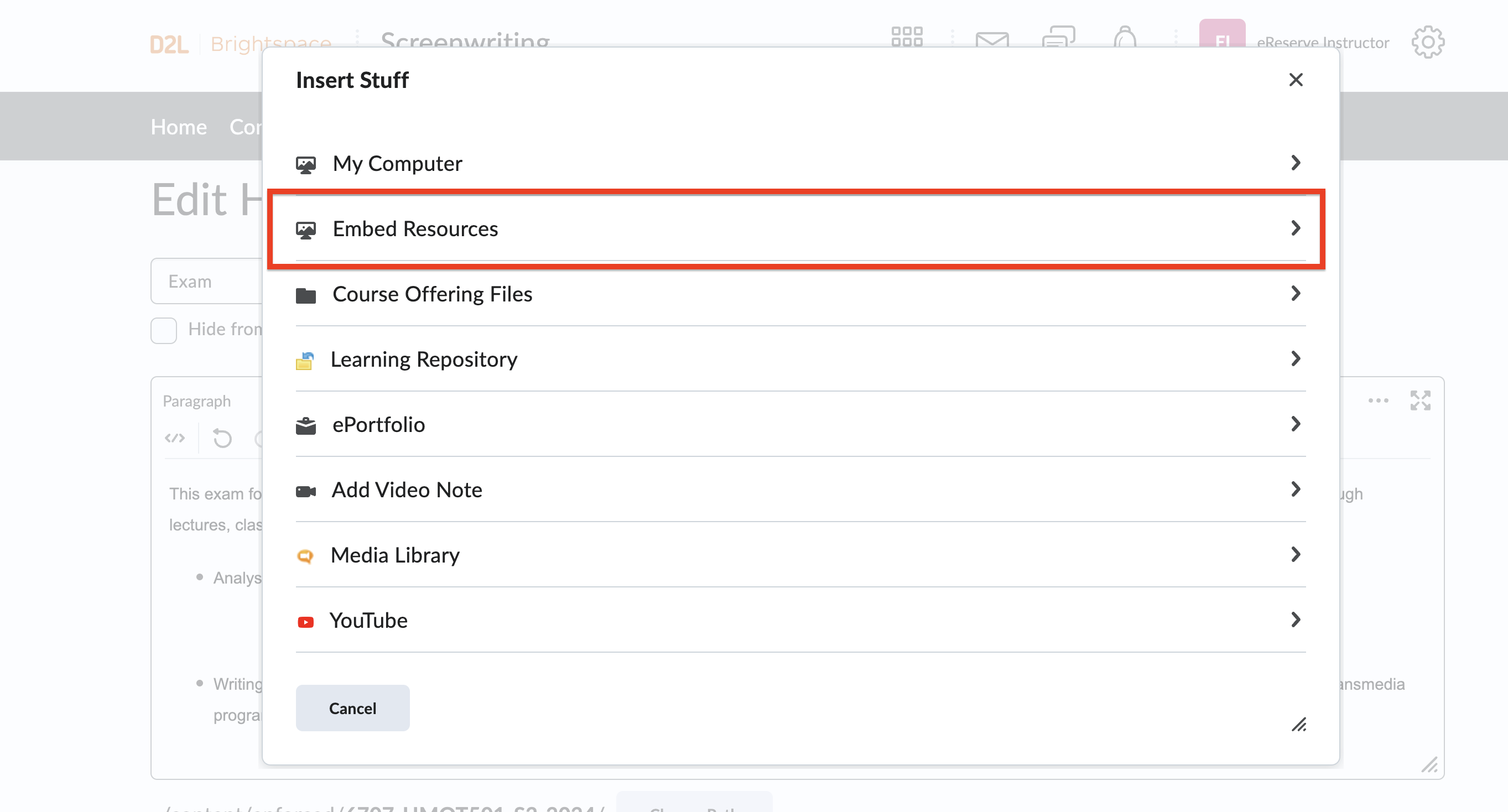
In the header, then click 'Insert Stuff' and select the eReserve Plus application from the list.
Note that this could be named anything that suits the institution’s internal vocabulary.
Figure 2 : Place the cursor where the resource link will be created, then click Insert Stuff
Figure 3 : Selecting eReserve Plus in the Insert Stuff list
Link to Resources
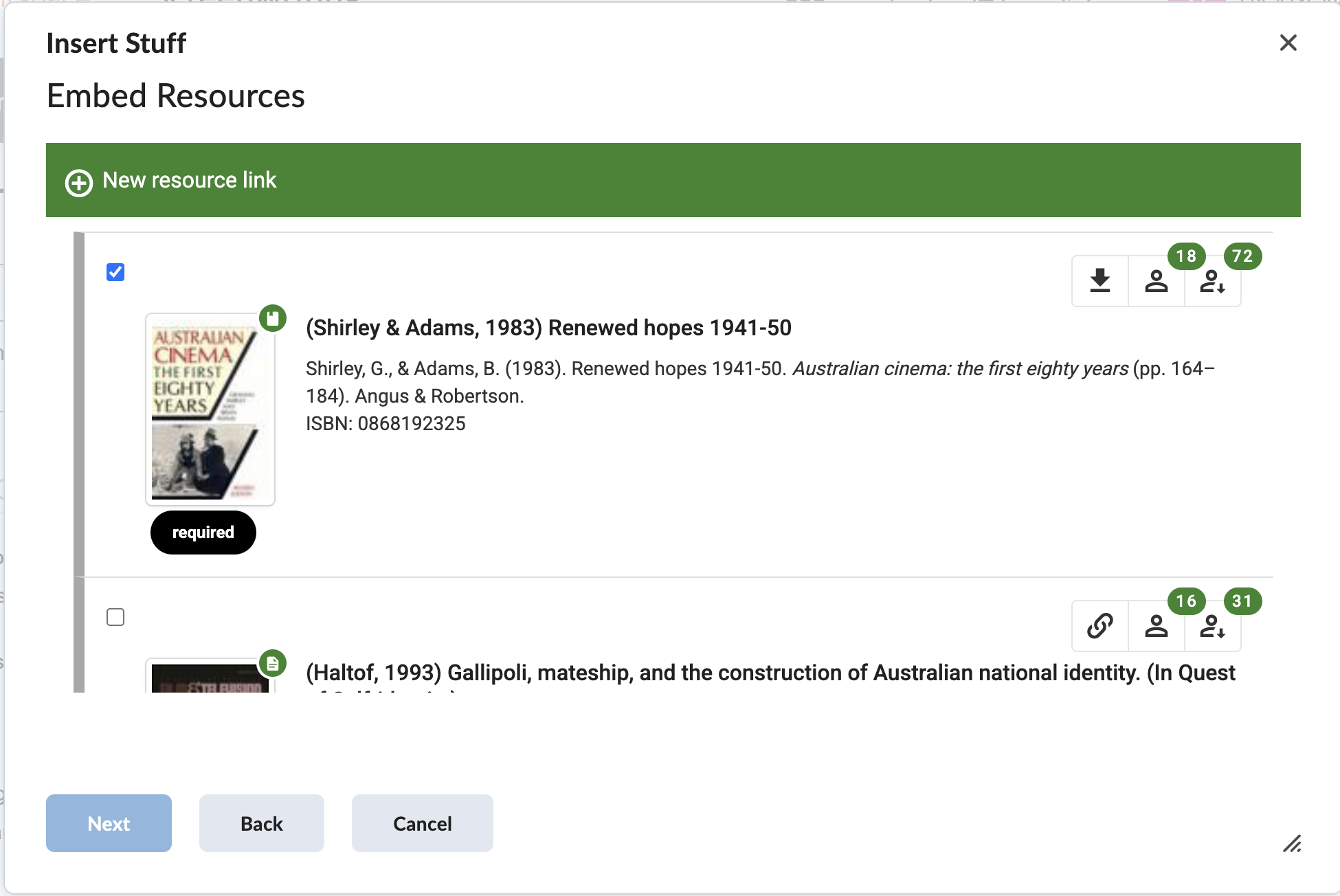
Select a list from the dropdown menu.
Select one or more Resources to link to, then click NEXT
(Optional) Resize the Resource link and review your selection.
Click Create , then in the InsertStuff preview page, click Insert to create the Resource Link. The Resource Link will be embedded within the text editor at the selected location.
Click Save to save the changes in Brightspace.
TIP: For great control when replacing or deleting resource links, it is recommended that only one link be created for a single resource rather than multiple resources. This is because each link will be treated as one HTML object.
Figure 4 : Selecting a Resource Link
Resource Link Sizing
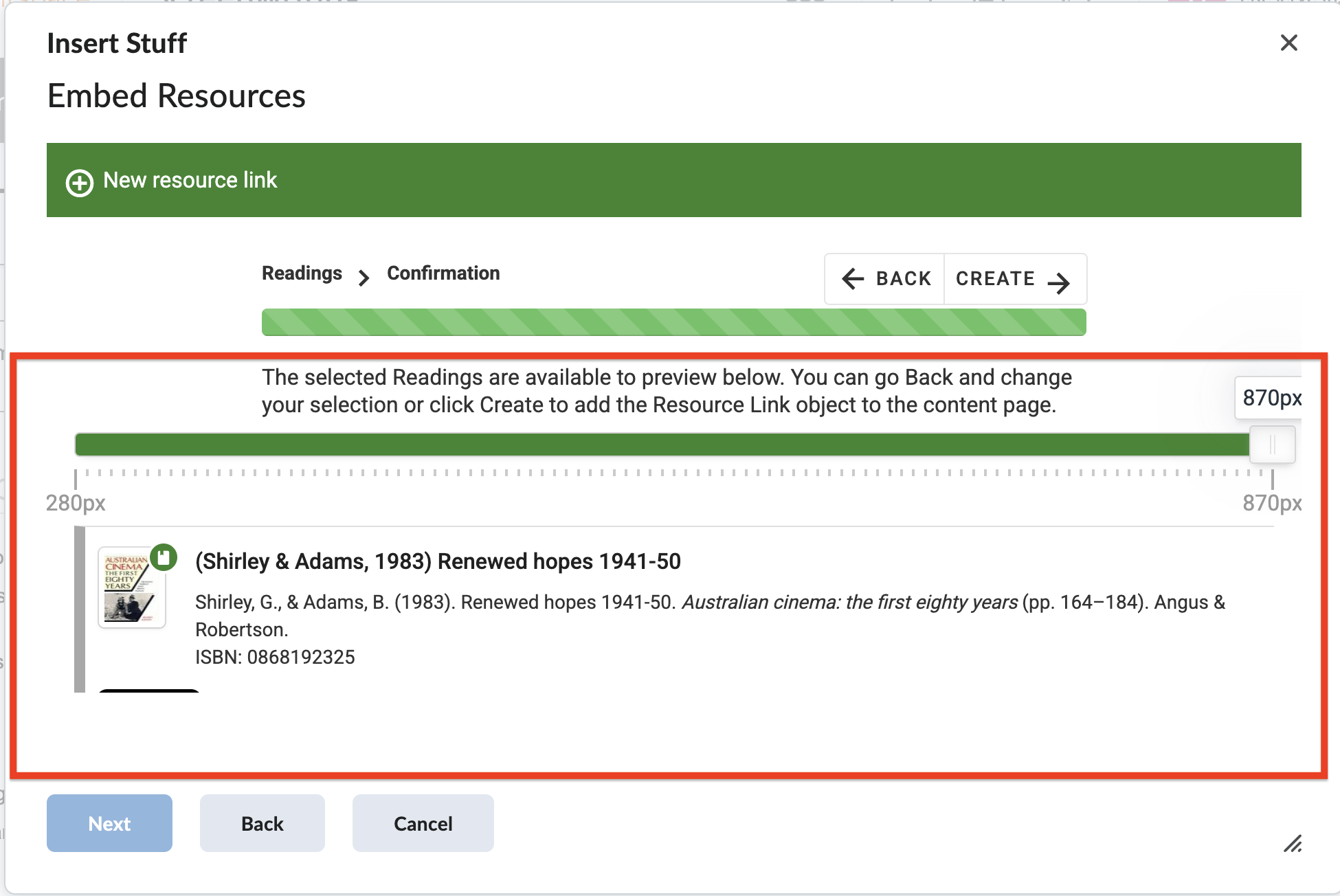
The final step of adding Resource Links is to confirm and add the Resource Link to the destination. There will be an option to resize the Resource Link to be a different width which will also be displayed in that width once it has been added.
Figure 5 : Confirming an addition of a Resource Link
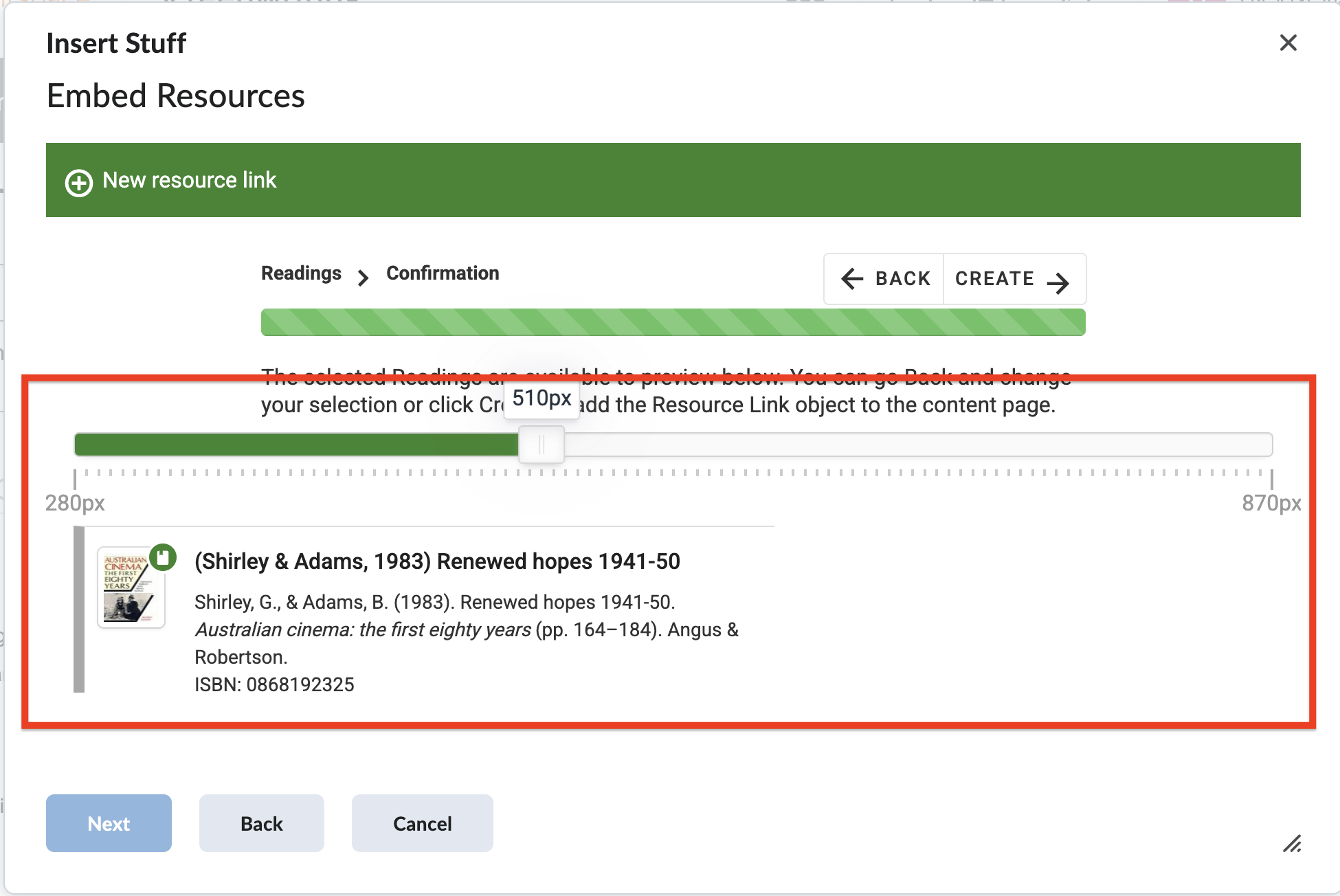
Changing the slider will result in changing the width of the Resource Links. In the image below, the slider will be at a width of 510px which will display the Resource Link on the page as 510px.
Figure 6 : Resizing a Resource Link
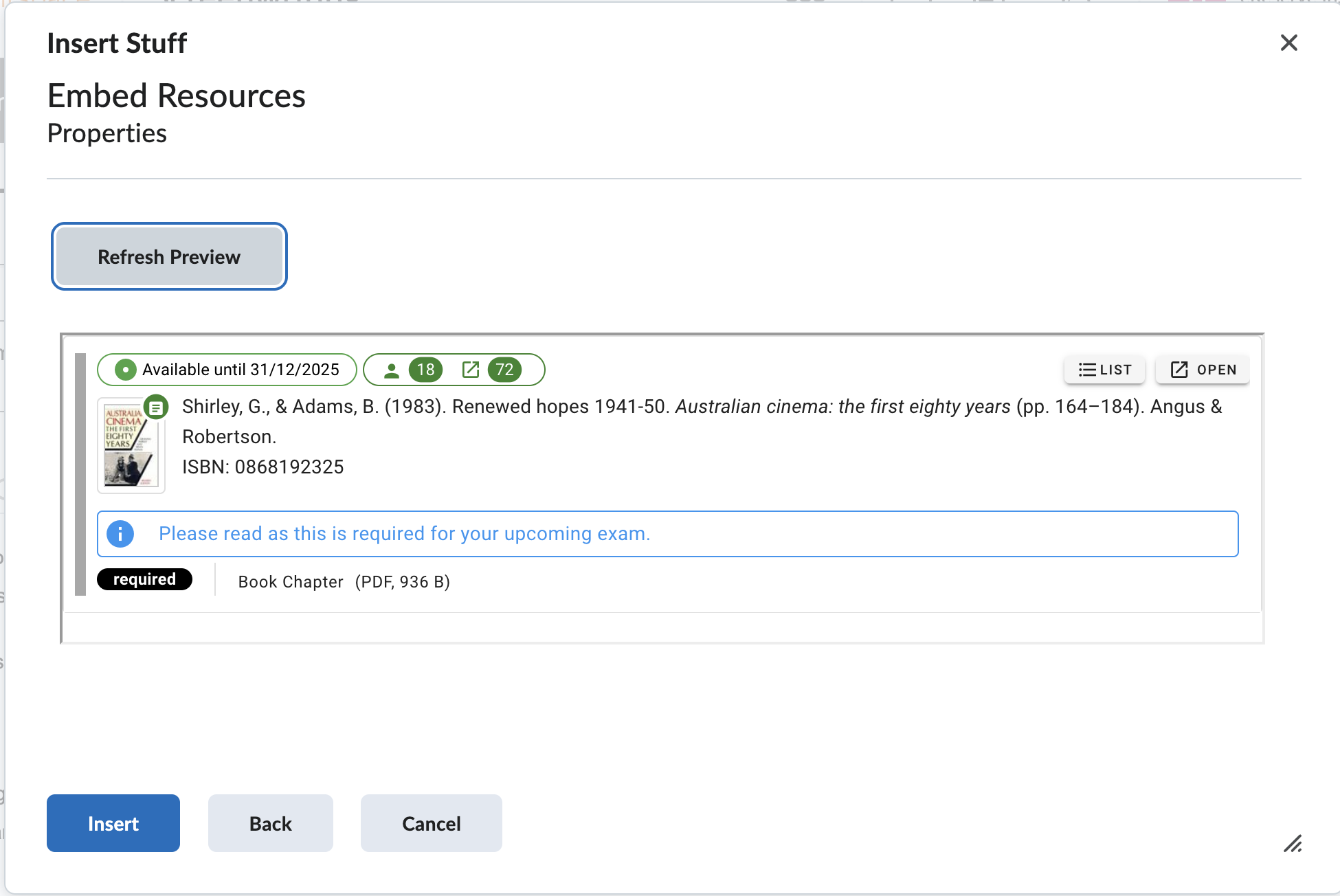
Once the review and resizing is complete, click Create. On the Preview page, click Insert to complete the process.
Figure 7 : Click Insert to create the resource link
Faculty View
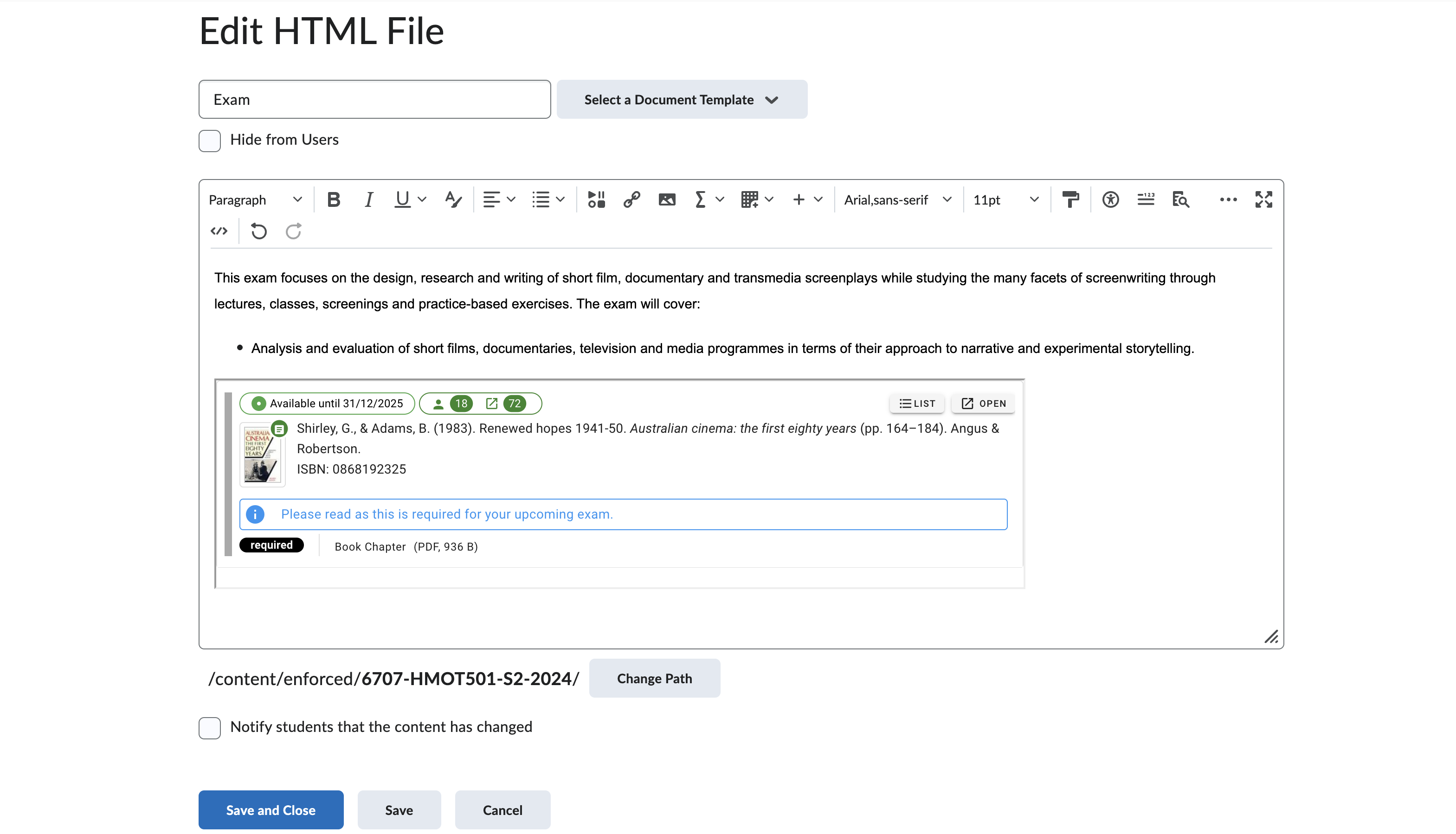
The Resource Link displays the following information when viewed by Faculty:
Status: This indicates if the resource is available with the end date or if the resource is not available.
Reading Importance: This shows the reading importance (Required or Recommended).
Resource Type: This details the resource type, such as book chapter, journal article, etc. This also indicates if the resource is a link or file (as well as the file size).
Reading List: Clicking on this icon will open the list that the resource is sourced from;
Open button: The file or link can be selected to download or open in a new window;
Analytics: The counter displays the total number students that have accessed the resource as well as the total access count for the resource;
Student Notes: Any student notes added to the resource will be displayed below the citation.
Figure 8 : The resource link within the HTML editor
Student View
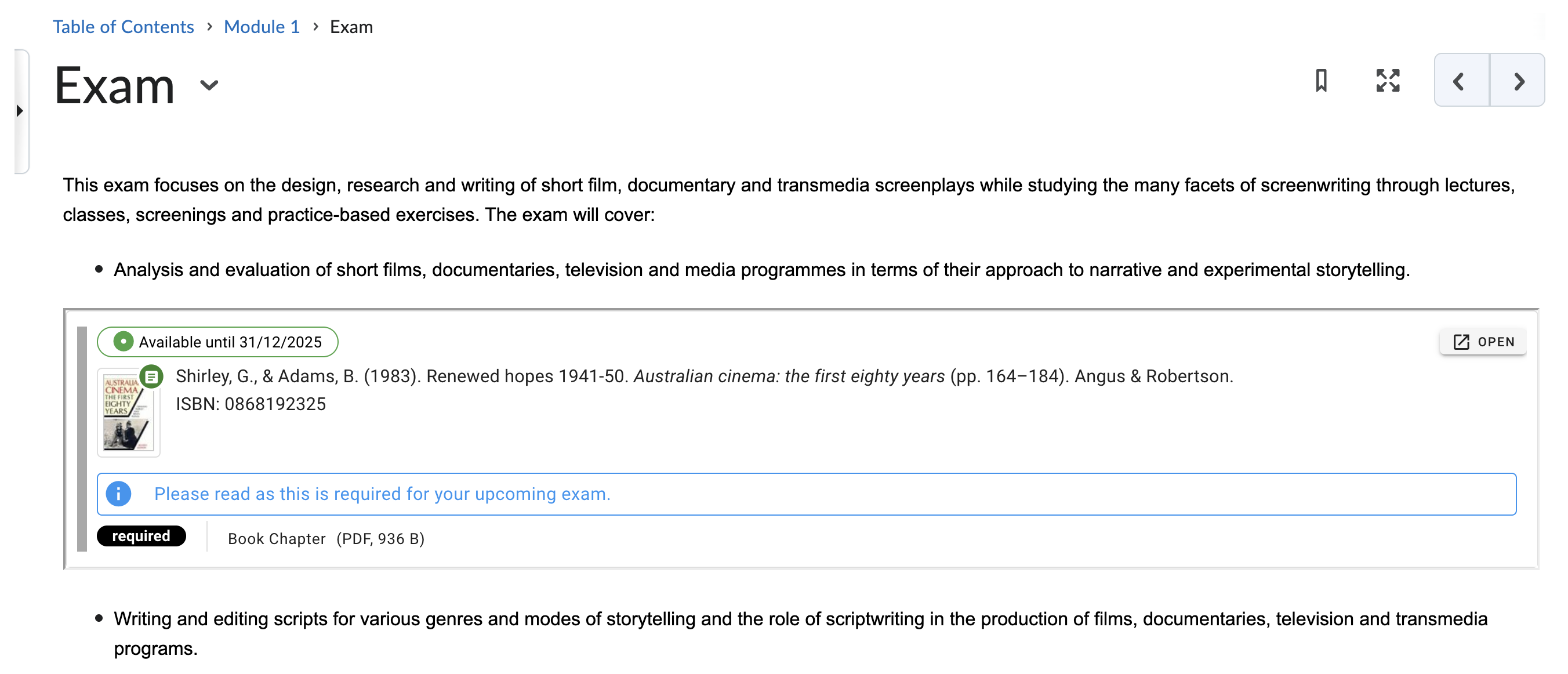
Students will see a link to one or more active Resources inside the course content, which appears similar to how the resource displays in their list.
The Resource Link displays the following information when viewed as a Student:
Status: This indicates if the resource is available with the end date or if the resource is not available.
Reading Importance: This shows the reading importance (Required or Recommended).
Resource Type: This details the resource type, such as book chapter, journal article, etc. This also indicates if the resource is a link or file (as well as the file size).
Open button: This button will access the resource. Link-based resources will be opened and file-based resources will begin download;
Student Notes: Any student notes added to the resource will be displayed below the citation.
Figure 9: Viewing the Resource Link as a Student
Setting up this Feature
When your Institution is ready to start using Resource Linking with D2L Brightspace, your Learning Management System Administrator(s) can
access the eReserve Plus LMS D2L Brightspace Integration Guide for configuration advice.