Summary: This document provides details on the enhanced discovery search system used to find resources within your repositories.
Overview
The eReserve Plus resource discovery process has been enhanced with a new easy to use search system that searches across your eReserve repository, library discovery and can also integrate third party sources such as EBSCO EDS, OCLC, Primo and Summon.
List Management
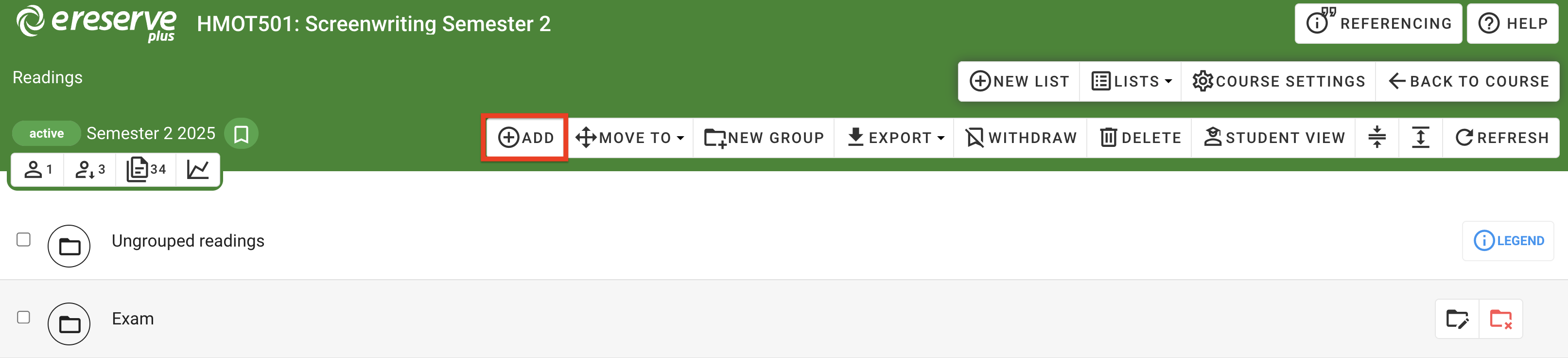
The enhanced discovery search is accessible via the Add button in the list management view in both the faculty and library interface.
Figure 1 : The Add button in the Faculty list view
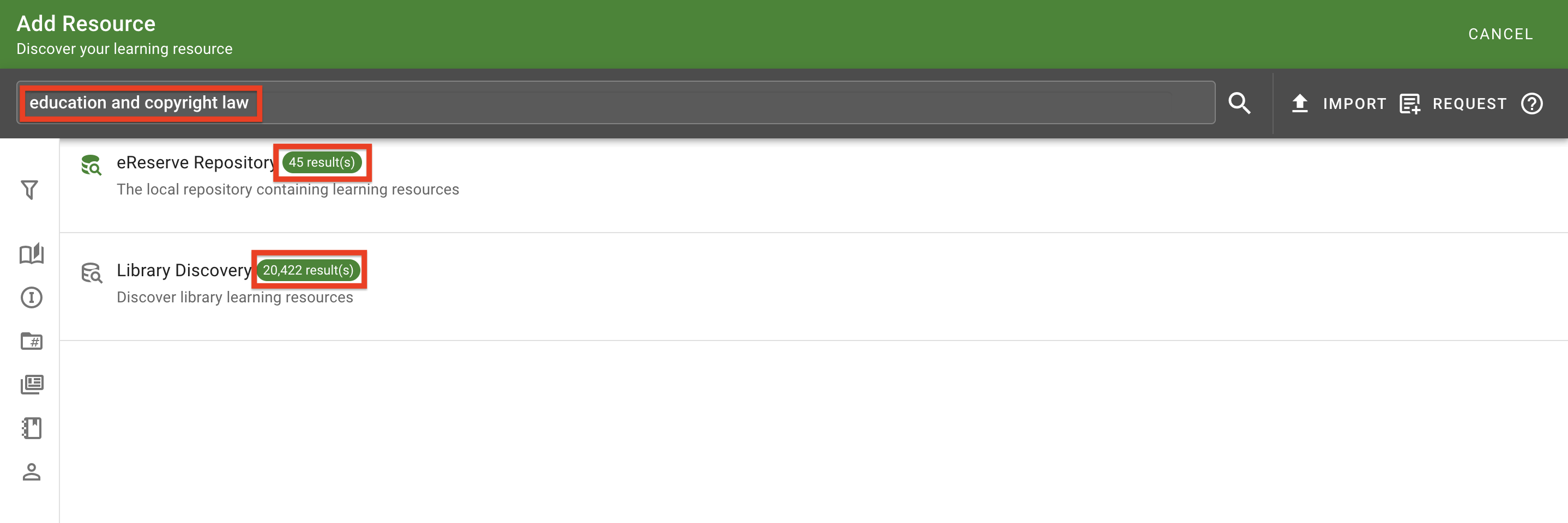
When conducting a search, the number of results are clearly outlined for every active repository being searched.
Figure 2 : Results for the Enhanced Discovery Search
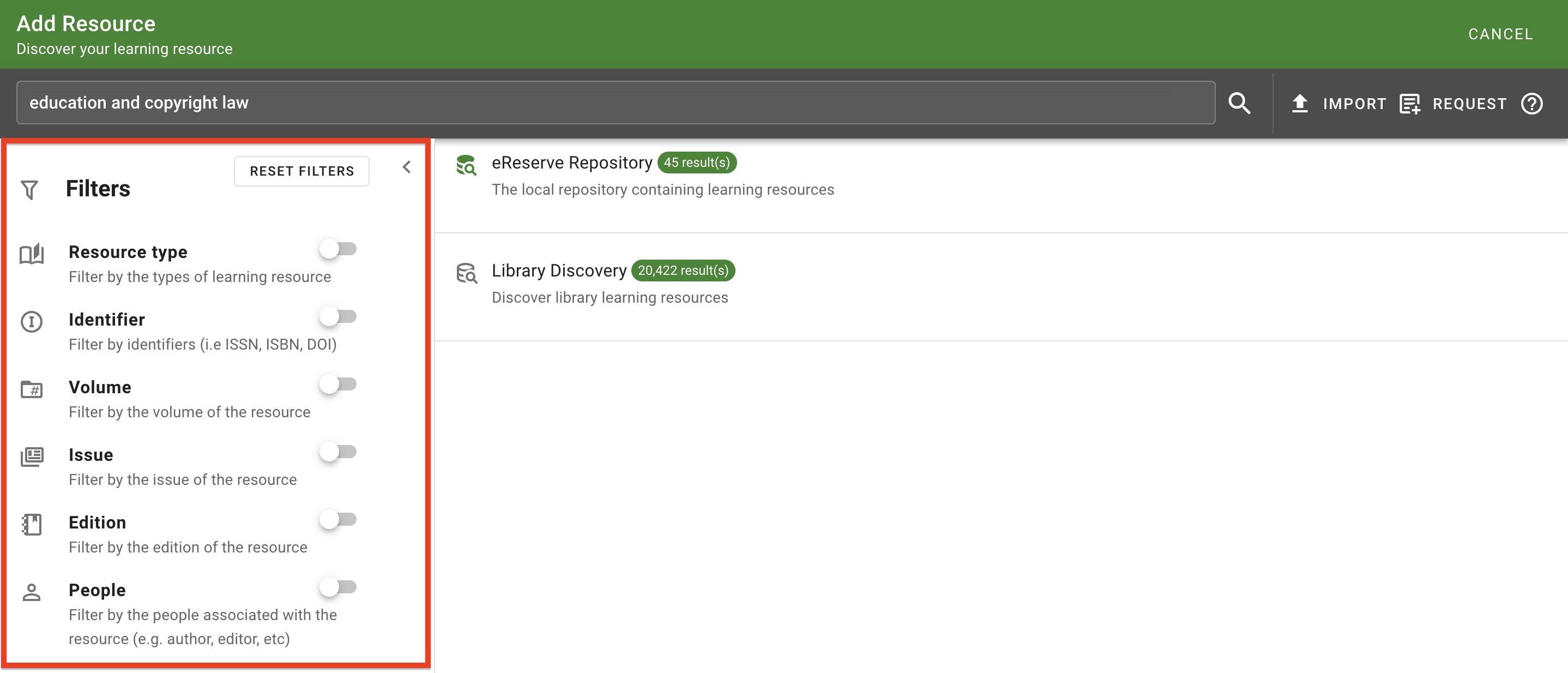
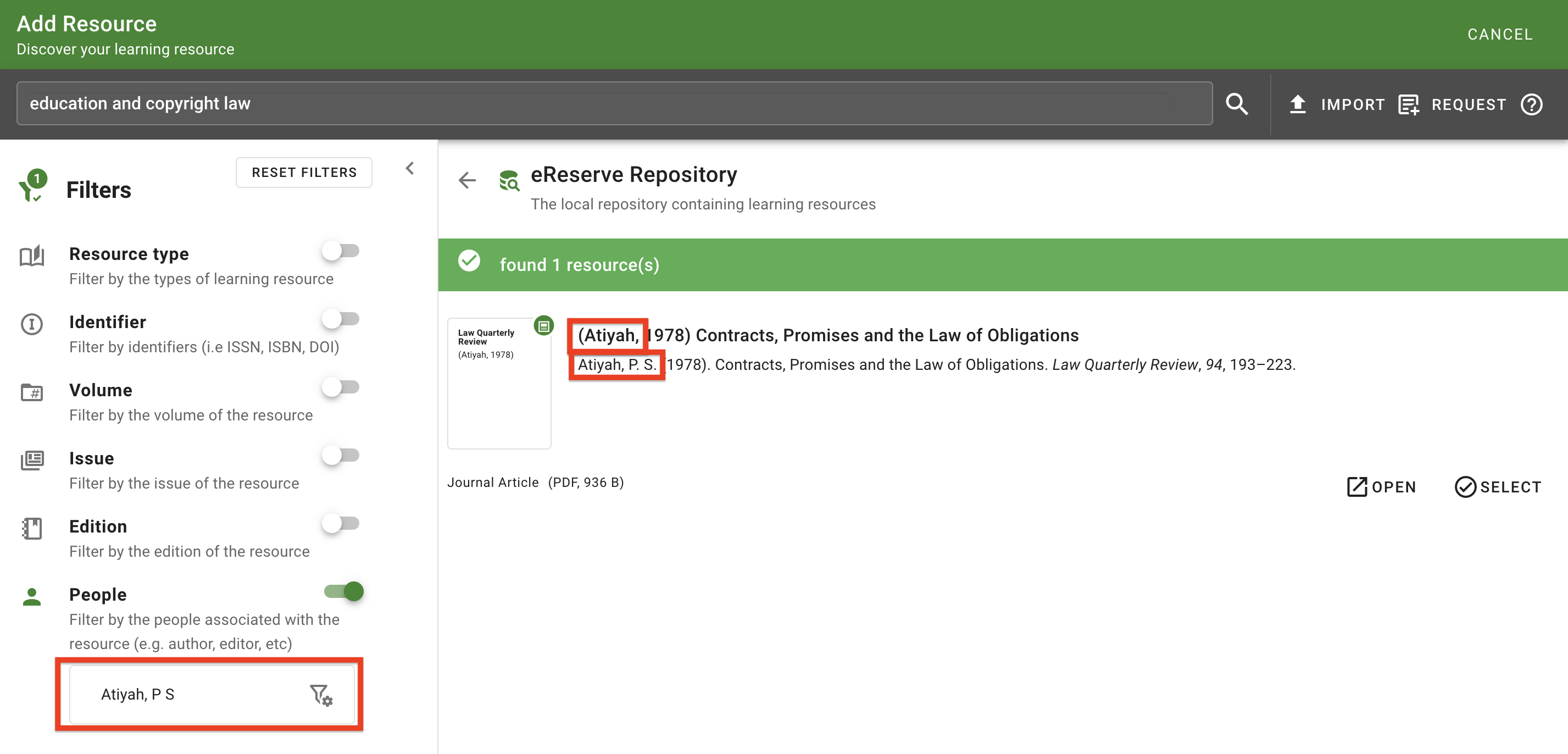
Search results can be narrowed down further by using the Filters panel on the left-hand side. Results can be filtered by the resource type, the resource identifier, the people on the resource (such as author or editor) and so on.
Figure 3 : The Enhanced Discovery Filters panel
Figure 4 : Using the People filter, the results have been filtered down
For further details on how to use the enhanced discovery search efficiently, please navigate to the following page:
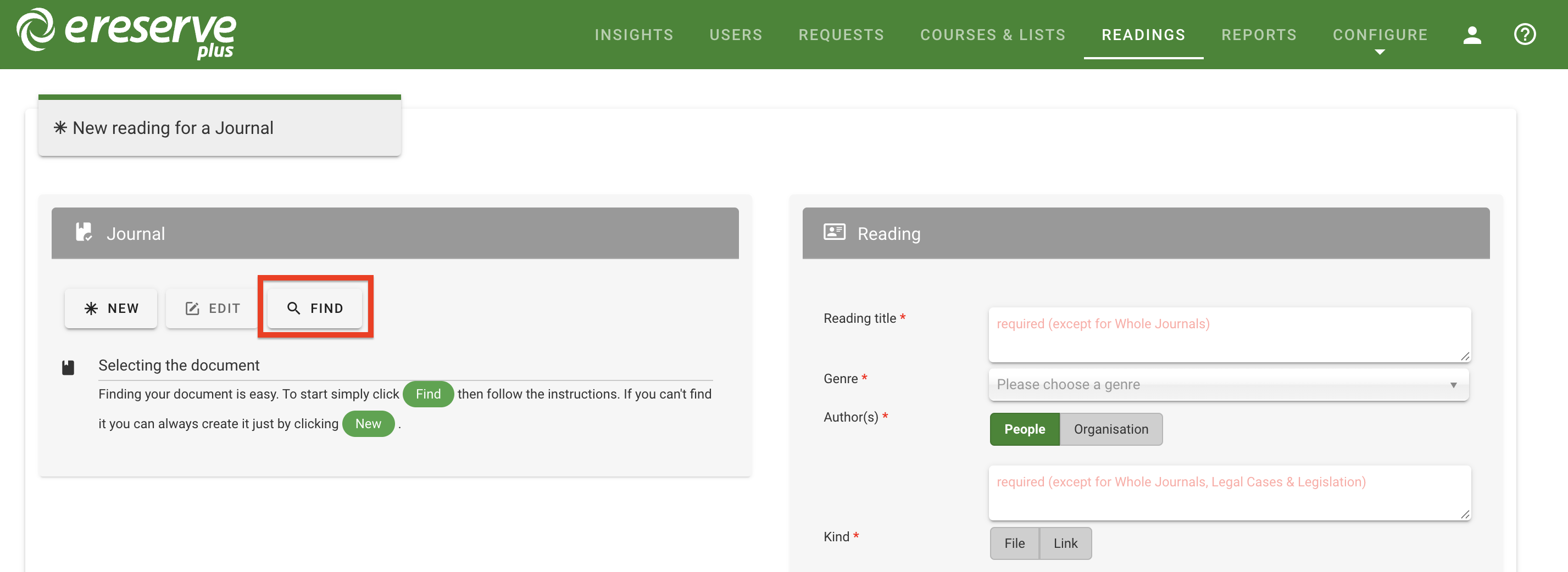
With the Enhanced Discovery feature, the source documents search has also been updated. This search can be accessed by librarians when either creating a new resource in Readings Management or editing resources via Requests management. To search for existing source Documents, click Find.
Figure 5 : Click Find to open the Source Document search
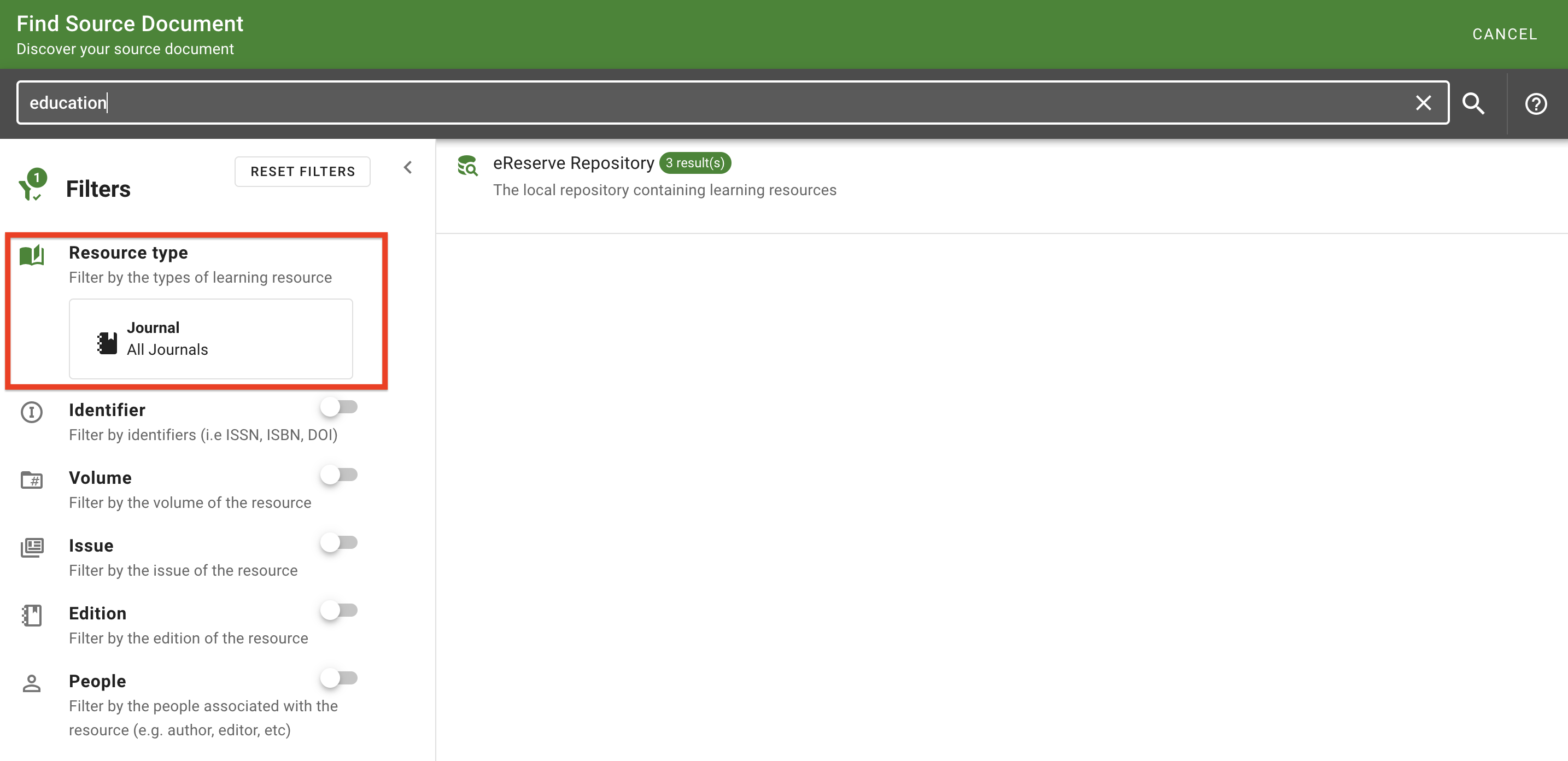
This will open the enhanced discovery search, with the Type filter automatically populated with what was chosen for the resource upon creation. This option is fixed to match the genre of the request creation type (such as Journal) and cannot be changed.
Figure 6 : Searching for Journal Source documents in the eReserve Repository
Additional filters can be added to the search to narrow down results based on parts of the resource metadata (Identifier, Volume, Issue, Edition and People). Please note that this search only searches for existing resources within the eReserve Repository.
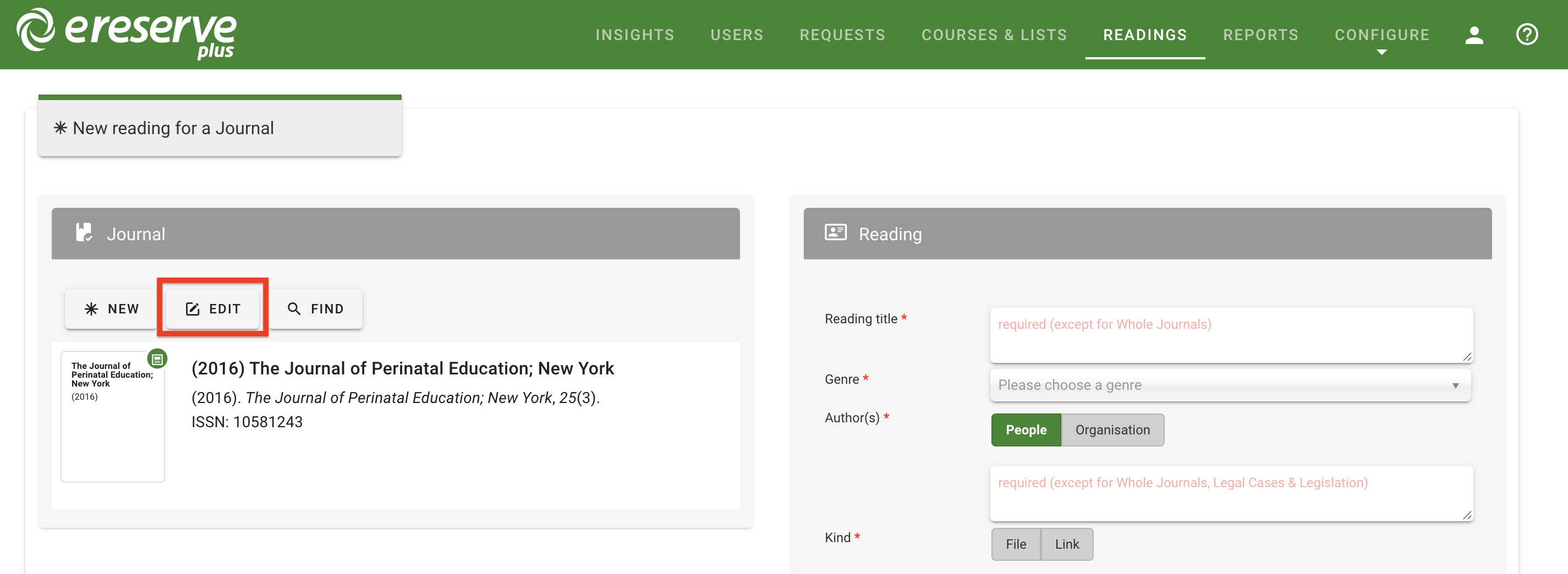
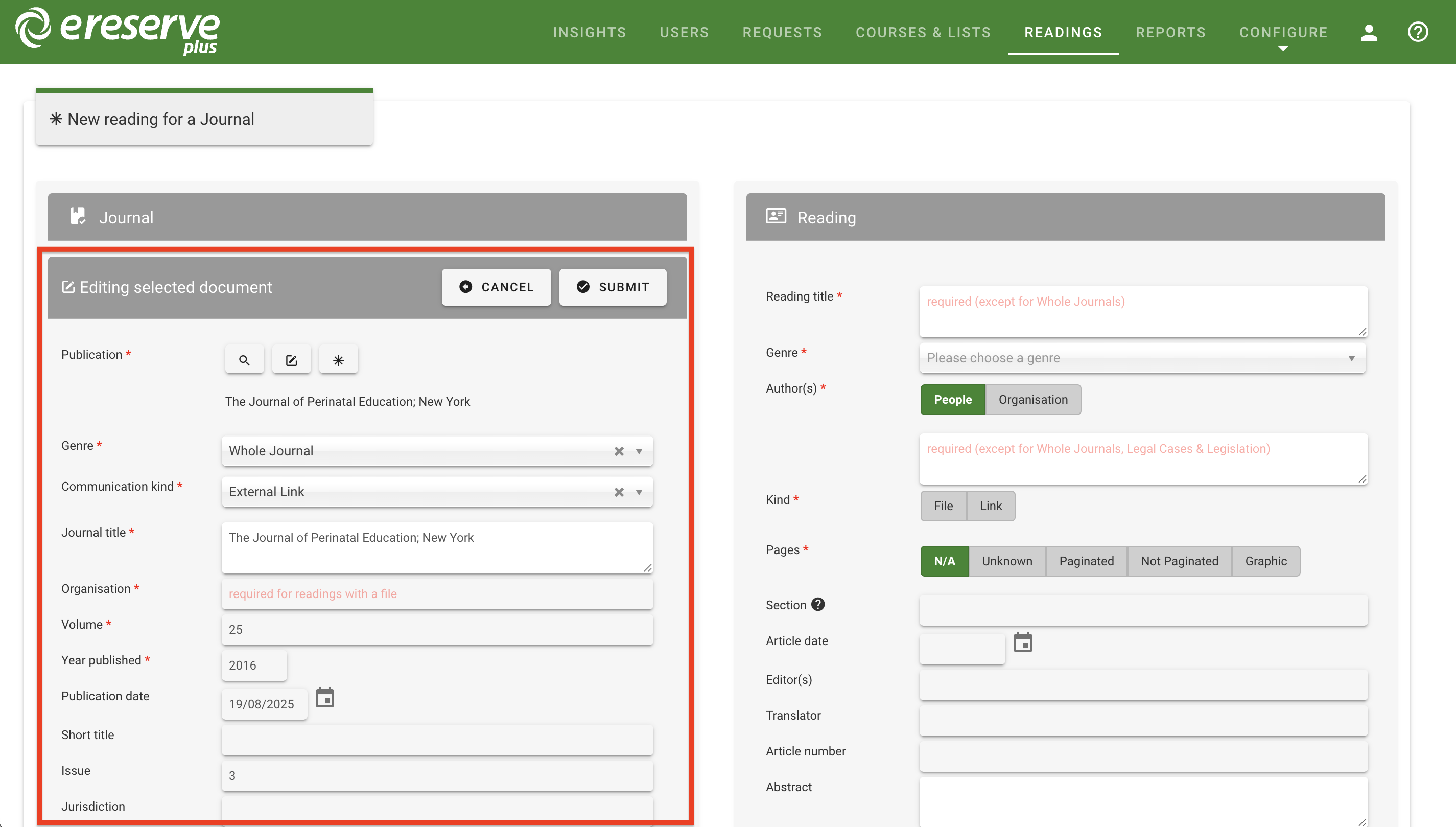
Once a resource is selected, it will automatically be added to the source document section. The metadata details for the source document can be updated by clicking the Edit button. Make sure to click Submit to save any changes made for the source document, independent from the reading.