Summary: This document provides instructions for how to replace a file for a request in the library interface.
Introduction
Sometimes, the file for a submitted request needs to be replaced with a different file. Some reasons include whether the file provided for a request is poor quality, is more than what the request requires, such as a whole book instead of just a chapter or simply the wrong file. eReserve Plus makes it easy to quickly swap out files.
Replacing a File for a request
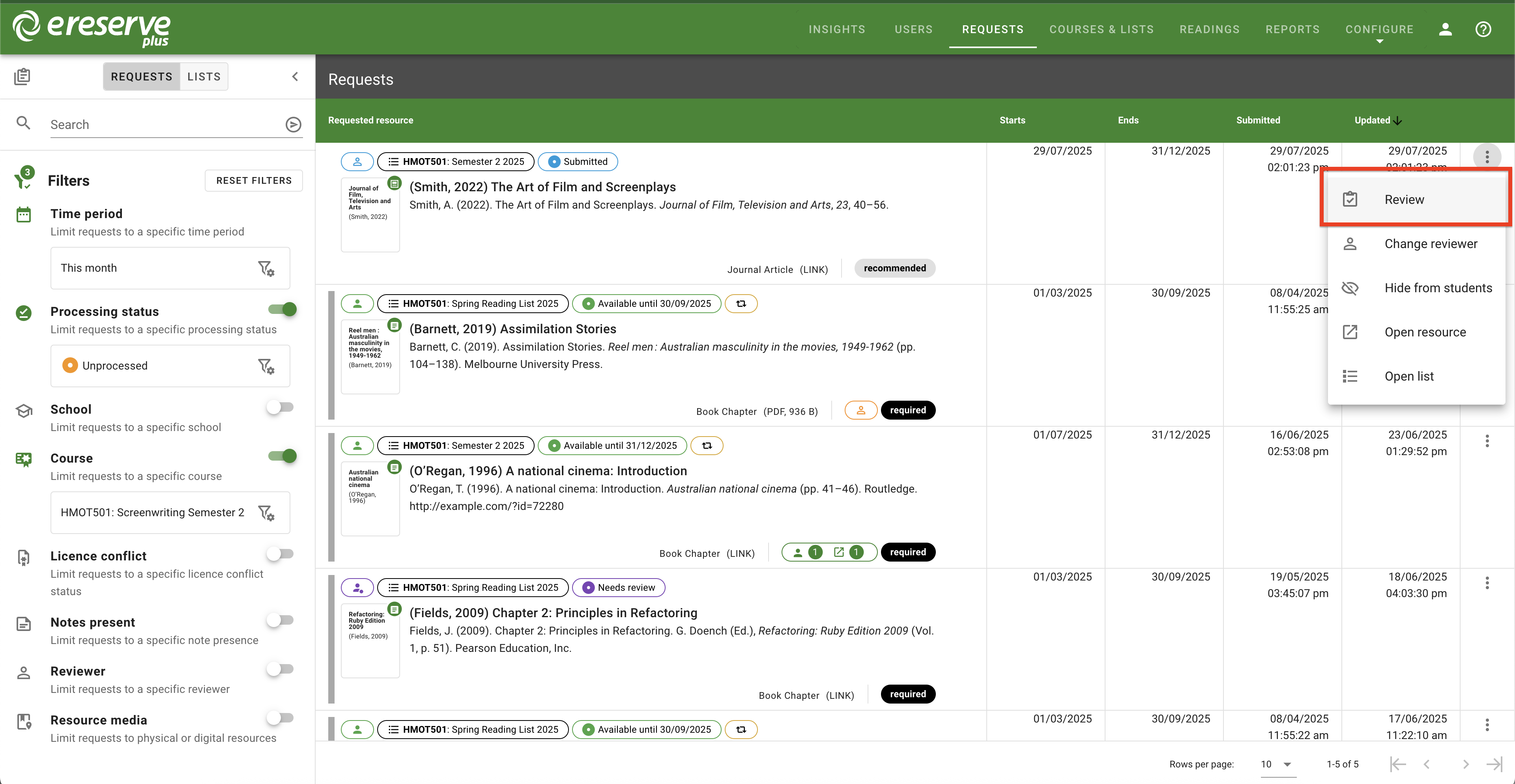
Navigate to the requests page and locate a request that requires review.
In the request action menu, click Review to review the request
Alternatively, click anywhere within the request row to open the review page.
Figure 1 : Locating a request for review
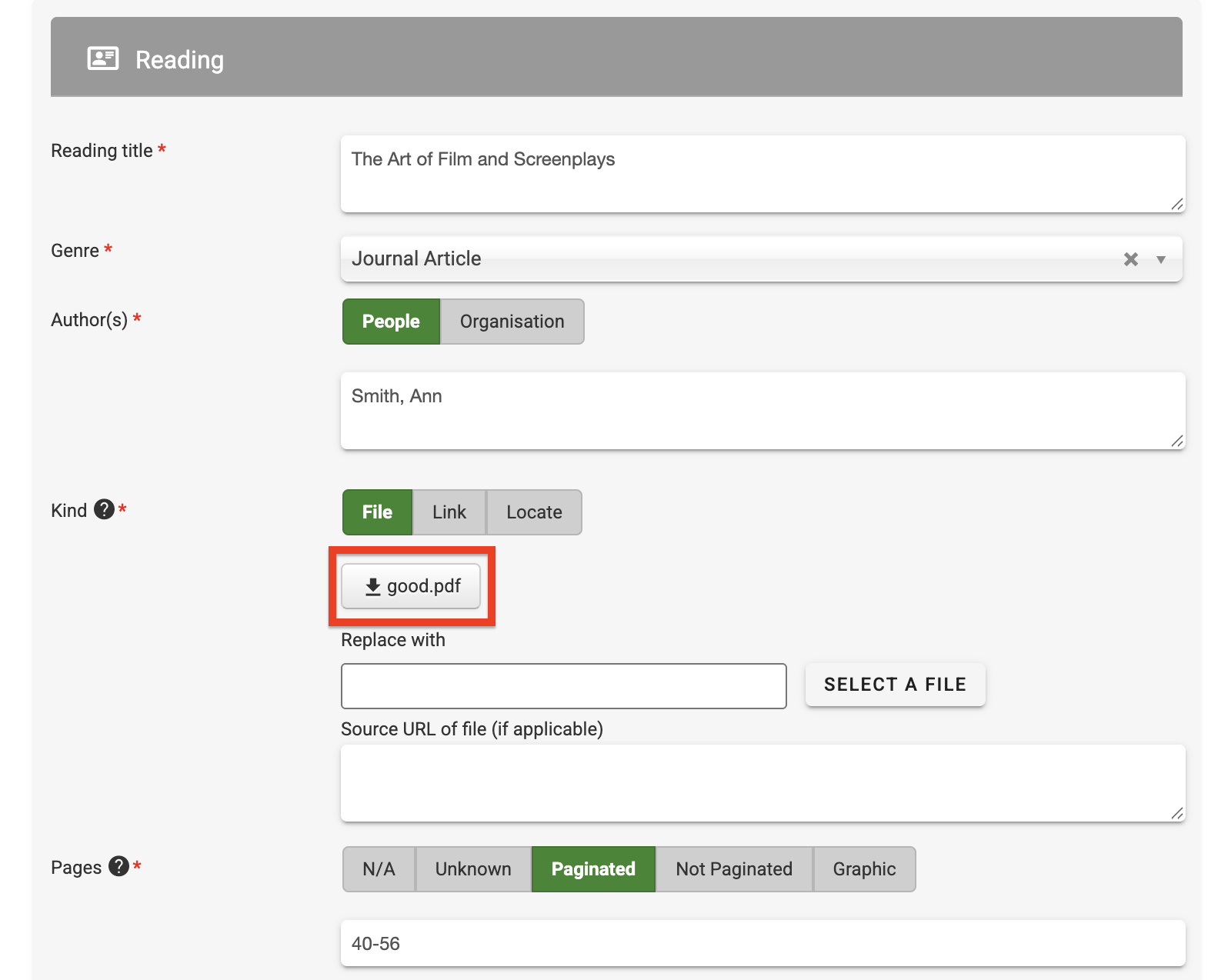
In the Reading section, navigate to the Kind Section. You may review the submitted file by clicking on the download button to download the file to your device.
Figure 2 : The download button to download the current file
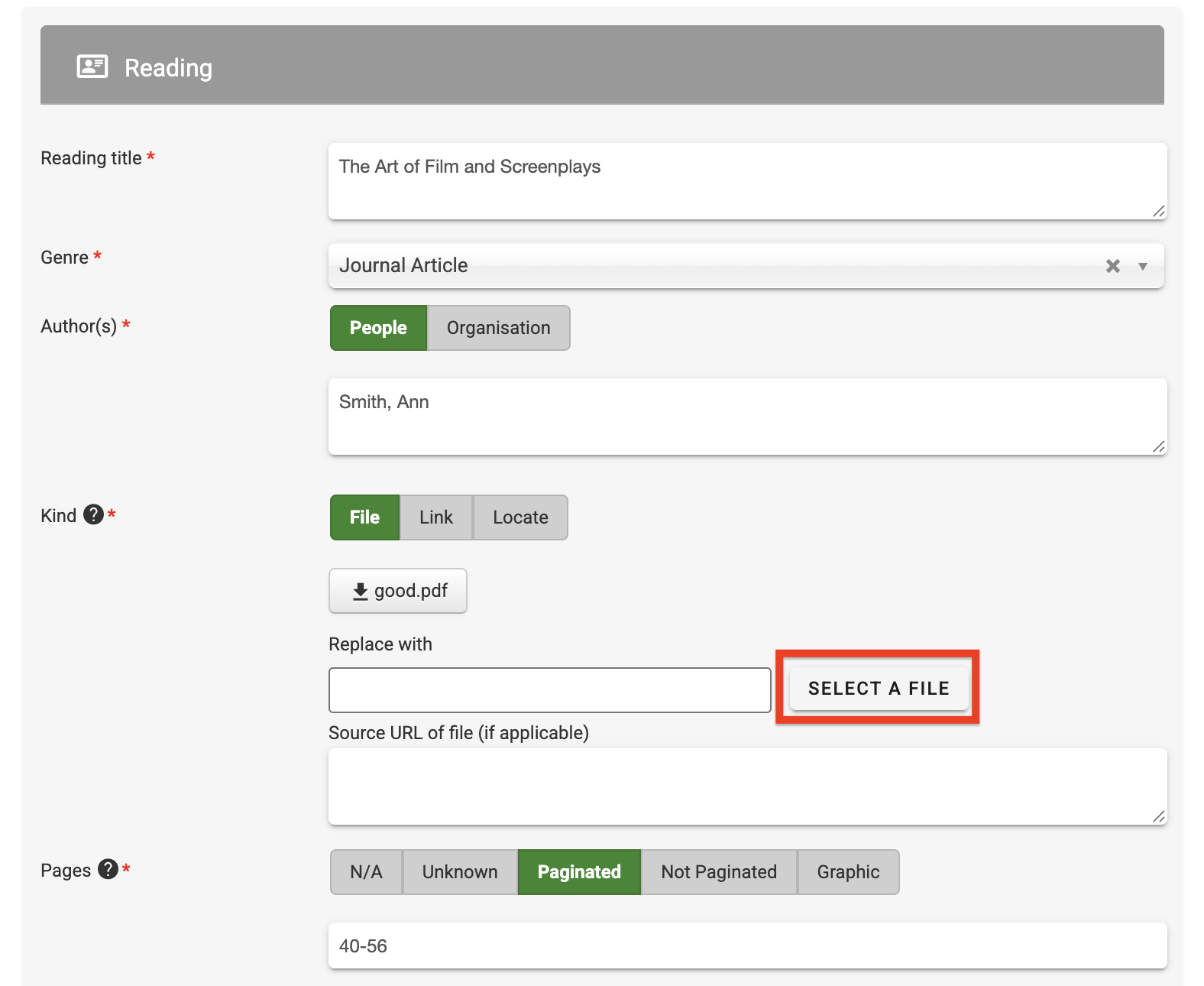
To replace the file, click on the ‘Select a File’ button. In your file explorer, locate and select the new file to be used for this resource.
Figure 3 : The Select a File button to locate the replacement file
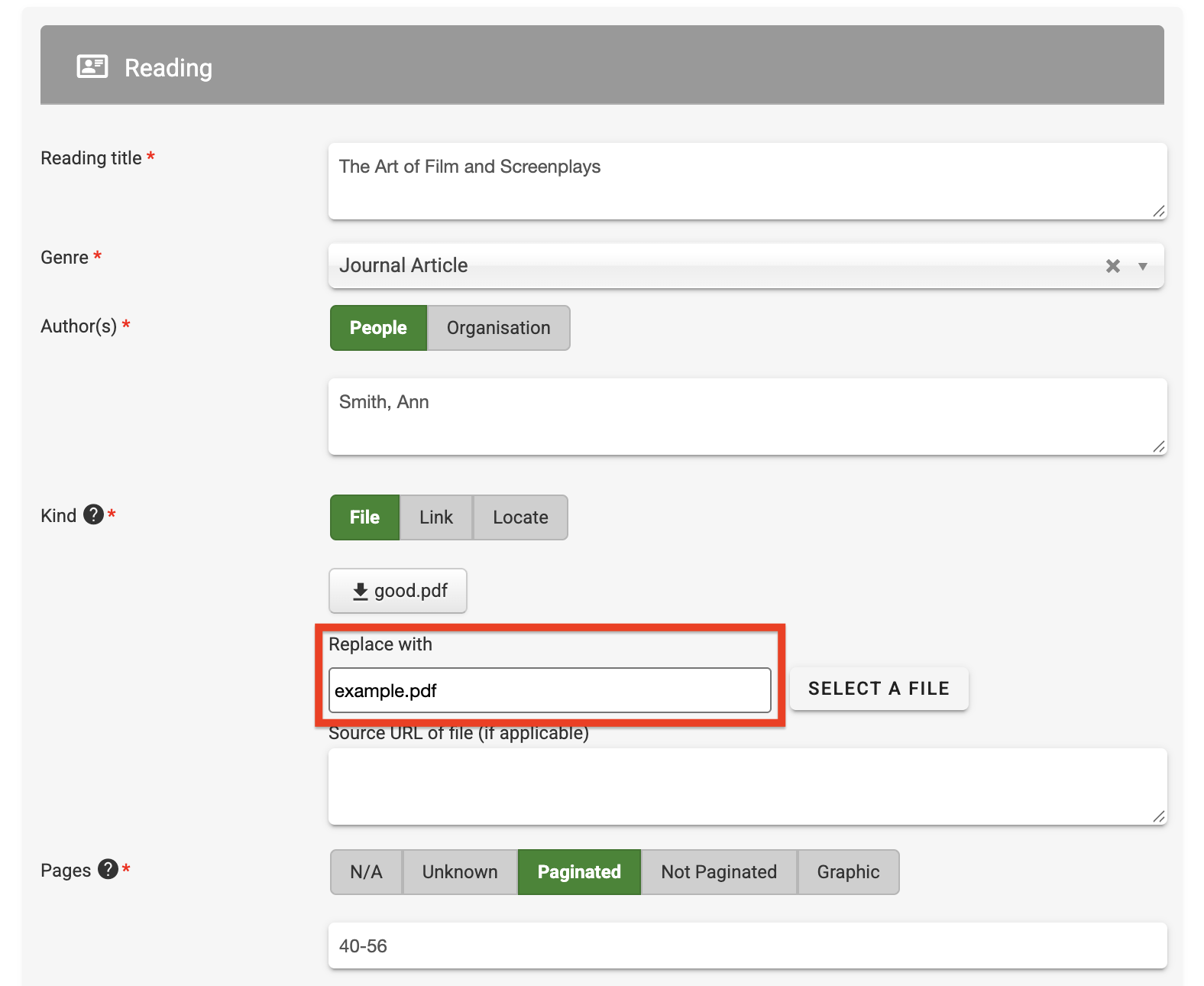
Upon selection, the field will be automatically populated with the name of the selected file.
Figure 4 : The 'Replace with' field updated with the new file name
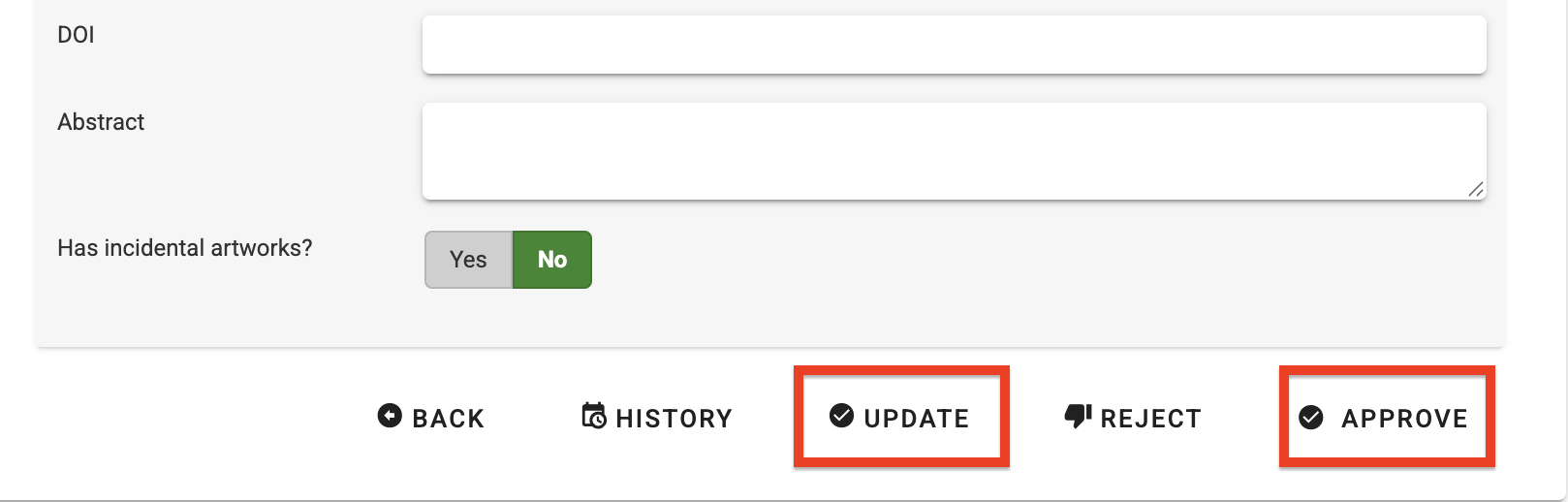
Click Update to save the file change to the request OR Click Approve to approve the request with the new file.
Figure 5 : The Update and Approve options for the request
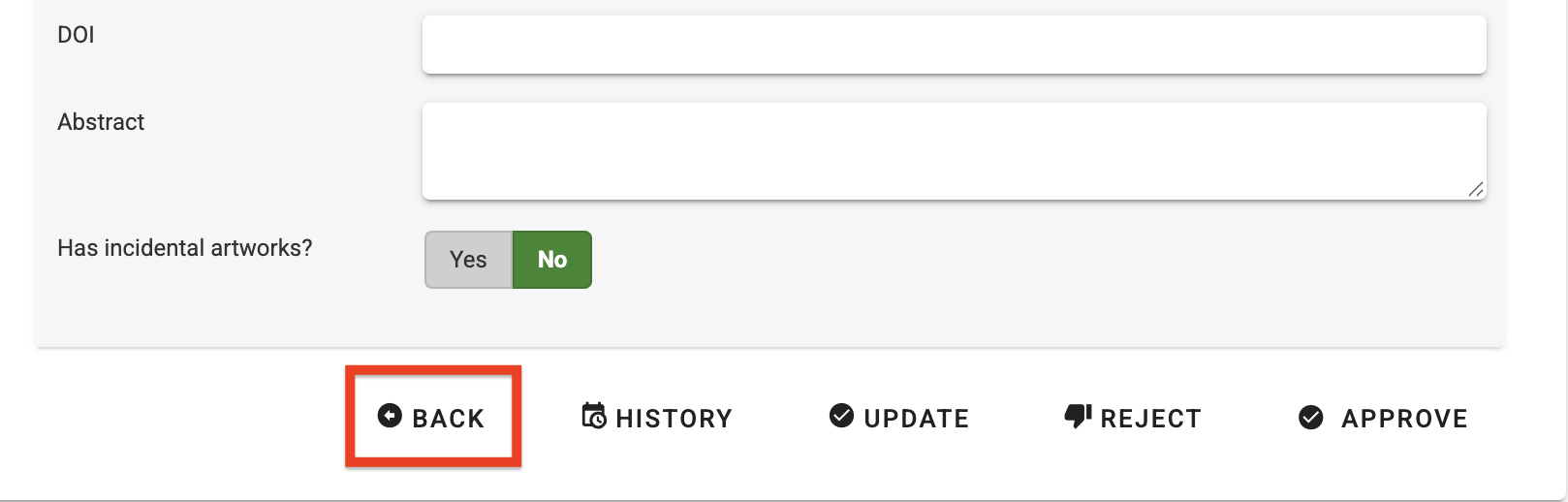
To cancel any changes made, click Back to return to the request management page.
Figure 6 : The Back button to return to the Requests management page