
Requests Management Overview
Summary: This document provides a detailed look at the enhanced requests management page within the eReserve Plus Admin interface.
Introduction
Requests Management is where library and copyright staff typically spend their day-to-day, working on approving requests, which are often submitted by academic staff.
There are two view types for Request Management - Requests and Lists. In the Requests view, requests are listed individually under the ‘requested resource’ column, with each displaying the resource citation and details, processing status, current reviewer and more.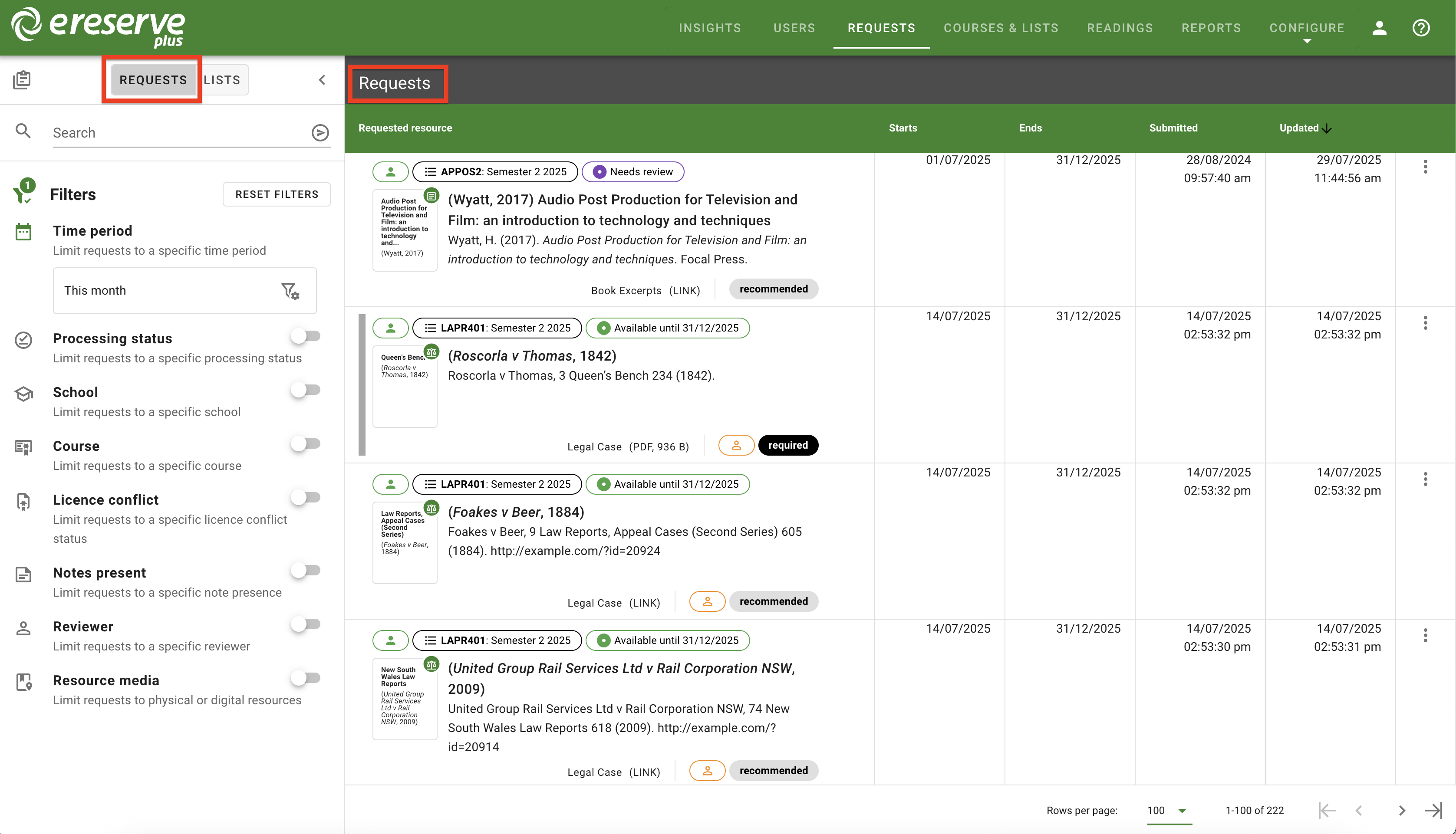
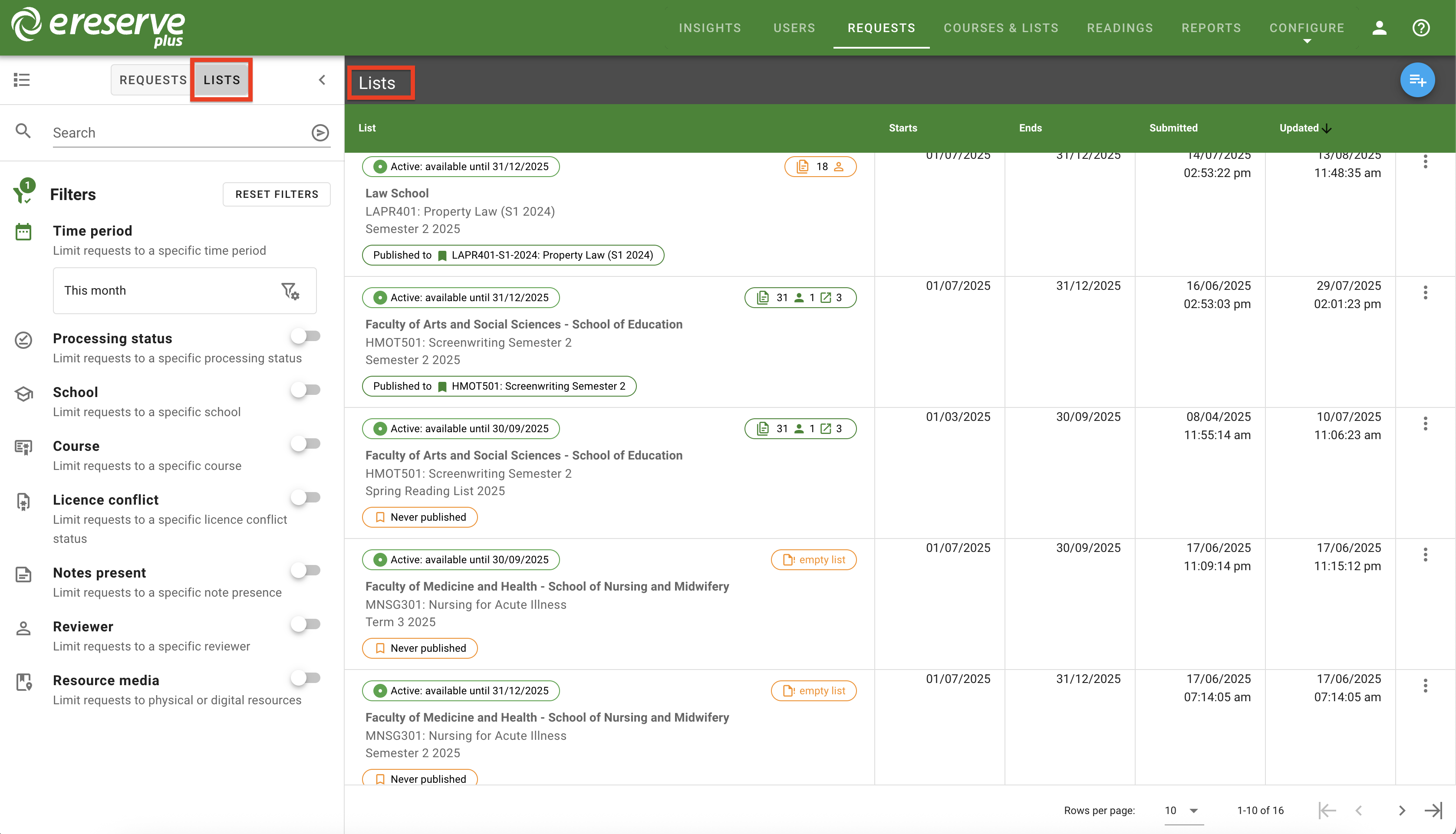
Both view also displays the following dates:
- Starts - the start date for the request/list
- Ends - the end date for the request/list
- Submitted - the date and time the request or list was submitted
- Updated - the date and time the request or list was last updated
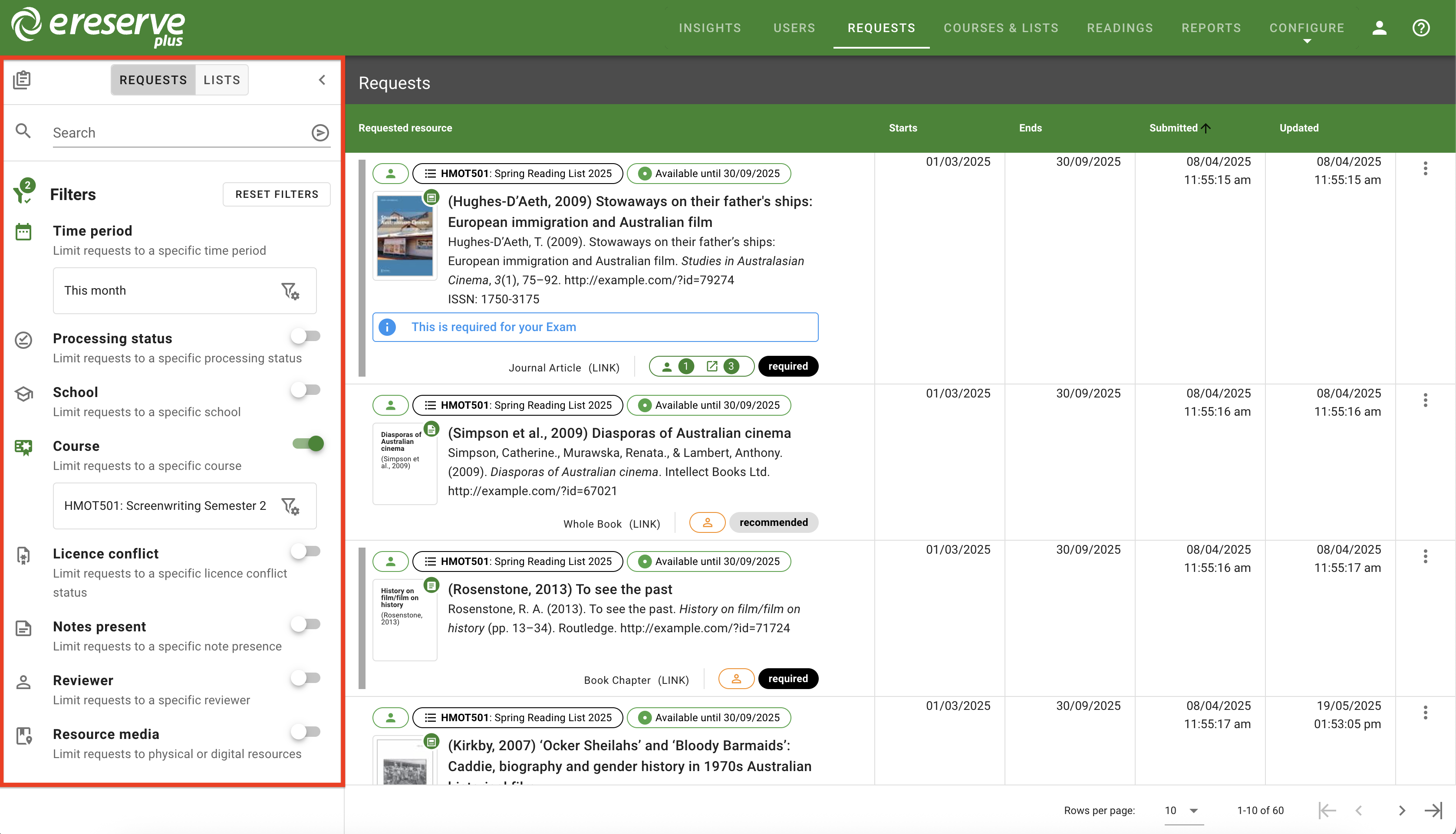
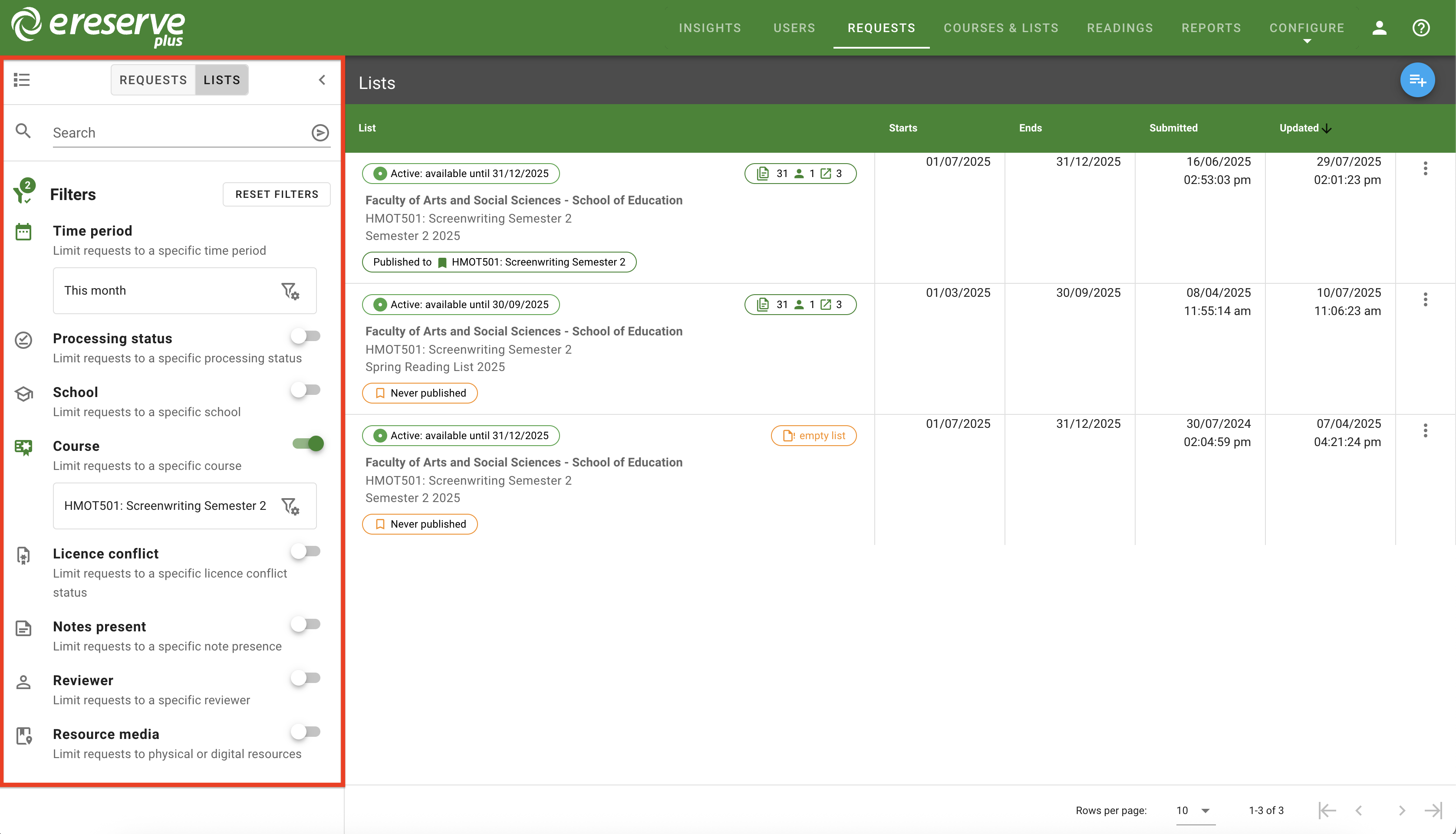
To learn how to efficiently sort and filter requests, please navigate to the Filtering Requests help page for more detail.
Requests labels
Reviewer
Every request has a reviewer icon to indicate who is currently reviewing the request. Hovering the cursor over the icon will display pop-up text to provide more detail about the reviewer.
If there is no reviewer, the reviewer icon is blue and is set to "Nobody".


Course and List
Every request has a label that displays the course name followed by the name of the list the request is located in. Hovering your cursor over the label displays pop-up help text with the course code, the full course name and the list name in pop-up text.
Processing Status and Availability
Every request has a processing status label. The label will display one of the following statuses:
-
Needs Review - The resource for the request is missing required metadata, which can be provided by librarians in the request management page or by faculty in their list view. Note that this status only occurs during the following conditions when importing resources via RIS import:
- The RIS record for the resource lacks metadata or;
- Multiple matches have been found for the RIS record.

Figure 9 : The Needs Review status label
-
Submitted - The request has been submitted and is ready for processing.

Figure 10 : The Submitted status label -
Processing - A librarian has begun processing the request.

Figure 11 : The Processing status label -
Removed - The request has been rejected while active on a list.

Figure 12 : The Removed status label -
Rejected - The request has been rejected.

Figure 13 : The Rejected status label
Once a request is approved, the processing status label becomes an availability label, with the text being adjusted depending on the availability date for communication of the resource to students.
- Active requests: Available until (Communication End Date)

Figure 14 : The availability label for an active request - Pending requests: Available from (Communication Start Date)

Figure 15 : The availability label for a pending request - Expired requests: Expired on (Communication End Date)

Figure 16 : The expiration label for an expired request
Deleted from list
This label is present only if a request has been deleted from an active list. Note that the delete action can be done from either the faculty list interface (via LMS) or the library list page in the admin console.
Automatic Approval
There is an additional star label only if a request has been automatically approved by eReserve Plus FastTrack.
Licence Conflict
The licence conflict label only displays on requests where eReserve Plus detects a possible copyright conflict with the resource. Requests with this label may require additional review by library staff.
Resource kind change
This label only displays when there is a request to change the resource kind for Active or Pending requests, which is submitted by using the edit reading feature in the list management view. This can be a request to change a link to a file or updating the file for a resource with a different file. Hovering the cursor over the label displays help text that advises the resource is pending a file change.

Requestor Notes
This label is only present if there is a note from the requestor, which can be added by faculty staff when submitting or creating a request.
Resource genre and kind
The resource genre (such as a book chapter, journal article, etc) is displayed for each request, followed by the resource kind (if the resource is a link or a file). If the resource is a file, this displays both the file type and size.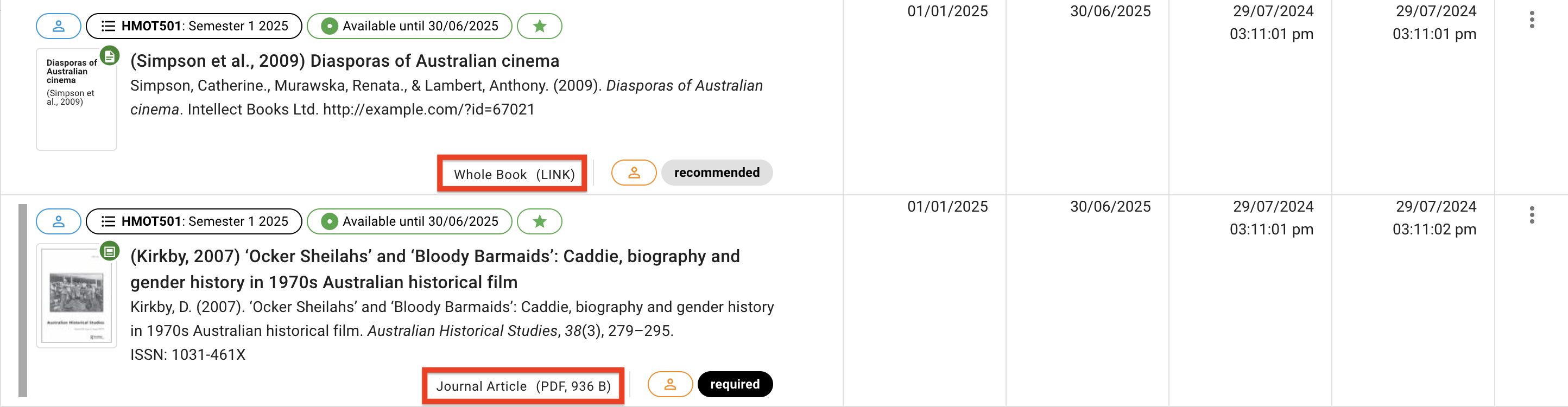

Resource Analytics
Once a resource is approved and made active for students, an additional label will display to indicate if it has been accessed. This label remains after a request becomes expired or removed.
If the resource has no accesses, the label is orange and the help tooltip advises that the ''resource has never been opened".
If the resource has been accessed, the label is green and displays two counts:
- The 1st number is the number of students who have accessed the resource
- The 2nd number is the total number of accesses for the resource.

Resource Importance
This label outlines the resource importance, which displays as either 'Required' or 'Recommended'. Required resources also display a grey bar on the left of the resource, making it easier to differentiate the importance.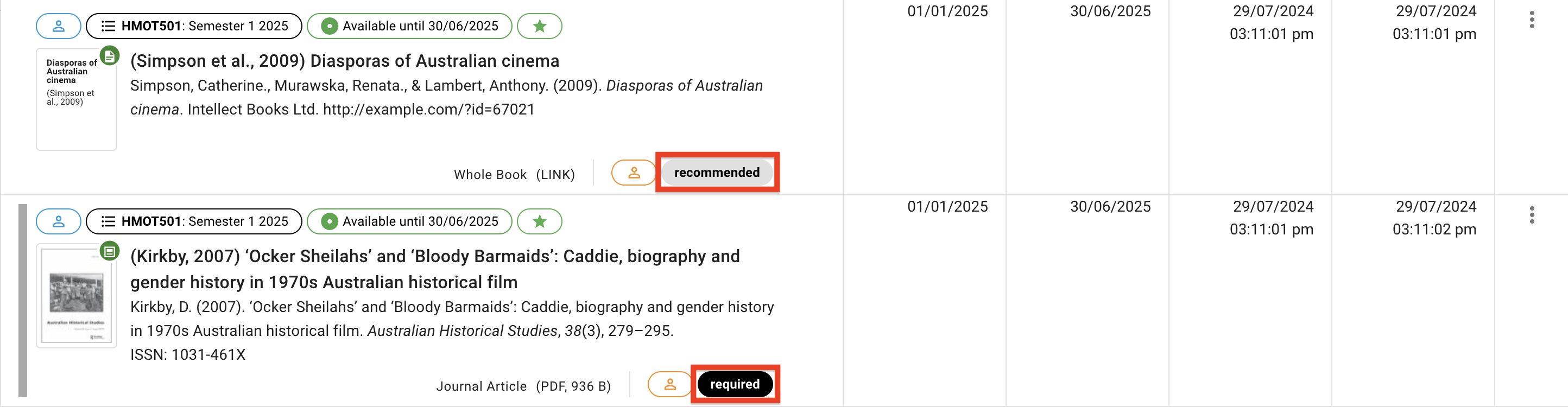
List labels
Availability Date
Each list has a status label to show the availability of a list, with dynamic text to clearly display the start or end date of the list.
-
Active lists: Available until (List End Date)

Figure 27: The availability date for a currently active list -
Future lists: Available from (List Start Date)

Figure 28: The availability date for a pending future list -
Past requests: Expired on (List End Date)

Figure 29: The availability date for a past list that has expired
List Analytics
Every list has an analytics label, that details the number of resources in list as well as the number of active students accessing resources.
If the list has resources that have been accessed by students, the green label displays the total number of resources in the list, the number of active students accessing resources and the total access count in the list. Hovering over the label displays "The resources have been accessed (total access count) times by (active student count) students".


Publishing Status
Each list displays the publishing status, which means it has been published to the corresponding course in the LMS for students to see and access.
If a list has been published, the green label displays a solid bookmark icon, followed by the name of the LMS course the list is currently published to.

Requests and List Actions
Each request provides a list of actions to assist with the review process. Ensure that the view is set to 'Requests', then click the ellipsis menu on the righthand side of a request row to open the requests actions menu. Each request has the following request actions available:
-
Review - This option allows a librarian user to review this request. This will open the reading request review page where librarians can review the resource and scheduling details as well as update, approve and reject resources.
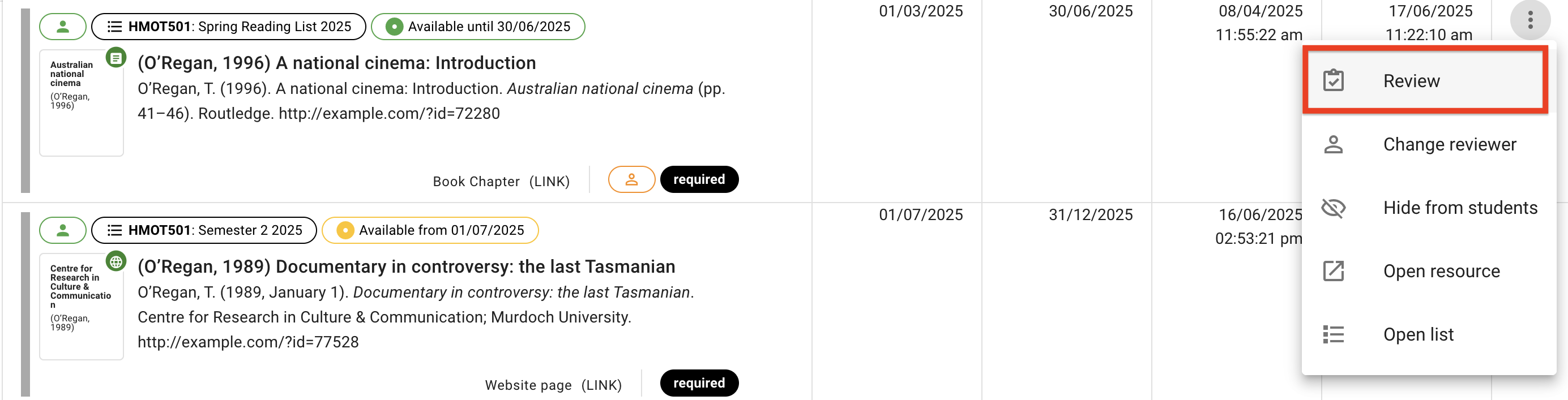
Figure 35: The Review option -
Change Reviewer - This option provides the ability to change the reviewer for a request.
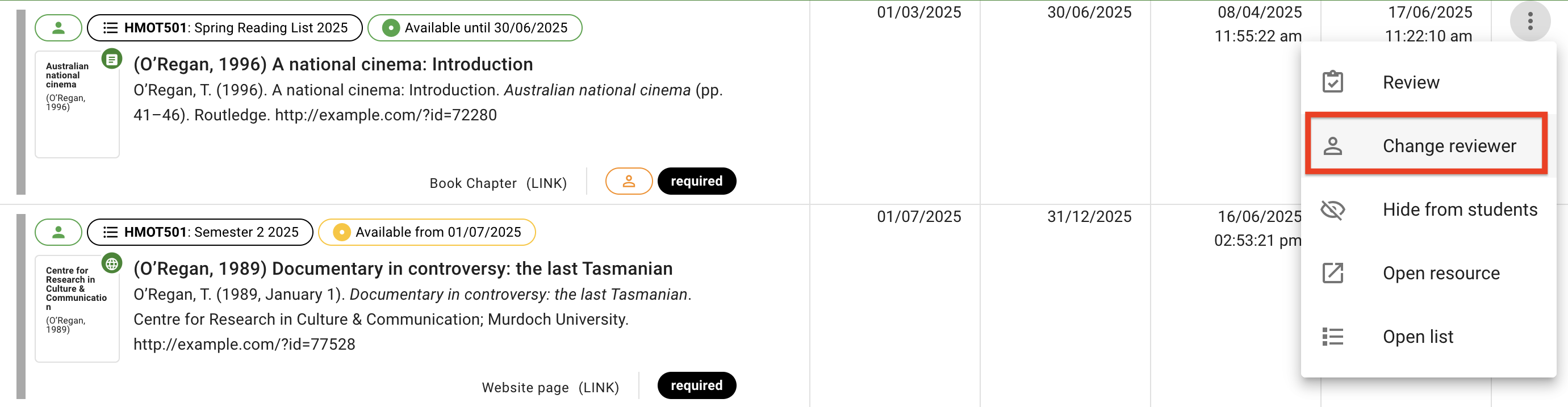
Figure 36: The Change Reviewer option 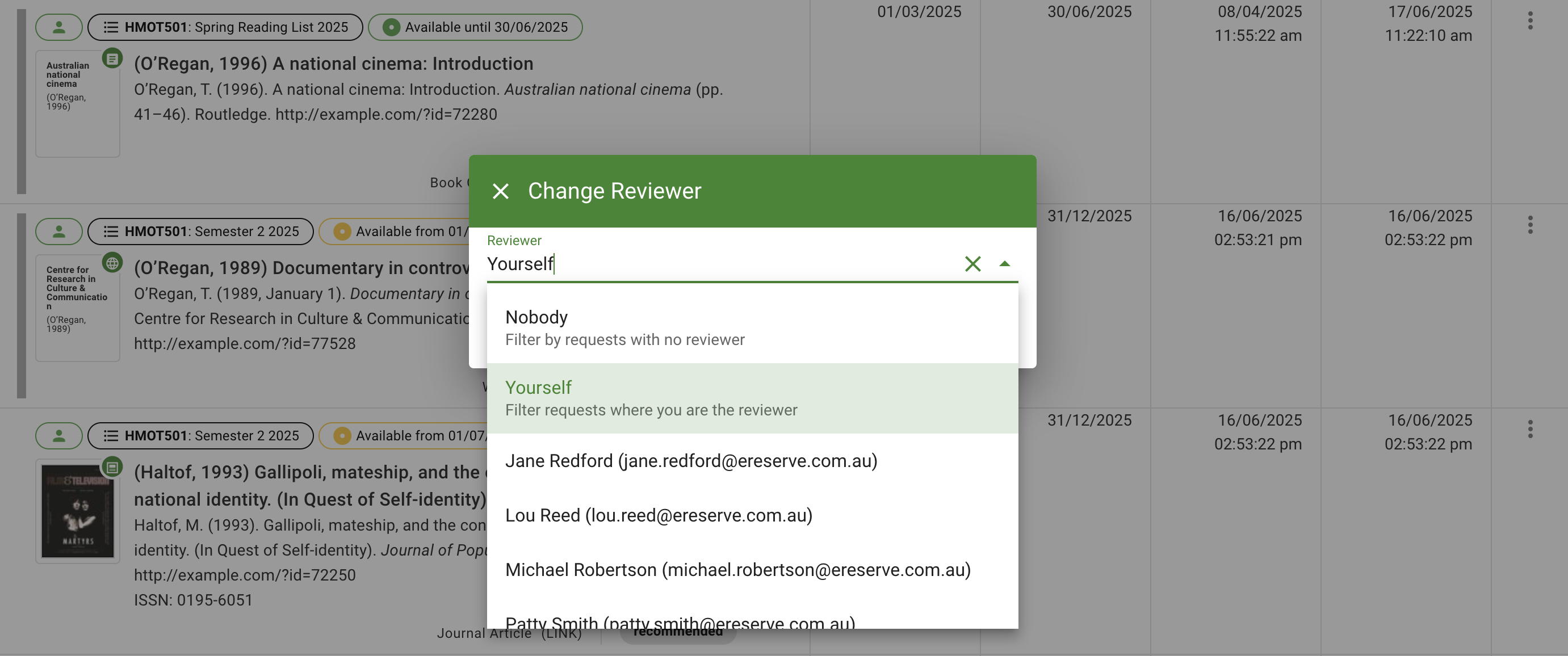
Figure 37: The Change Reviewer window -
Hide from Students - This option is to hide a resource from the student view.
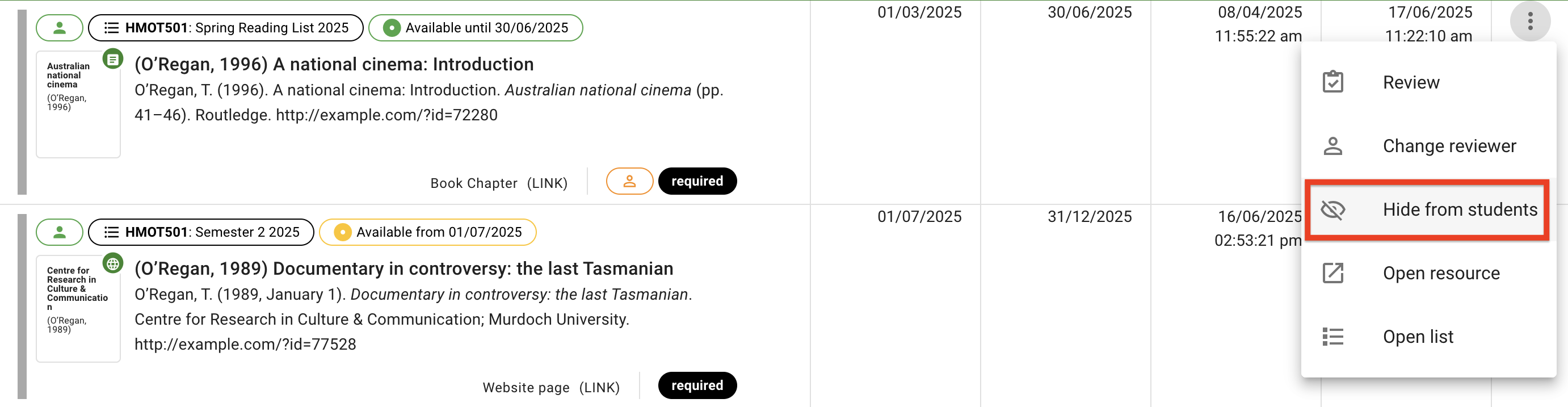
Figure 38: The Hide from Students option
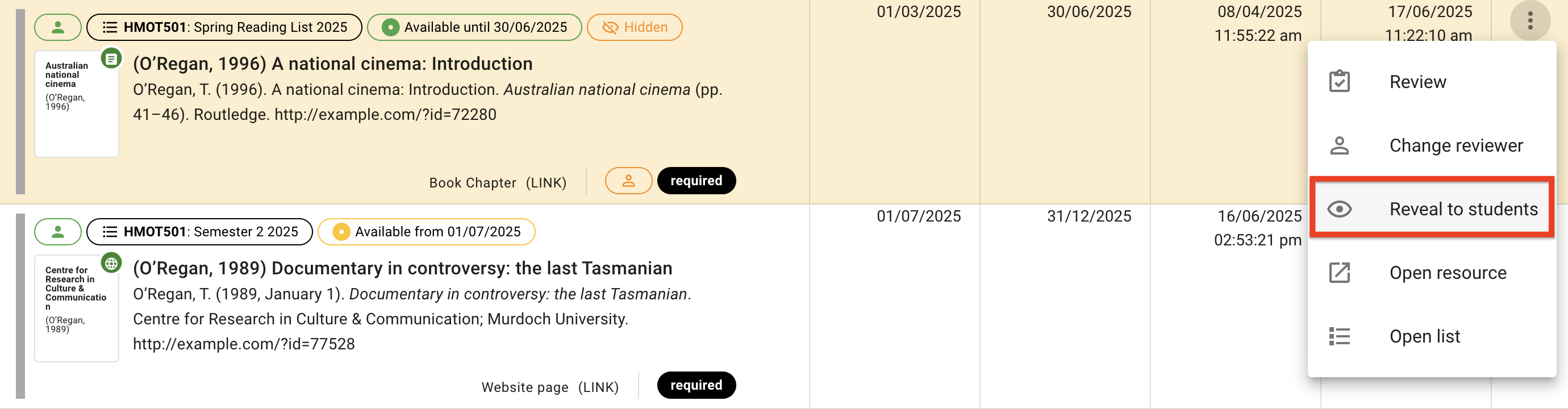
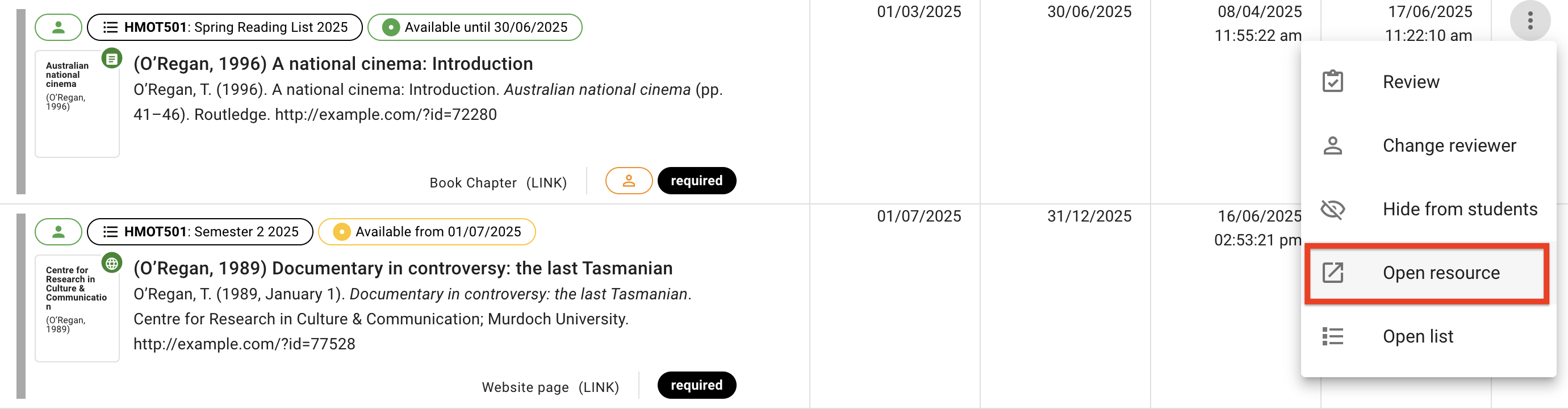
- Open resource - This option is to access the resource. Accessing link-based resources will open the link in a new tab in your browser while accessing file-based resources will begin downloading the file to your device.
-
Open List - This option will open the list management page for the list that the resource is being requested for. On this page, librarians are able to curate and manage the list in the same way faculty are able to within their LMS.
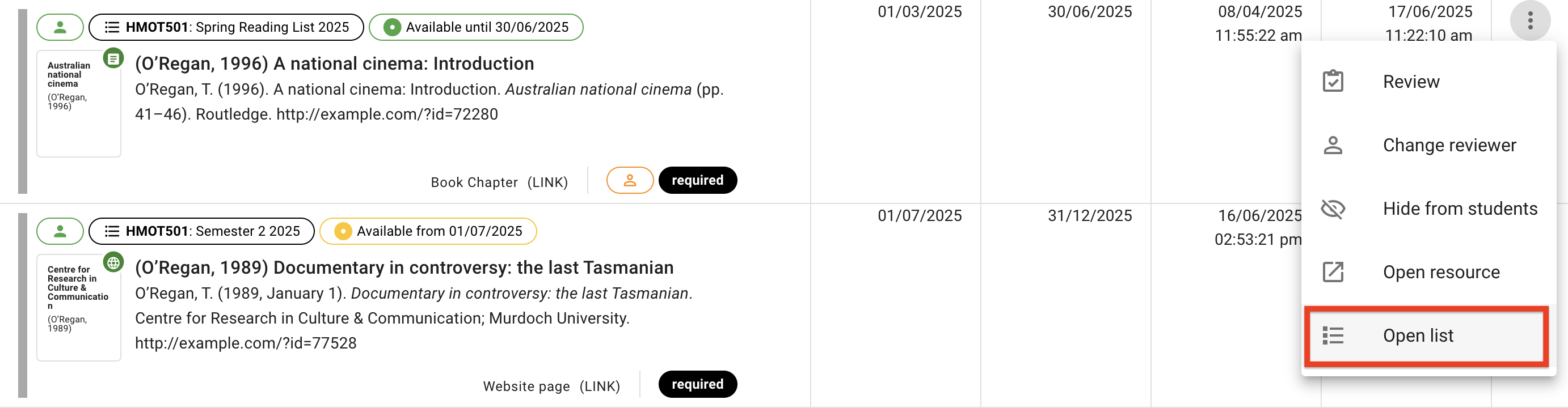
Figure 41: The Open List option

Please navigate to the Overview of the Faculty Interface for more details about available functionality in the list management page.