Summary: This document details how to use the filter and search to find requests that require review within the enhanced Requests Management page.
Note : This documentation shows how to reject a resource request with the Enhanced Requests Management feature enabled. Click here to access the legacy search documentation.
Introduction
The request interface is designed for you to quickly and easily find the exact requests you are looking for, even if you have tens of thousands of requests coming in.
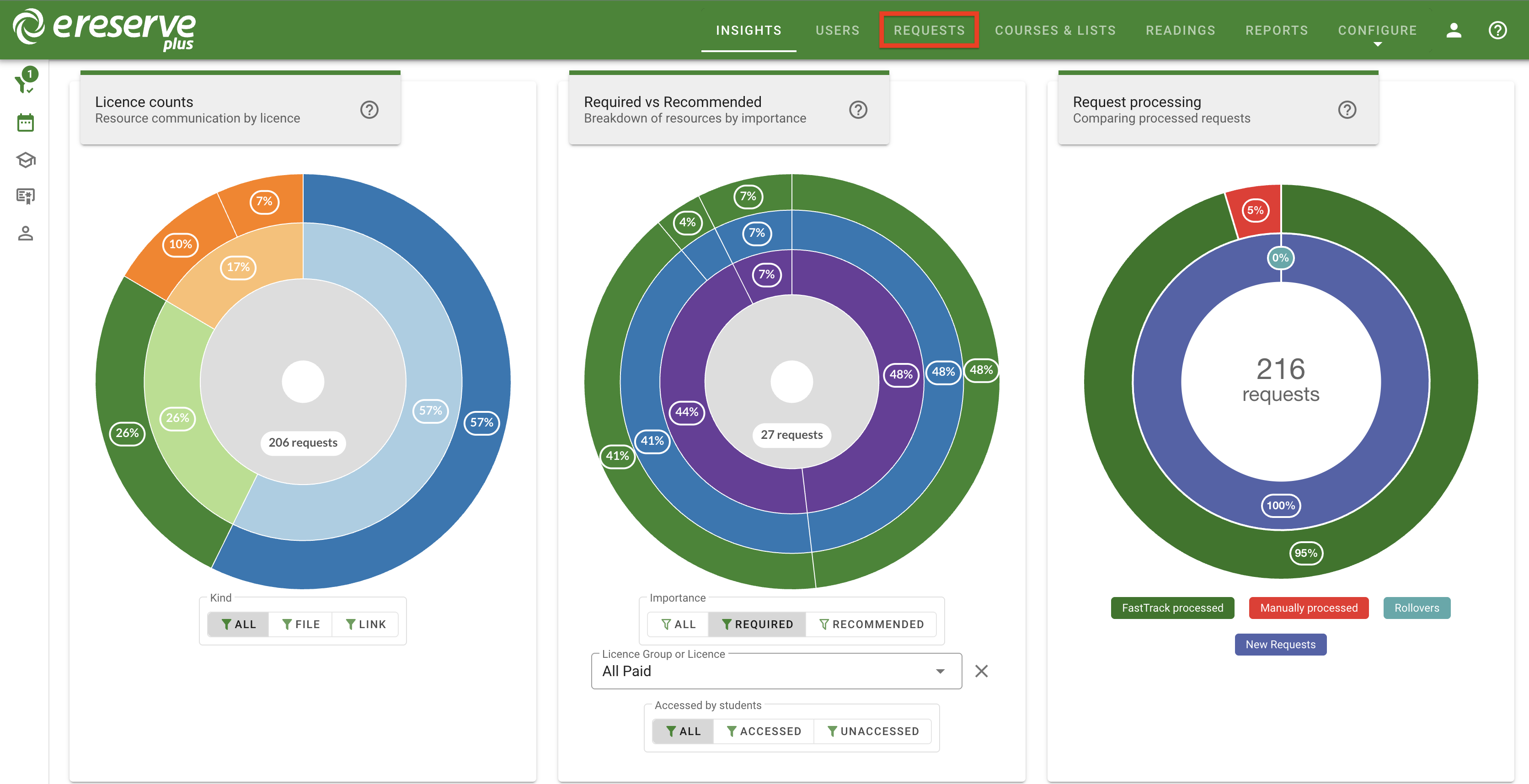
Click on Requests to begin navigating your requests.Figure 1 : The Requests button
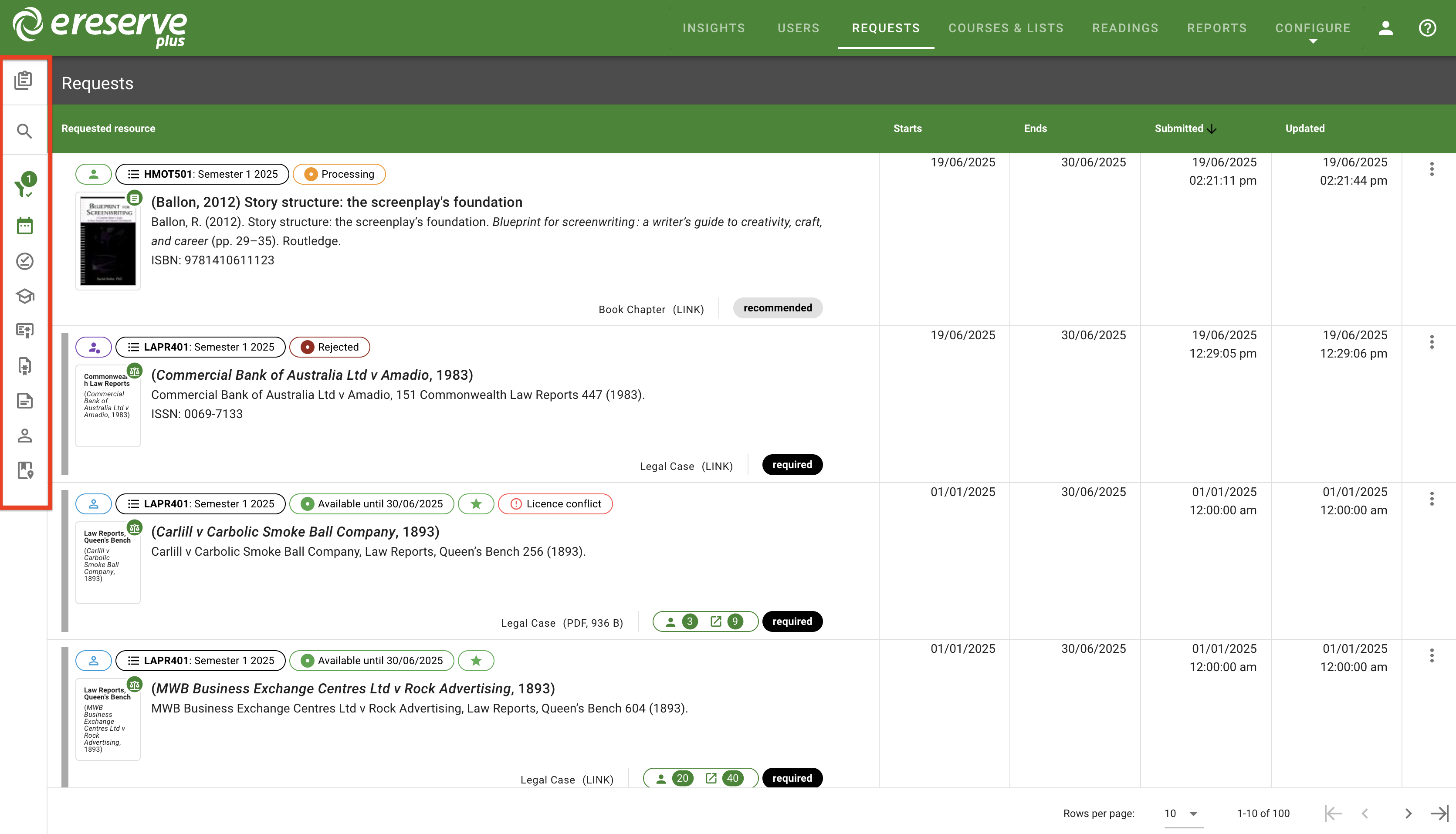
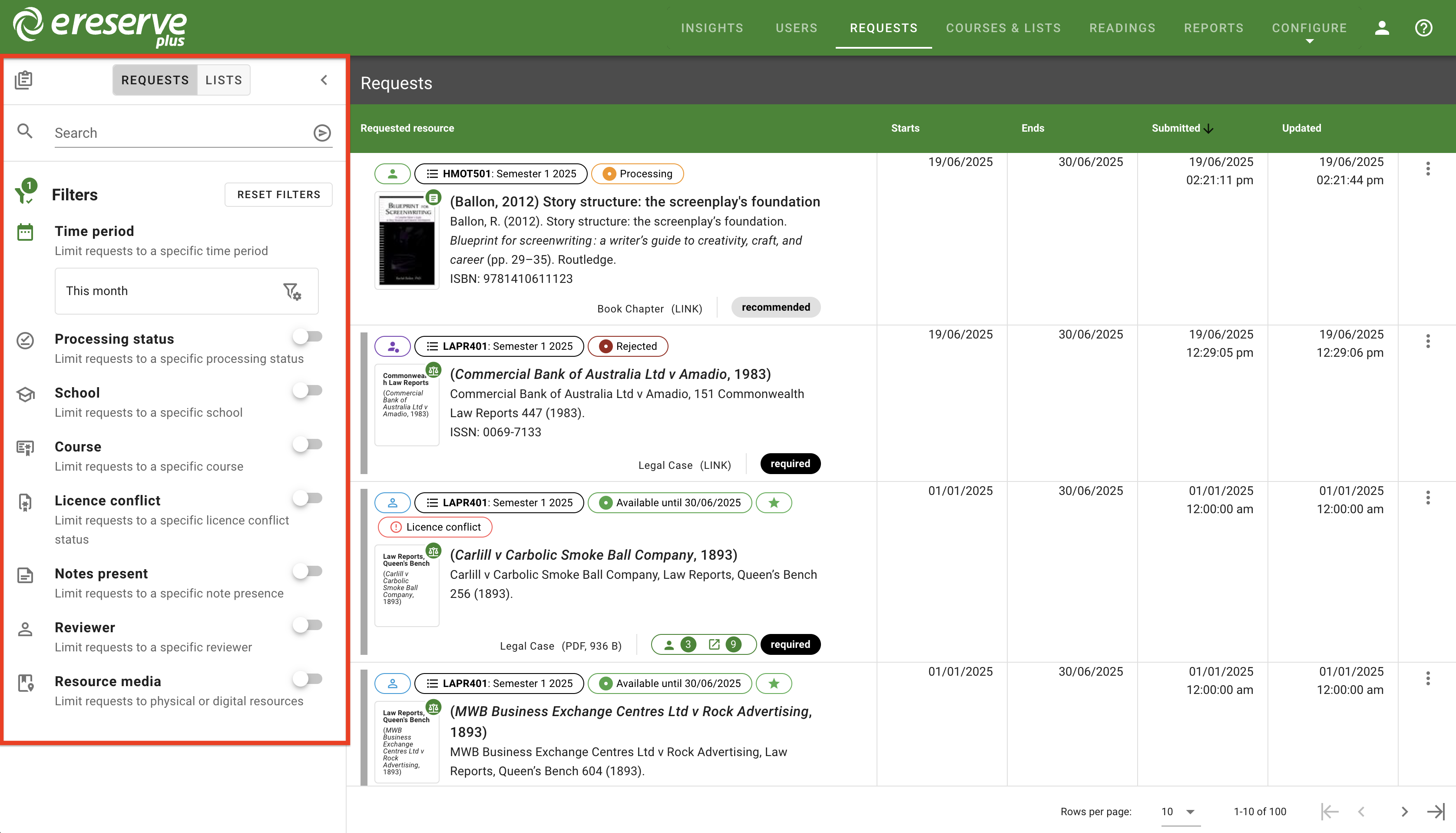
The request filters sidebar is on the left-hand side of the Request page and can be expanded by clicking anywhere within the sidebar.Figure 2 : The Filters menu collapsedFigure 3 : The Filters menu expanded
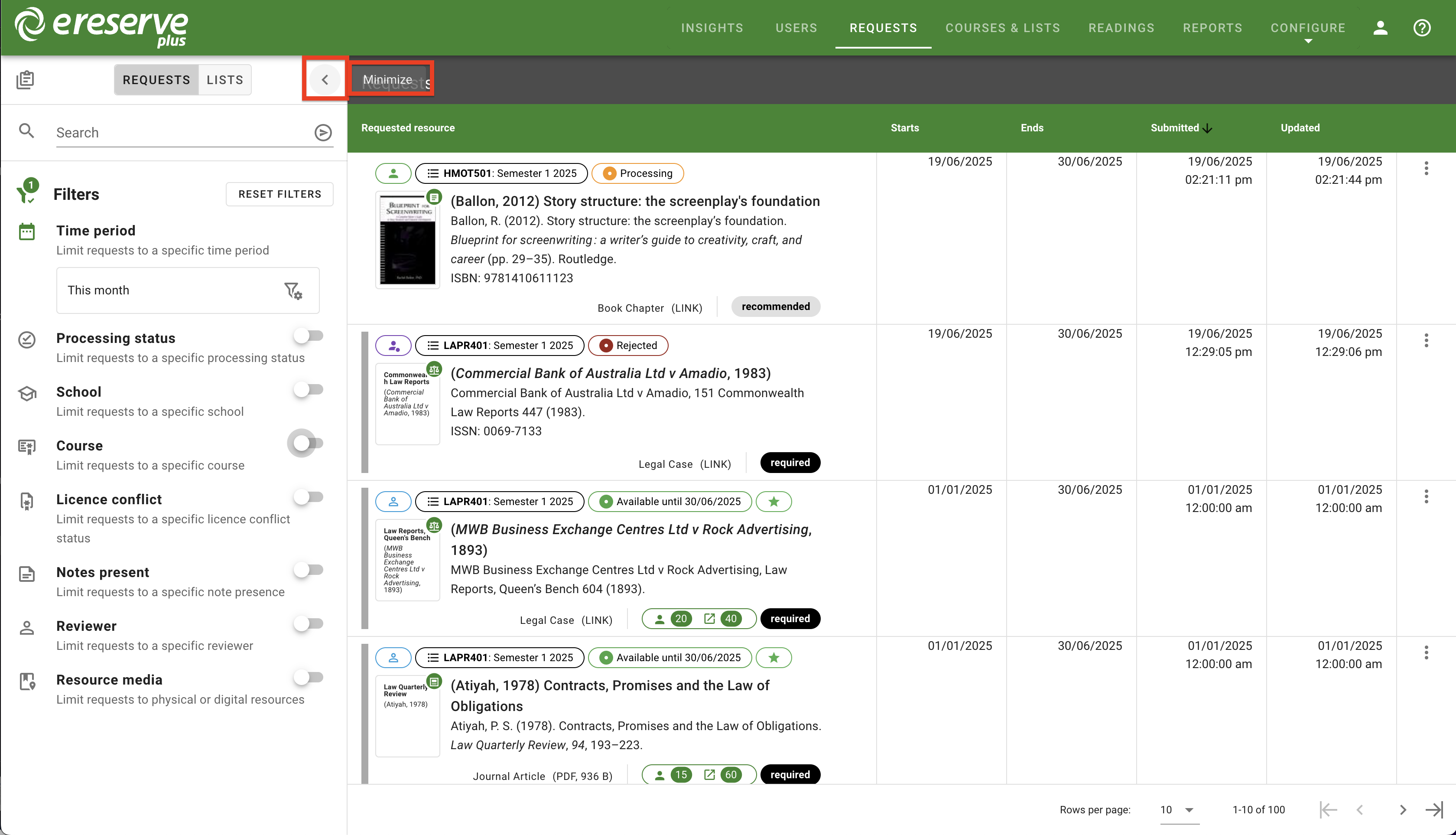
Click the Minimize arrow (on the top right of the filters panel) to collapse the panel menu back to a condensed sidebar.Figure 4 : The Minimize button for the filters panel
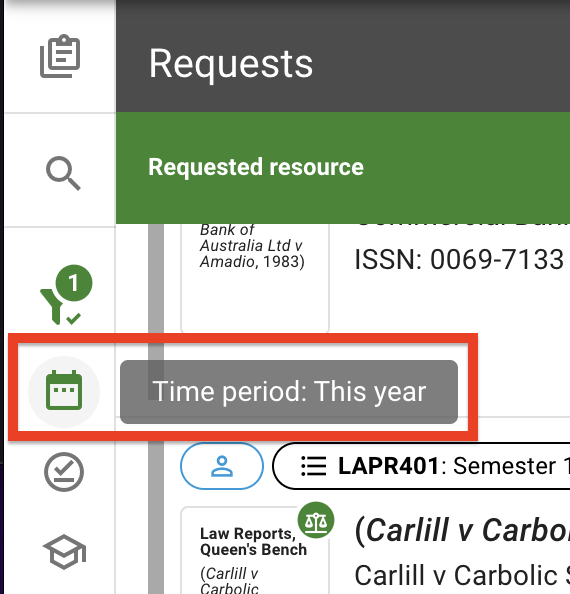
Whether the panel is expanded or collapsed, librarians can see which filters are being applied to the list easily by the colour of the icon. Solid green icons are active filters currently being applied to the list while outlined grey icons means the filters are either disabled or enabled but requires a selection to be made. Hovering the cursor over any of icons also provides a tooltip which shows the filter state:
Requests/List - confirms which view is currently being displayed
Search - shows if a search phrase has been set or, if a search is currently being applied, what the search phrase is.
Filters - shows the name of the corresponding filter and advises if the filter is currently disabled or if the filter is enabled but not set. If the filter is populated, the popup displays the selection currently being applied to the list.
Figure 5 : The help tooltip for the Time period filter
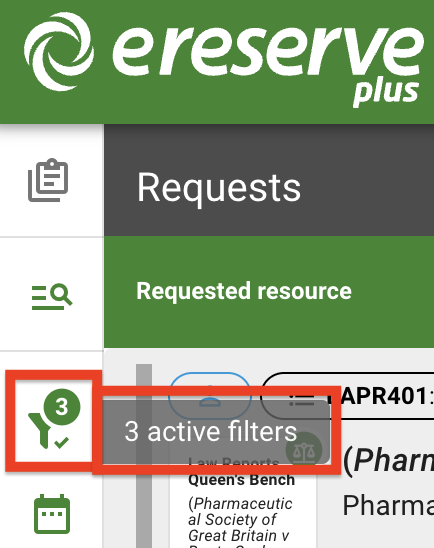
The filters icon also displays the number of active filters currently being applied to the request or list page.
Figure 6 : The active filter help tooltip
Requests and Lists view
At the top of the filters panel are the Requests and Lists buttons that toggles the page list.
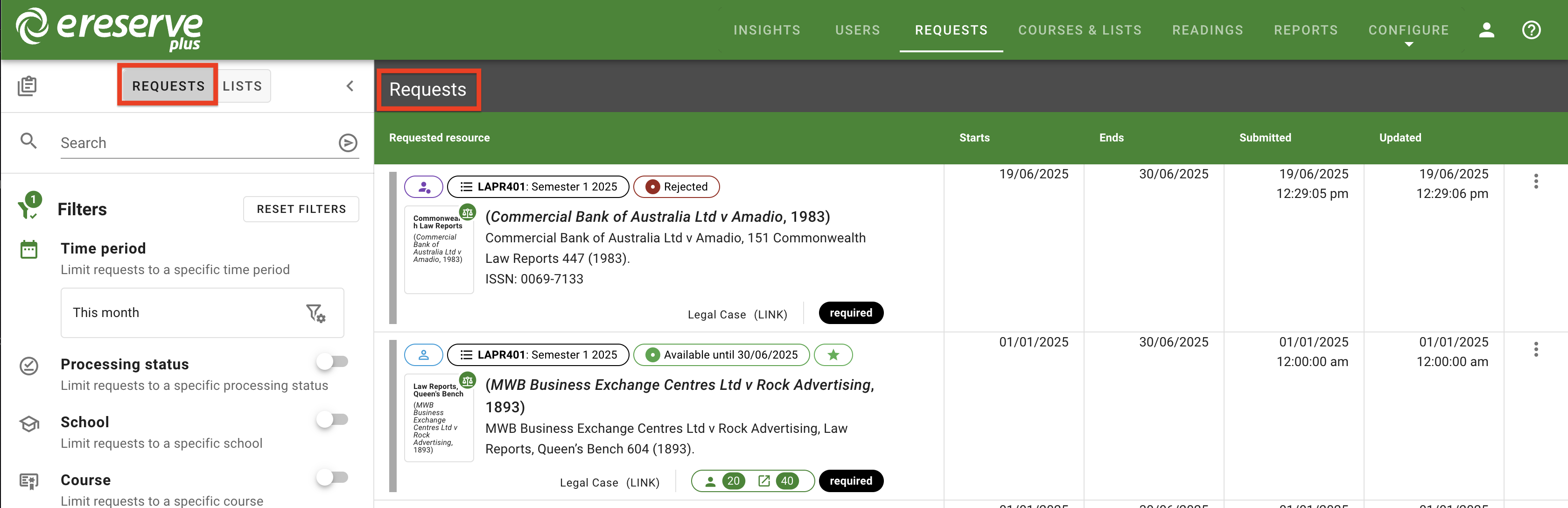
Click on Requests to display each request individually, which provides details for requested resources such as the citation, availability, resource type and importance, and so on.Figure 7 : The Requests view
Click on Lists to display the lists the requests are located in. When applying filters to the list view, the page will display only the lists that contain the filtered requests.Figure 8 : The List view
Sorting Requests
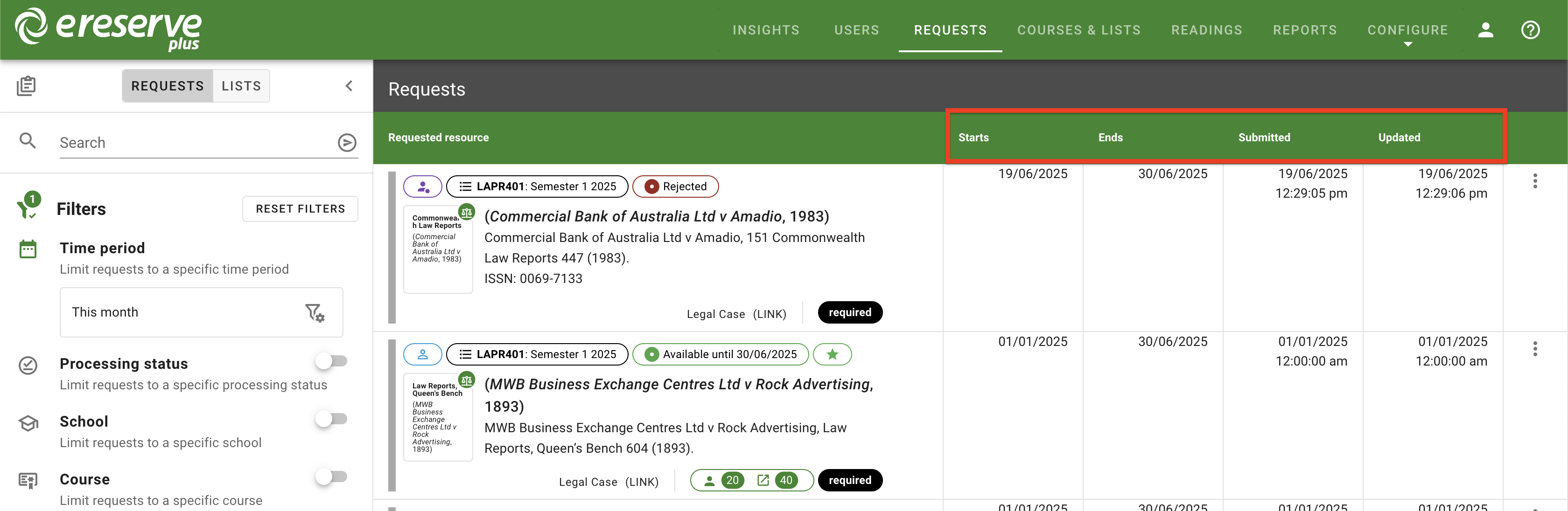
The requests & lists page provides the following date details for the resources and lists:
Start date
End date
Submitted
Updated
Figure 9 : The date columns on the right side of the requested resource column
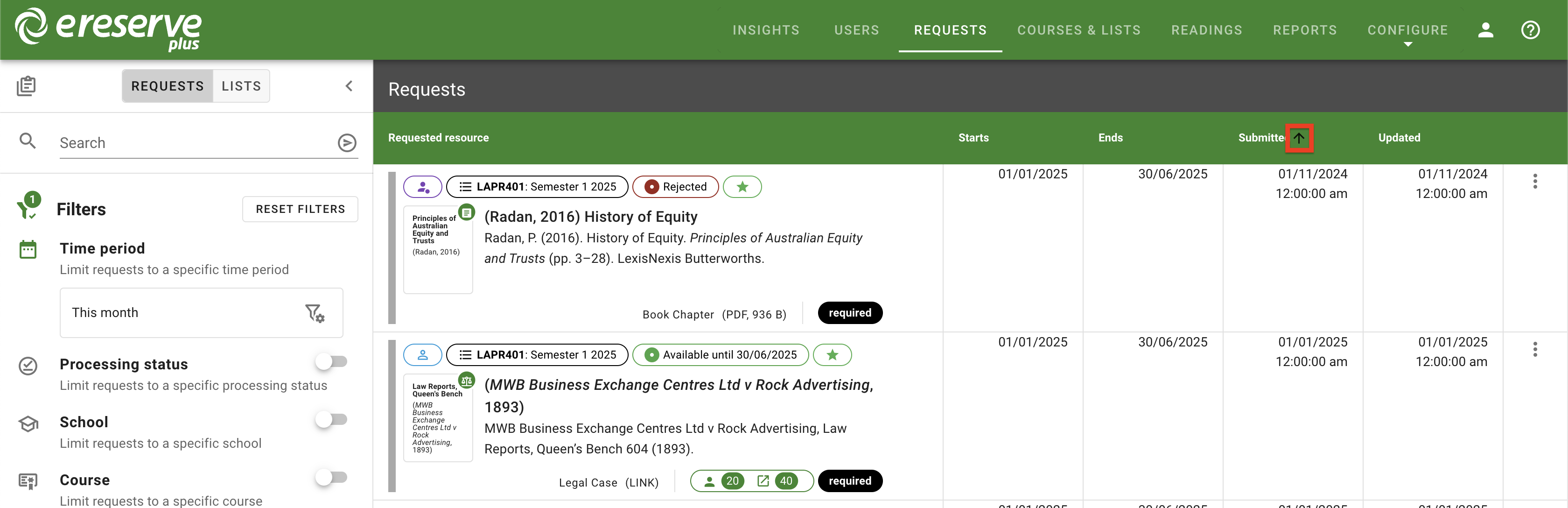
To sort requests/lists by a date, such as the start date, click on the corresponding column header. The page list will be sorted by that date in ascending order, indicated by an up arrow.Figure 10 : Requests are being sorted by the Submitted date in ascending order
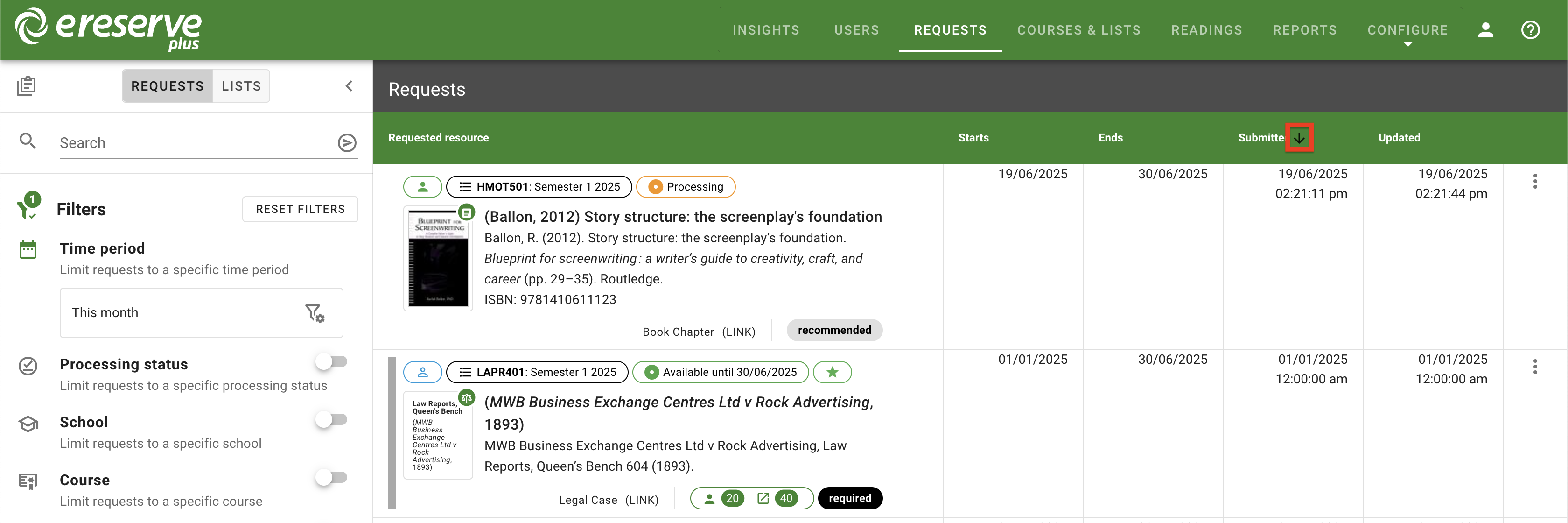
Click the column again to sort the list in descending order, indicated by a down arrow.Figure 11 : Requests are being sorted by the Submitted date in descending order
Clicking a third time will return the page to the default request/list display.
Filters
There are a number of filters available, each of which can be enabled and configured individually. These filters are additive, which means they can be combined to further narrow down the requests displayed, making it easier for librarians to locate specific requests that require review.
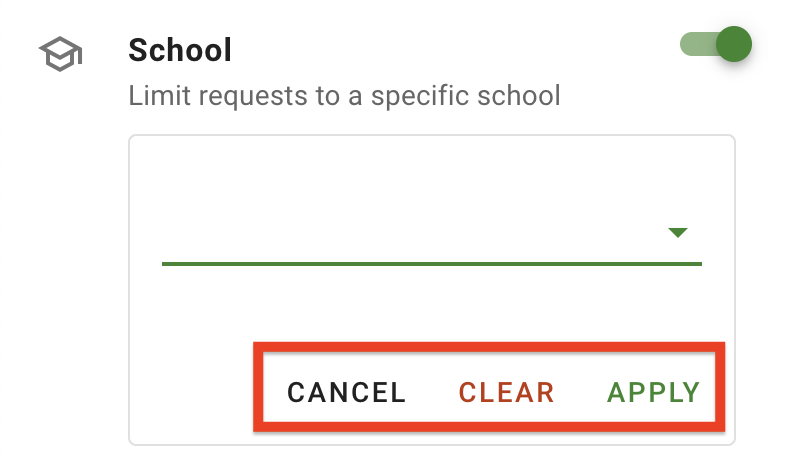
Once a filter has been enabled and a selection has been made, click Apply to apply the filter to the requests list. You can click Cancel to cancel any changes made and, for optional filters, click Clear to clear the field. Disabling a filter will retain any selections made but will not be applied to the list.
Figure 12 : The available actions for an individual filter
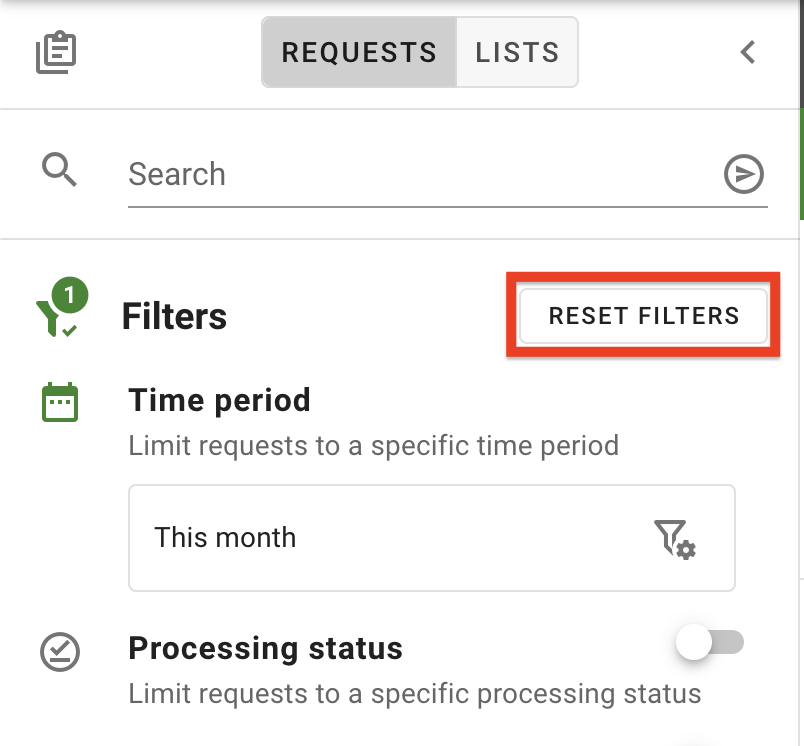
You can click on Reset Filters anytime to easily clear and disable ALL optional filters and resets the Time period filter to 'This Month'.
Figure 13 : The Reset Filters button
Time period
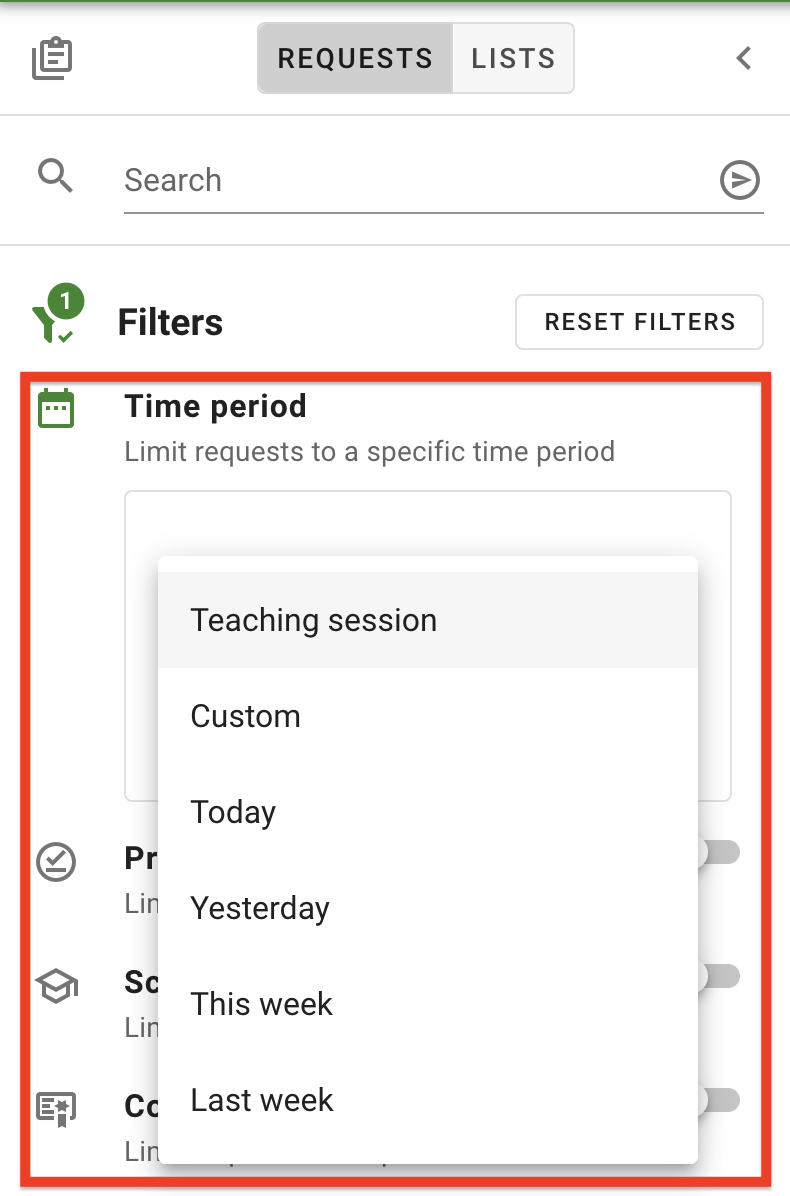
The Time Period filter is the default filter applied to requests/lists page. This filter is mandatory and can not be removed, however, the date can be changed by clicking into the field. There are a number of different options which can be selected from the Time Period drop-down. Once a new time period has been selected and applied, the requests/list page will update accordingly.
Figure 14 : The Time Period filter
The Time Period filter has the following options:
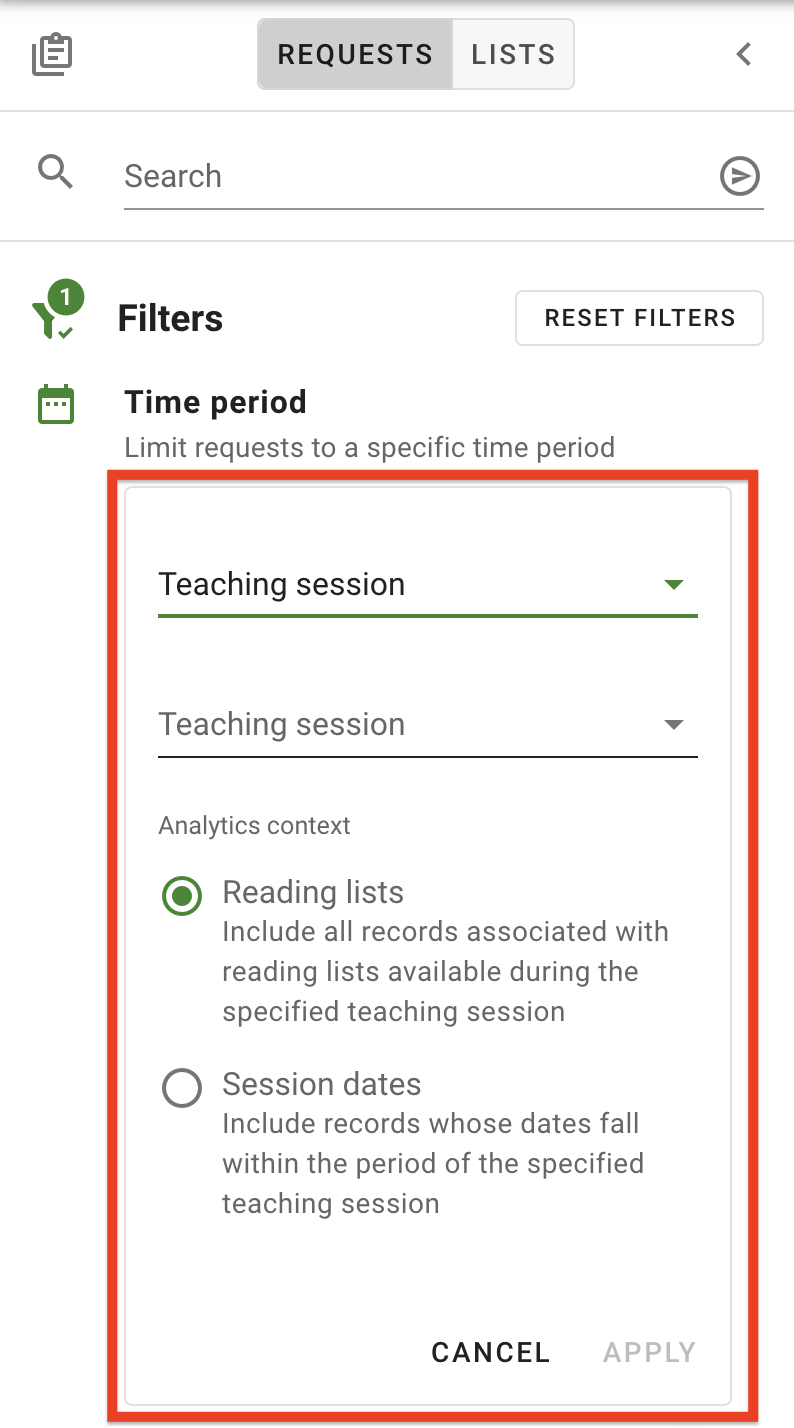
Teaching Session - presents a list of created Teaching Sessions within eReserve Plus, with additional selection options for:
Reading Lists: only includes requests and lists that use the specified teaching session.
Session Dates: use all records that fall within those teaching session dates, regardless of the associated teaching session.
Figure 15 : The Teaching Session menu within the Time Period filter
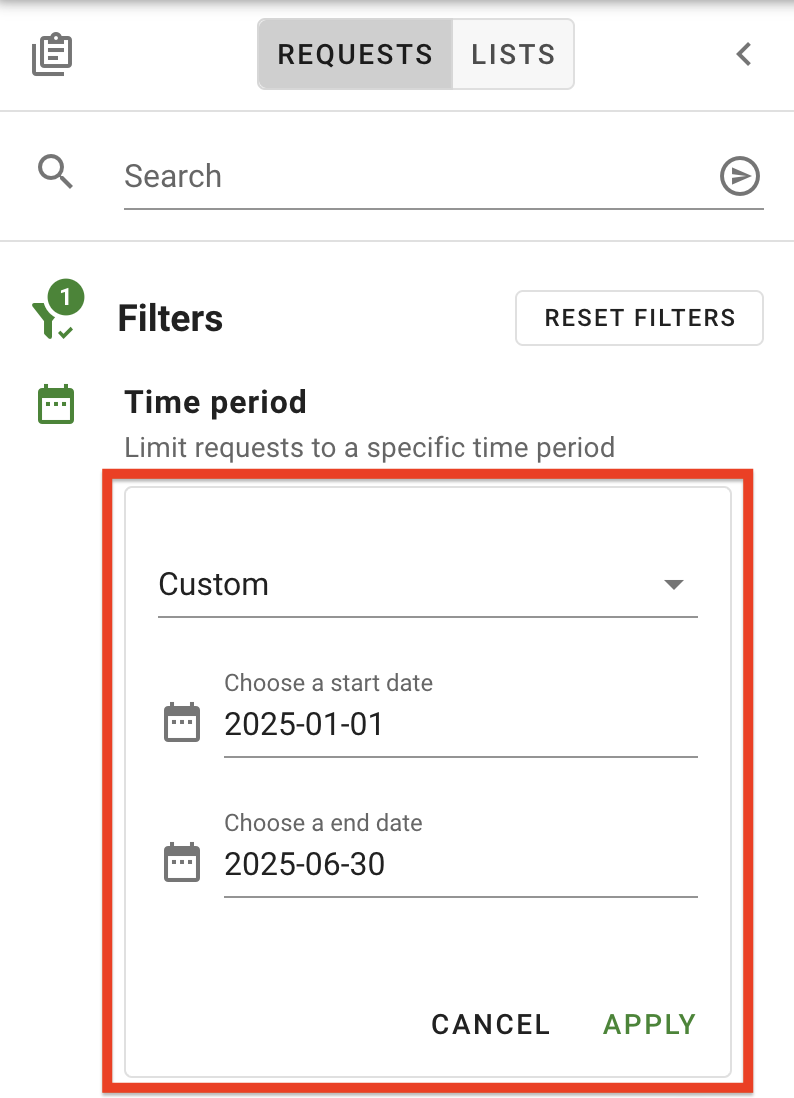
Custom Duration - allows a selection of a Start and End date.
Figure 16 : The Custom dates menu within the Time Period filter
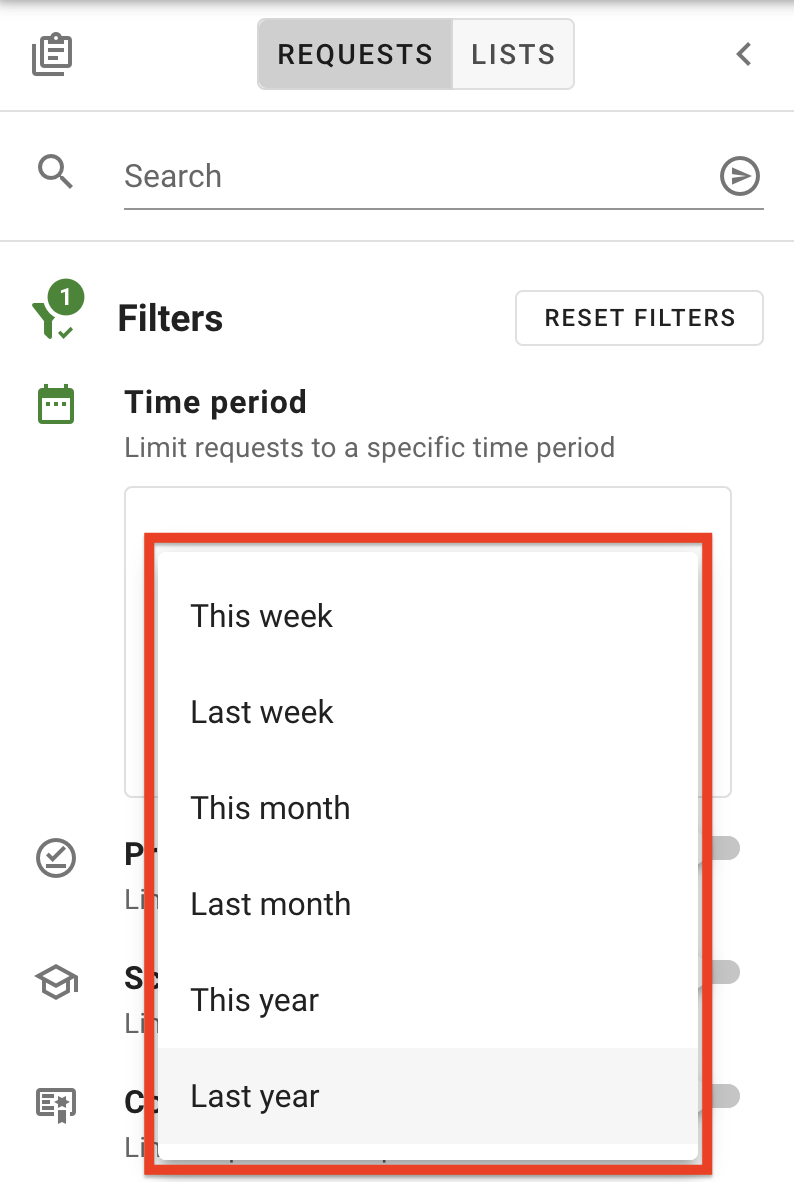
Predefined Time Periods - allows selection of a preconfigured time period (e.g. Today, Yesterday, This week, etc)
Figure 17 : The Predefined durations options within the Time Period filter
Processing status
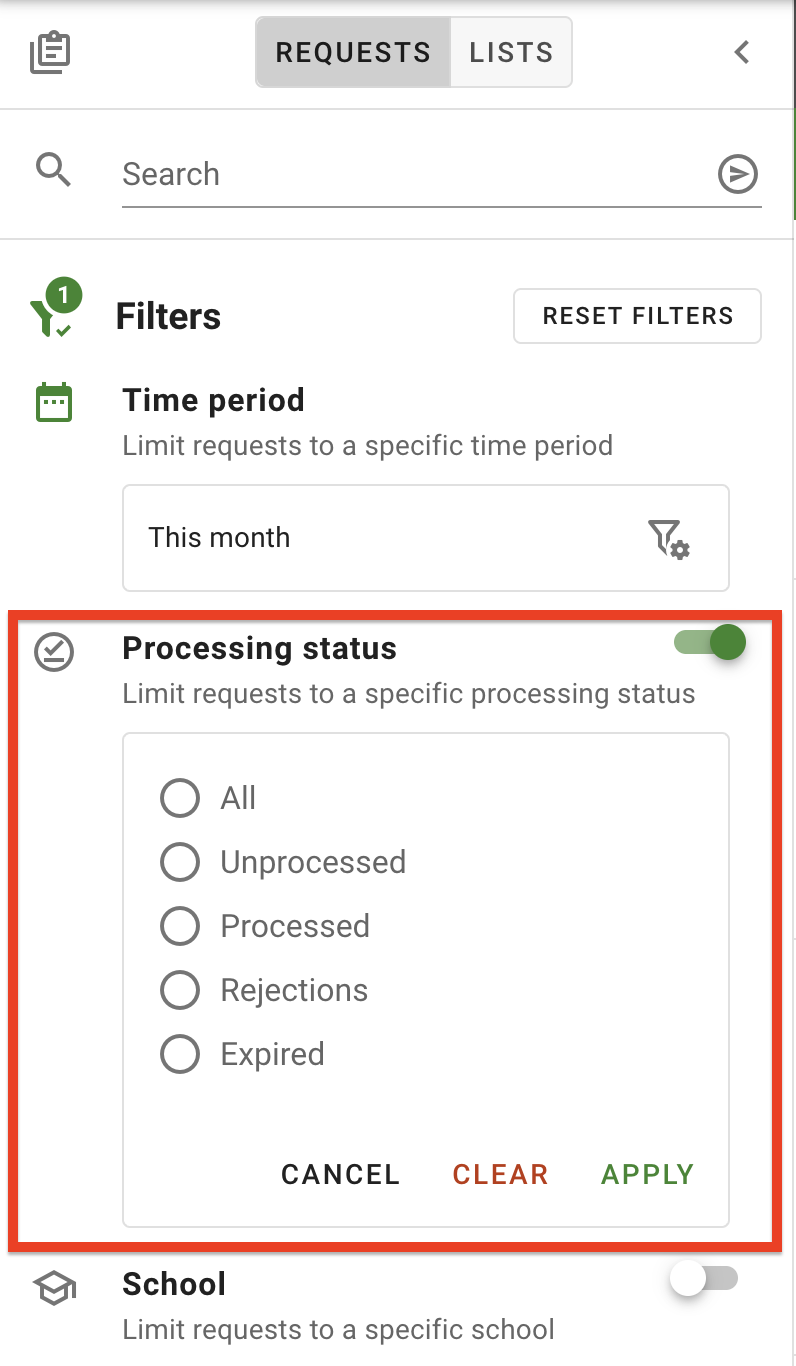
The processing status filter narrows the requests/lists page to a selected Status category. Requests fall under one of the four processing categories - unprocessed, processed, rejections and expired.
All - displays ALL requests of all processing statuses.
Unprocessed - displays requests with the Submitted status or Processing status.
Processed - displays requests with the Active or Pending status, which means they have been approved.
Rejections - displays requests that have been Rejected or Removed while being communicated to students.
Expired - displays requests that have the Expired or Removed status, which means the end date of the request has passed.
Figure 18 : The Processing Status filter options
By default, this filter will have the All option selected. To change, click on the box or filter settings icon to expand the selection box, then click on another status option and click Apply.
School
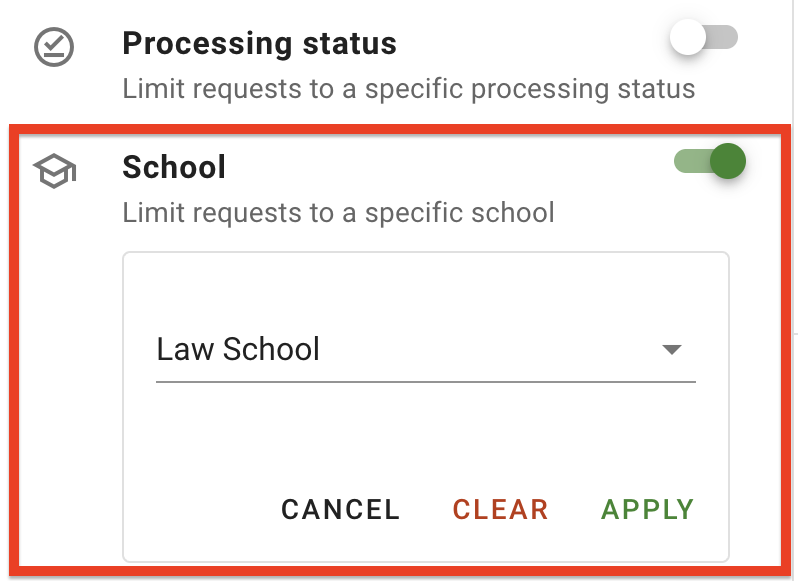
Enabling the School filter will limit the requests/lists page down to a specified School/Department. Click the toggle to enable the filter, then click anywhere in the box or the settings icon to view the field. Click on the field to select the School from the dropdown list, then click Apply to save your selection.
Figure 19 : The School filter, which is currently populated with a selection
Course
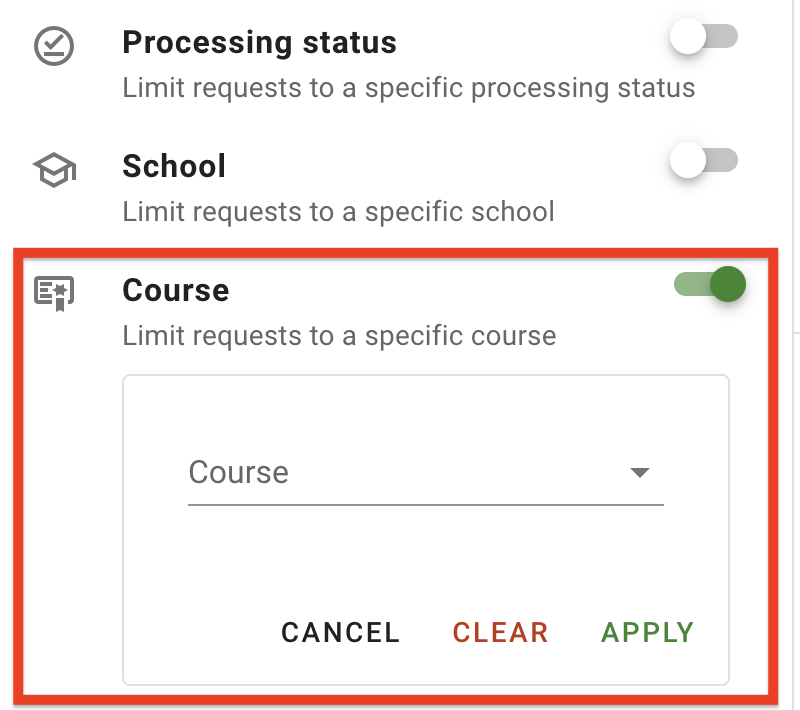
Enabling the Course filter will limit the requests/lists page down to a specified course. Click the toggle to enable the filter, then click on the selection box or filter icon to begin searching for a course. As you type any part of either a course code or name in the course field, a pop-up will display a list of courses that match the text. Click on a course from list, then click Apply to save your selection.
Figure 20 : The Course filter field
Licence conflict
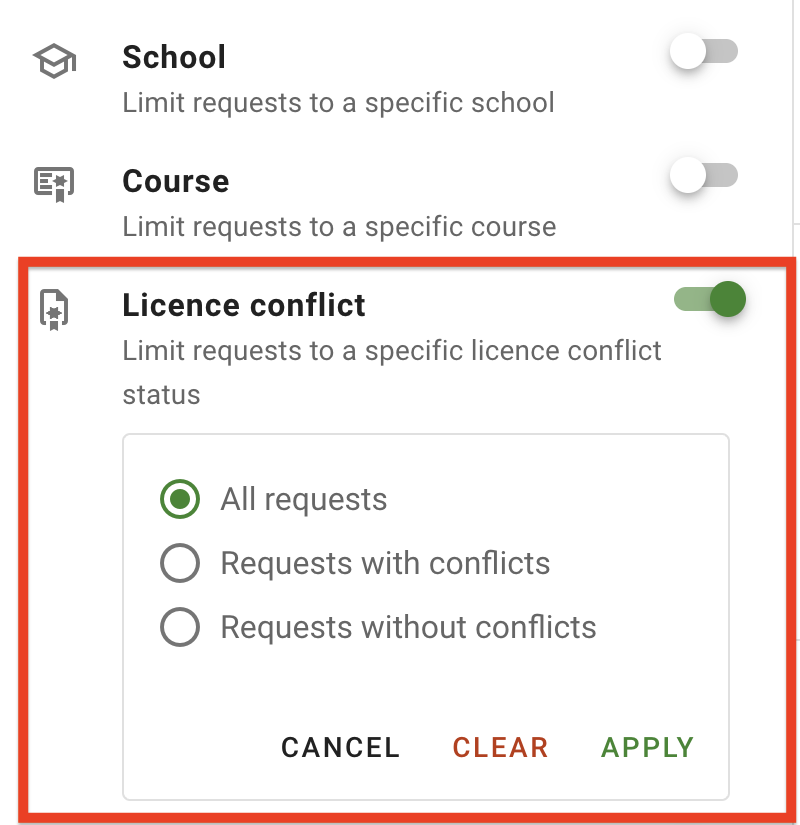
Enabling the Licence conflict filter will limit the requests/lists page down to a specific licence conflict status, which are as follows:
All requests
Requests with conflicts
Requests without conflicts
Filter 21 : The Licence conflict filter options
By default, this filter will have the All requests option selected. Click the toggle to enable the filter, then click anywhere in the box or the settings icon to view all options for selection. Click on a new filter option, then click Apply to save your changes.
Notes present
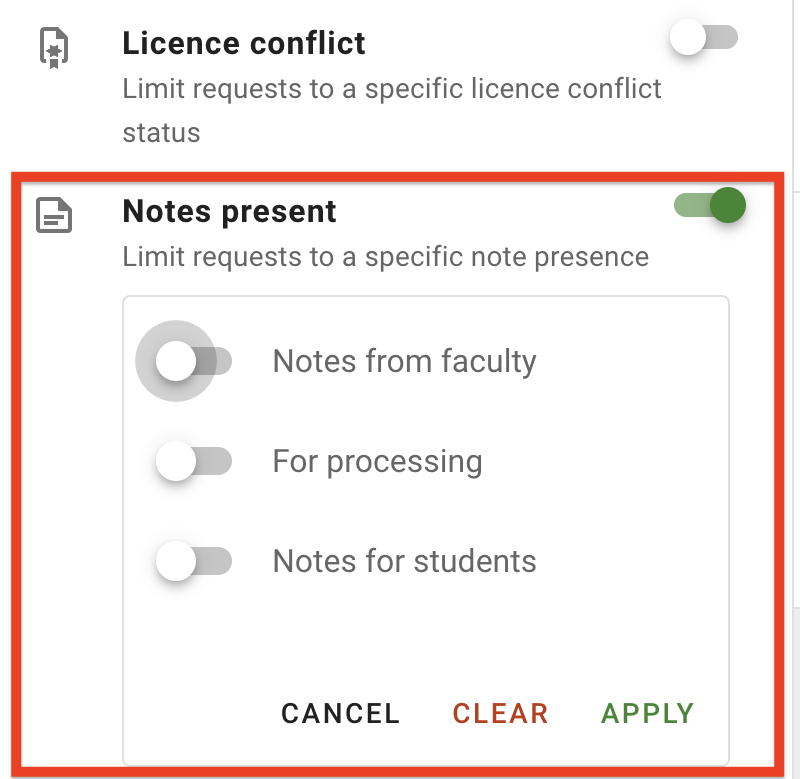
Enabling the Notes present filter will limit the requests/lists page down to requests that include a note. There are 3 types of notes that can be added to a request:
Notes from faculty - Faculty are able to include a note when submitting a request. Faculty are unable to change the note after submission.
For processing - Librarians are able to add and update notes to a request. This note is only visible on the request review page.
Notes for students - Faculty and librarians are able to add and update notes for students, which is displayed on the resource in student view.
Filter 22 : The Notes present filter options
Click the toggle to enable the filter, then click the toggle beside each type of note you’d like to view requests for. The filters are accumulative so for example, if the ‘Notes from faculty’ and ‘For processing’ are both enabled, the list will only display requests that contain both notes types. Click Apply to save your selection and apply to the requests list.
Reviewer
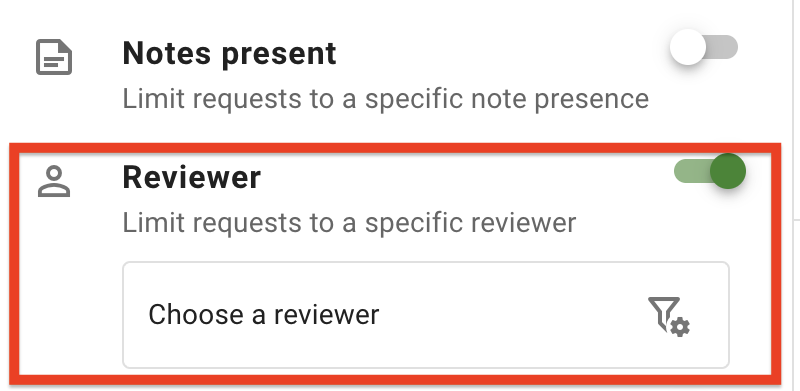
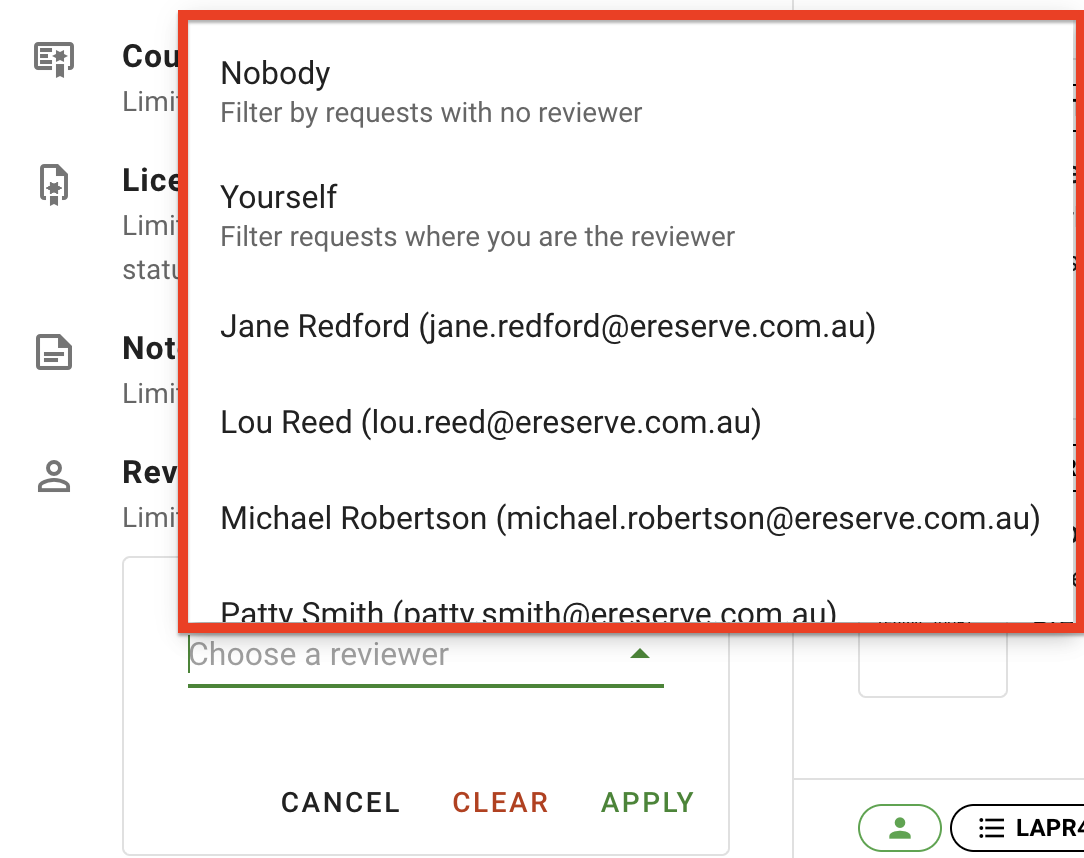
The Reviewer filter will limit the requests/lists page to display only requests reviewed by a specified Staff Member. Click the toggle to enable then you can select the specific staff member from the dropdown list. Typing in any part of the staff member's name or email address also narrows the list down further for easier selection. The options 'Nobody' and 'Yourself' are also available for selection. Click Apply to save your selection.
Figure 23 : The Reviewer filter
Figure 24 : The Reviewer filter with the staff member selection expanded
Resource media
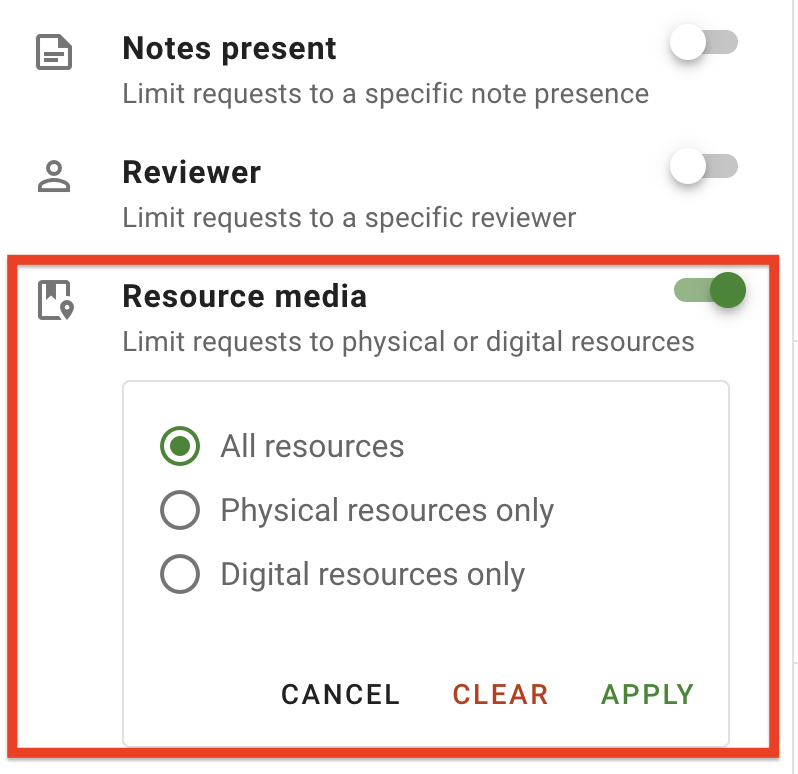
Enabling the Resource media filter will limit the requests/lists page based on whether the resource is physical or digital. Click the toggle to enable the filter, then click on the selection box or filter icon to expand the list of options. Select either Physical resources only or Digital resources only, then click Apply to save your selection.
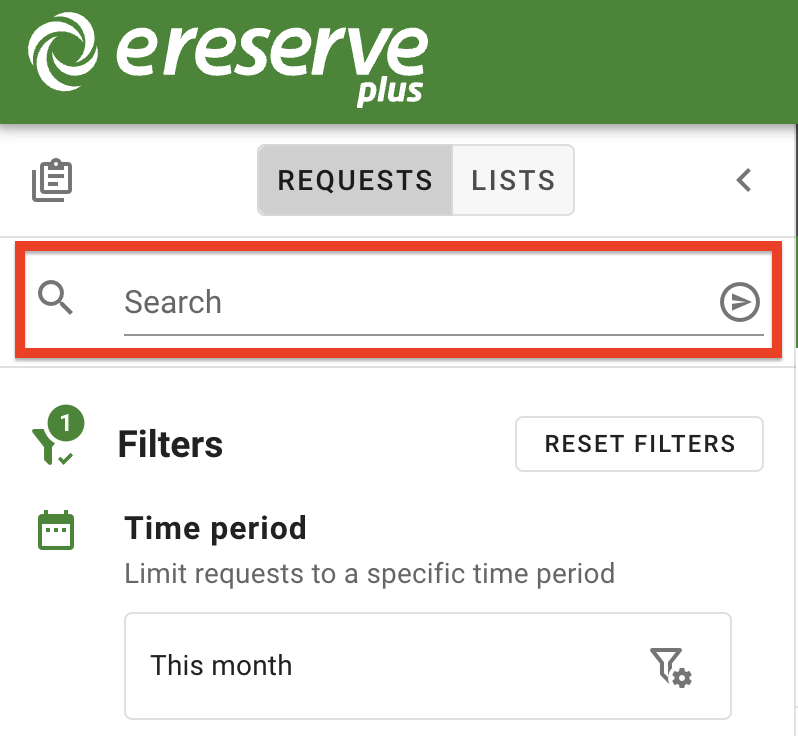
Another method to locate a request is to use the search, which is available on the Requests and Lists filters panel. This is handy when you’re looking for a particular request. You are able to search on any of the following resource metadata:
Resource title
Source document title
Author
Year
Identifier, such as ISBN, ISSN, DOI, etc.
Publisher
Edition
Figure 26 : The Search bar in the Filters panel
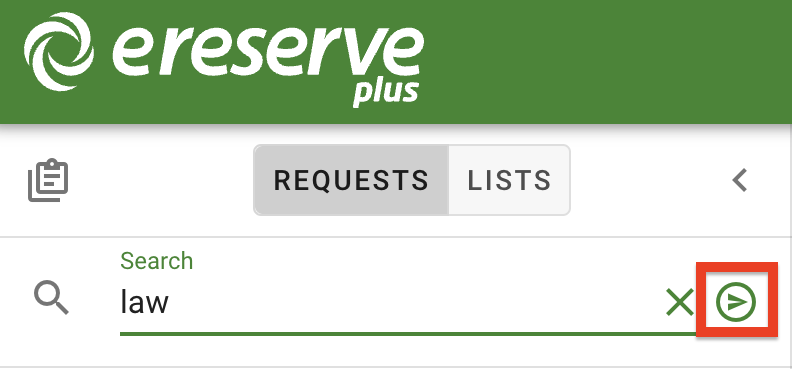
To use the search, simply type in the search phrase, then apply by clicking the send icon on the search bar or pressing enter/return on your keyboard. The request list will be limited to only requests that contain the matching phrase.
Figure 27 : The send button to apply the search to the request list
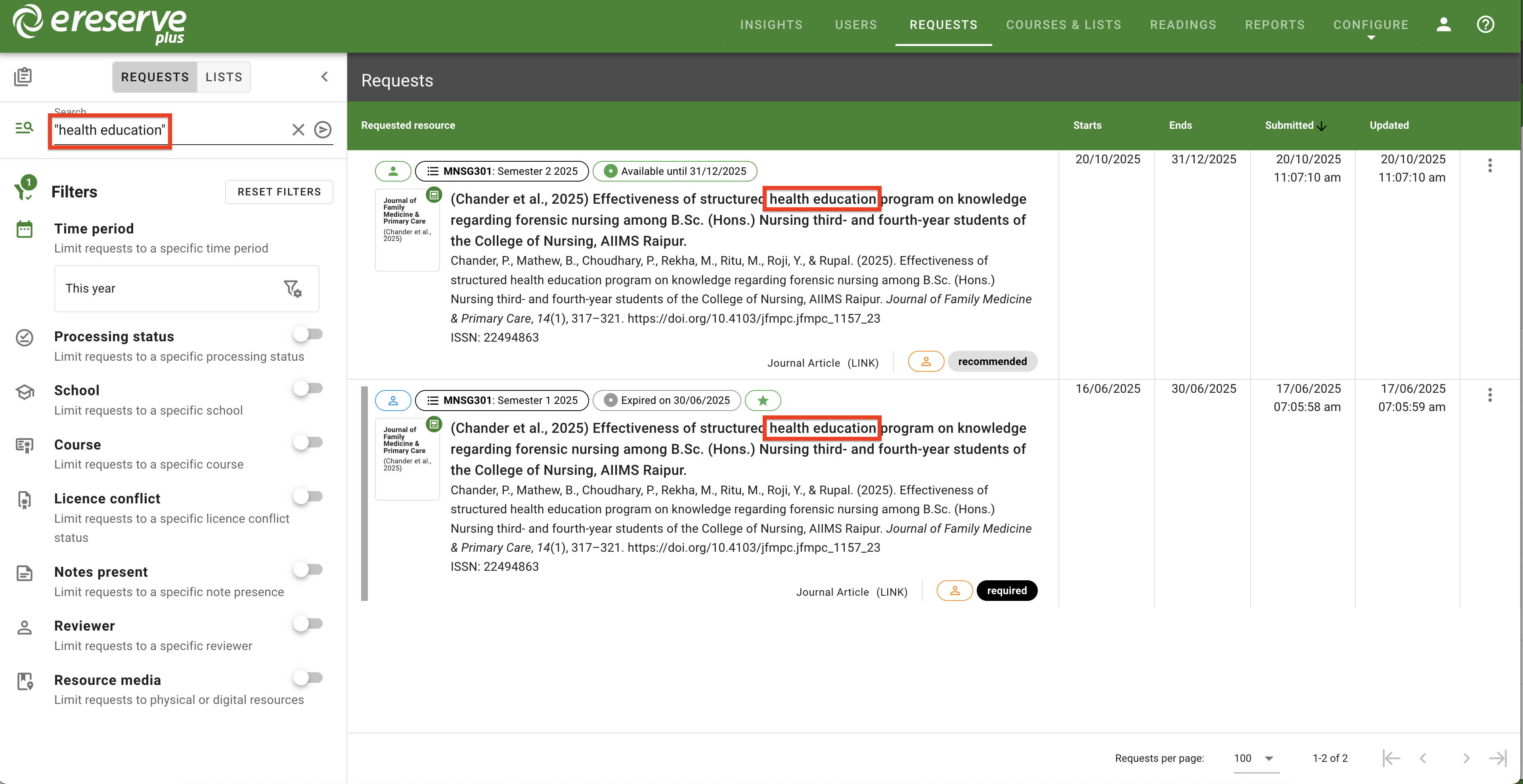
Adding quotation marks at the start and end of the search key terms (e.g. "Health Education") will limit the results down to return only requests with readings that contain the EXACT keywords.Figure 28 : The results for an exact search
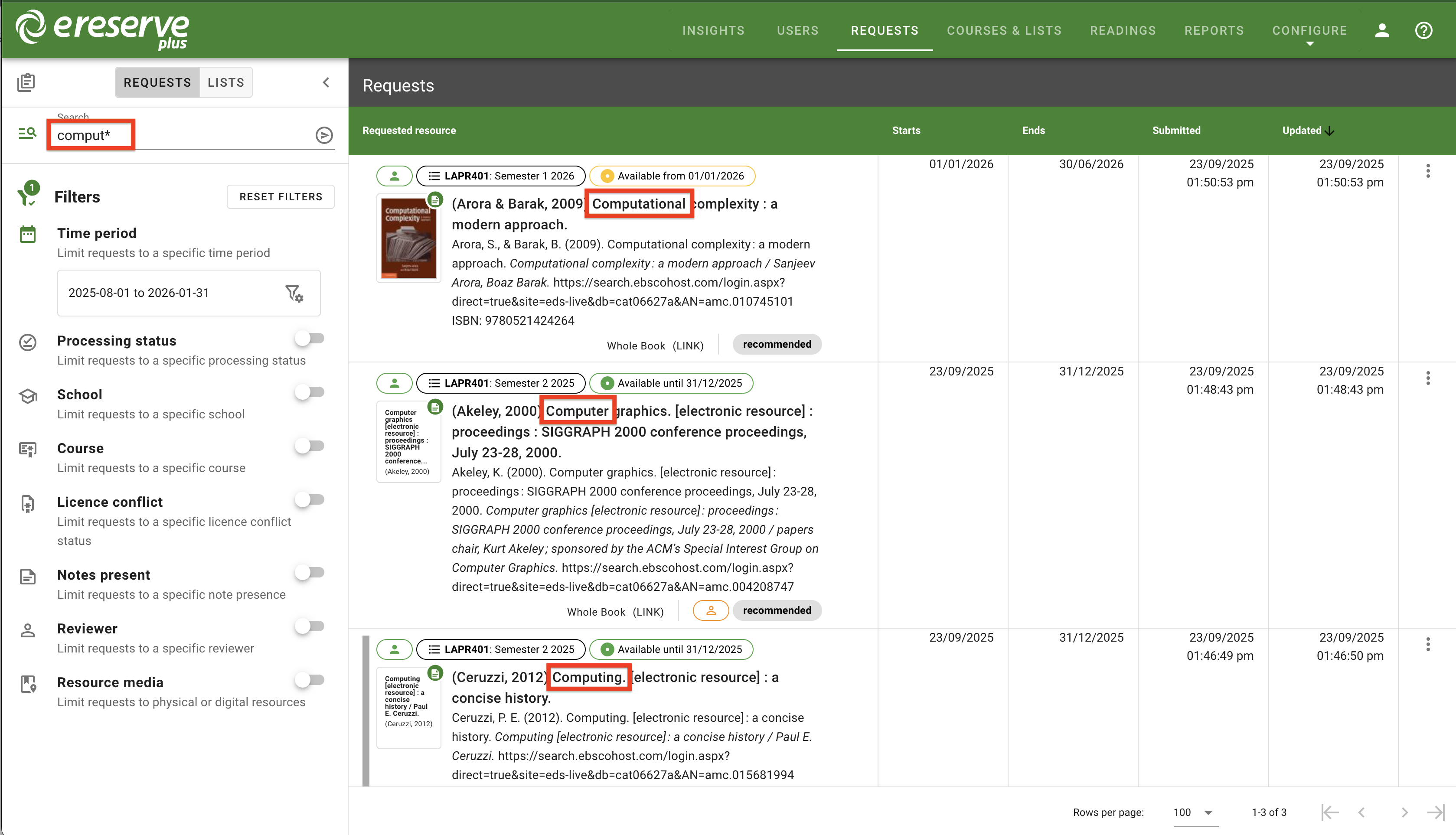
An asterisk can be used at the end of a word, which allows searching on a partial term. For example, searching educat* could return results such as educate, education, educator, etc.Figure 29 : The results for a partial search
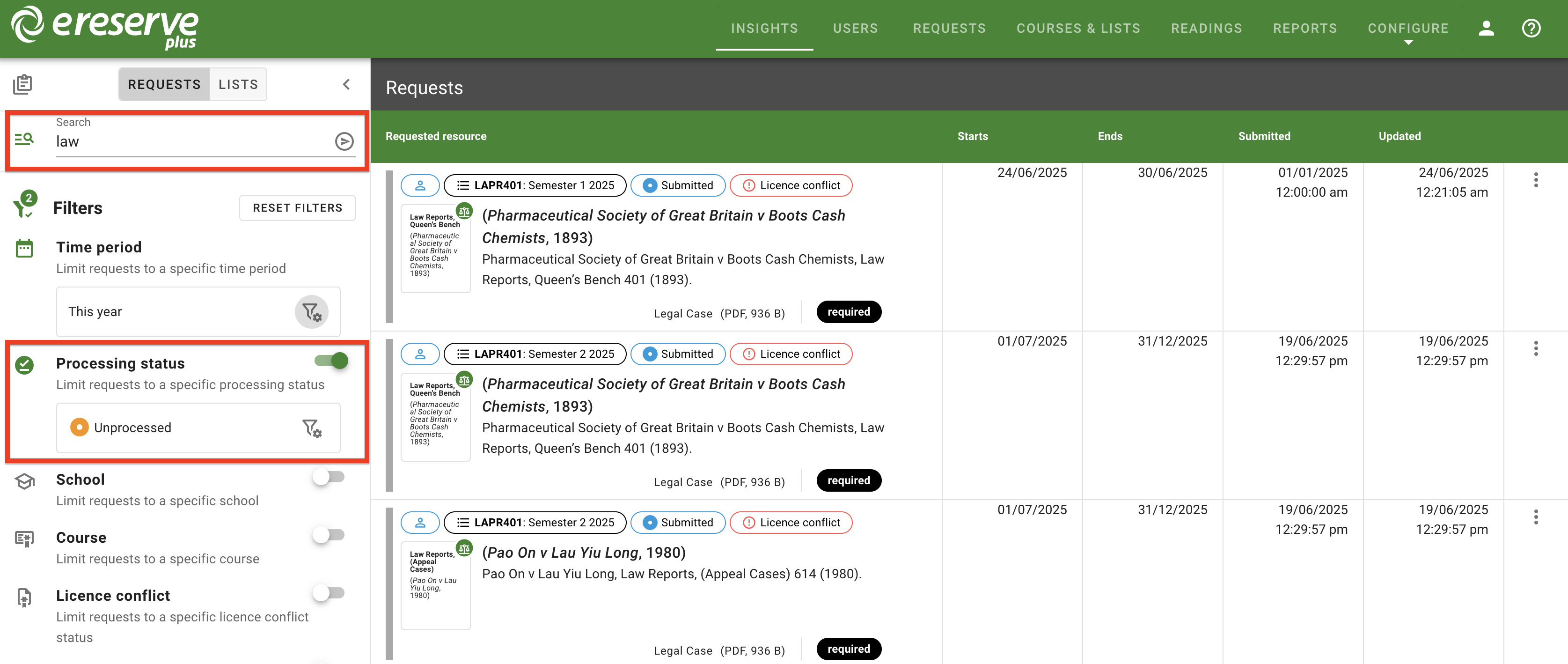
The search can also be combined with filters. For example, you can use a search phrase to narrow the page list down, then configure the filters to show only unprocessed requests for this month that have 'nobody' as the reviewer.
Figure 30 : The search and filters are both active and applied to the list of requests
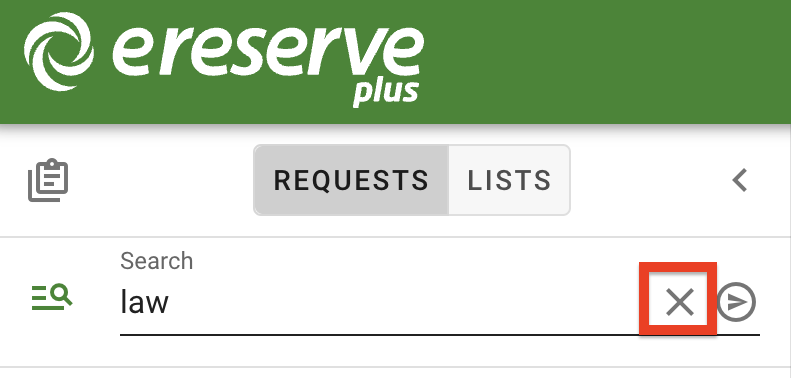
To clear the search, simply click the X on the right-side of the search bar. This will remove the search from the request list.